

Home Router: How to Choose Coverage, Speed, and Connections
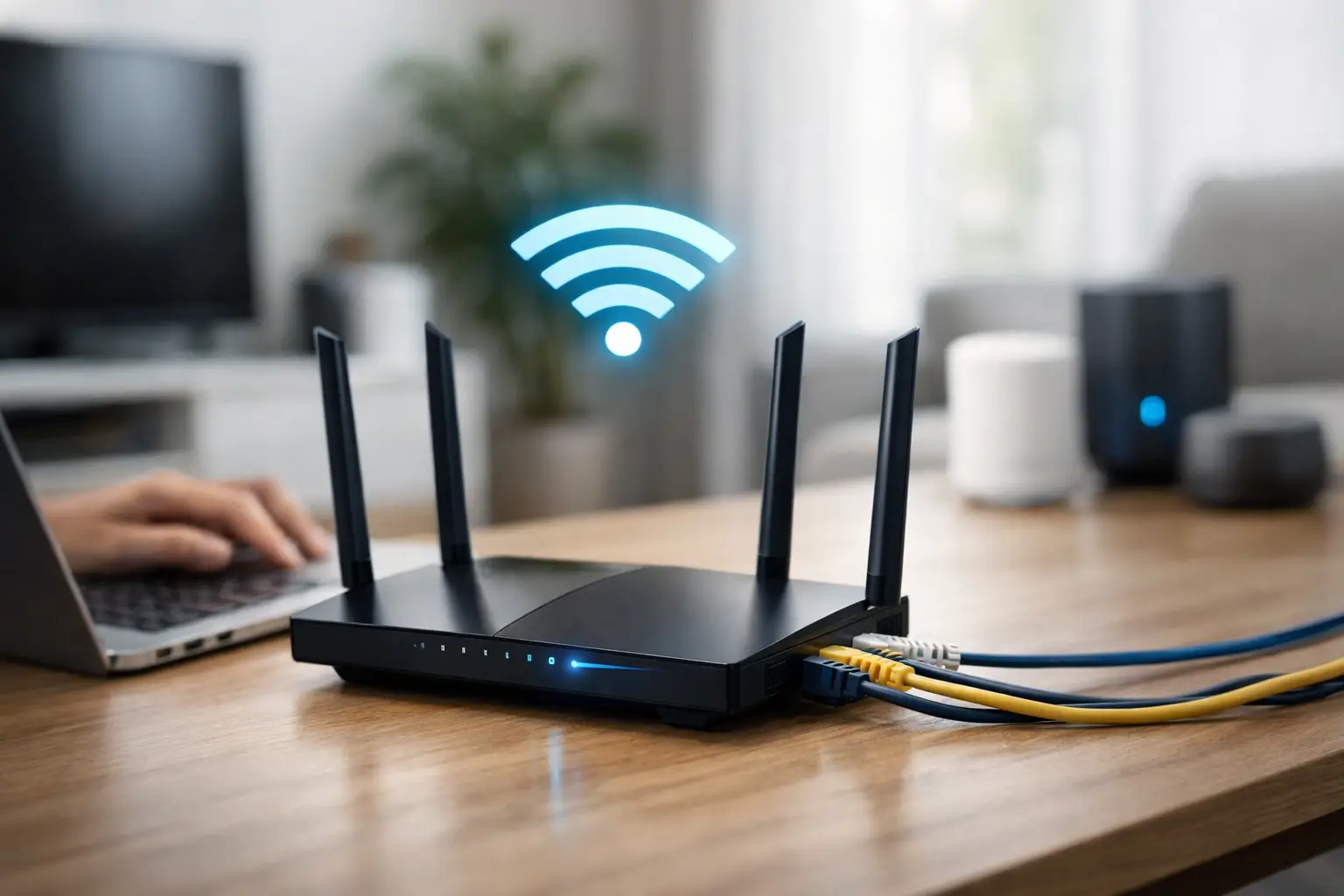
A screen freezing during a video call, gaming with high ping, or being in a room with lost reception are not always issues related to your internet provider. In many cases, the home router is the component that determines whether the package you’re paying for is actually reaching your computers, television, console, and smart devices in a stable manner. The right choice starts not with the number of antennas or impressive speed claims on the box, but rather with matching the router to the size of your home, the number of users, and how they connect to the network.
An appropriate router can serve a two-room apartment with several devices, a home office with video calls and cloud backups, or a multi-story house where gaming, streaming, and security cameras operate simultaneously. The differences between models lie in Wi-Fi standards, wireless range, processing power, the number of network ports, and management and security capabilities. Therefore, it’s wise to compare specifications rather than selecting based solely on price or the speed provided by your ISP.
When Should You Replace Your Router?
If the network disconnects frequently, if speeds in distant rooms are significantly lower than those near the router, or if the router overheats and struggles when several family members are connected simultaneously, replacing it may be a practical solution. Upgrading to a faster fiber package is also wasted on an old model limited to 100Mbps ports or outdated Wi-Fi standards.
It's essential to distinguish between a router, a modem, and an access point. In some connections, the infrastructure provider supplies a combined unit, while in others, there might be a separate modem or optical converter that connects to the router. Before purchasing, check what’s currently installed and what type of connection is available: a standard WAN port via Ethernet cable, a fiber connection through an ONT, or a provider-specific interface. In most cases, a standalone router connects to the provider unit via an Ethernet cable, but sometimes a Bridge mode or additional setup is required.
Home Router Size and Usage Patterns
In a small to medium apartment, a quality Wi-Fi 6 router placed centrally will generally provide good coverage. Avoid placing it inside a closed communication cabinet, next to a thick concrete wall, or behind a metal TV. An elevated, open location as close as possible to the center of the usage area affects performance just as much as the model itself.
In a large house, a long apartment, a fortified room, or a two-story home, a single router may be a compromise. In such cases, consider a Mesh system. This system consists of multiple units that create one network and automatically switch the device to the best reception point while moving throughout the home. It is particularly suitable when it’s impossible to run Ethernet cables between rooms.
However, Mesh systems have their requirements: the units should be placed within a distance where they still have good reception with each other. A unit placed in a room without reception will not magically create a fast internet connection. The ideal connection method between Mesh units is via Ethernet, known as Ethernet Backhaul. When possible, better coverage and performance for streaming, work, and gaming are achieved.
Wi-Fi 5, Wi-Fi 6, or Wi-Fi 7?
The Wi-Fi 5 standard is still adequate for basic use, but for new purchases, it’s generally better to choose at least Wi-Fi 6. It is more efficient in device-dense environments, supports parallel connections better, and offers improved performance in compatible models. In a household with phones, laptops, smart TVs, consoles, cameras, speakers, and smart home devices, this advantage is noticeable over time.
Wi-Fi 6E adds a 6GHz frequency band, which may provide less interference and higher speeds on supported devices, but its range is sometimes more limited through walls. It is suitable for users with advanced computers, phones, or equipment that supports it, but not necessarily for every home.
Wi-Fi 7 is a more advanced choice for those building a network for years to come, using very fast fiber, transferring large files on a local network, or operating gaming rigs and workstations. However, it is also pricier, and the full advantage depends on the devices themselves supporting the standard. If your phone and computer are Wi-Fi 5 or Wi-Fi 6, a Wi-Fi 7 router can still work well, but may not justify the price difference.
Internet Speed Is Not Everything
Numbers like AX1800, AX3000, or AX5400 usually describe theoretical combined wireless speeds across frequencies, not the actual speed that a single device will receive. Factors like distance, walls, neighbor congestion, the quality of the wireless adapter, and the server they connect to realistically affect the outcome.
For those with an internet package up to 1Gbps, it’s especially important to choose a model with at least a 1Gbps WAN port and Gigabit LAN ports. If the package exceeds 1Gbps, or if transferring large files between a computer and a NAS server, look for a 2.5GbE port in the WAN and sometimes also in the LAN. Otherwise, the wired network itself may become a bottleneck.
For competitive gaming or a dedicated work computer, a wired connection is still preferable to Wi-Fi. It reduces interference, improves stability, and helps maintain low latency. A good router should offer enough LAN ports for central devices or allow for easy connection to a network switch when more ports are needed.
2.4GHz vs. 5GHz
The 2.4GHz frequency generally reaches further and penetrates walls better, but it is more congested and offers relatively lower speeds. The 5GHz frequency is faster and suitable for computers, TVs, and consoles that are relatively close to the router. In tri-band models, there may also be a 6GHz band intended for new and supporting devices.
Instead of creating multiple network names and manually switching between frequencies, you might prefer a router with Band Steering. This feature manages connections and directs devices to the appropriate frequency based on distance, congestion, and capability. It’s not perfect in every environment, but it often simplifies network management in homes with many users.
Specifications to Check Before Purchase
Beyond the wireless standard, there are several points that differentiate a cheap router from a solution suitable for real load:
- Network Ports: Check the WAN port speed and the number of LAN ports. For homes with fast fiber, 2.5GbE could be a worthwhile investment.
- Processor and Memory: These aren’t always highlighted in advertisements but are significant when running VPNs, parental controls, QoS, managing dozens of devices, or continuous data transfers.
- Security and Updates: Prefer a model with WPA3, easy firmware updates for management, and the option to disable unnecessary remote management.
- Guest Network and Parental Control: A separate network for guests or IoT devices can improve security and management. Parental controls are helpful for setting browsing times or blocking content categories.
- VPN and QoS: VPNs are suitable for remote work and certain security scenarios. QoS allows prioritizing video calls or gaming during network congestion.
External antennas can help direct reception, but the number of antennas alone is not a quality indicator. Even an internal router without prominent antennas can offer excellent coverage, depending on wireless design and location in the home. It's advisable to check technical reviews and the manufacturer’s coverage specifications but remember that no guarantee applies equally to every structure.
Proper Configuration Equals Better Performance
After installation, immediately change the admin password and username if the model permits it. Set a strong Wi-Fi password, enable WPA3 or WPA2/WPA3 based on device compatibility, and update the firmware. Such updates may fix stability issues and security vulnerabilities, and sometimes improve compatibility with new equipment.
If there are connectivity issues, start with a simple check: move the router to a more open location, keep it away from microwaves and congested wireless equipment, and compare speeds using a wired connection versus Wi-Fi. If the wired connection is fine but Wi-Fi is weak in parts of the house, extending Mesh or adding an access point is usually a better decision than upgrading your internet package.
When comparing models at TopMarket, first tailor the type of connection and fiber speed, then the coverage area and number of devices, and only finally consider premium features. A router chosen based on real needs will allow the home network to run smoothly—just until the moment everyone at home decides to connect simultaneously.

