

 Install the app
How to Calibrate Your Monitor for Professional Graphics Work with Precisio
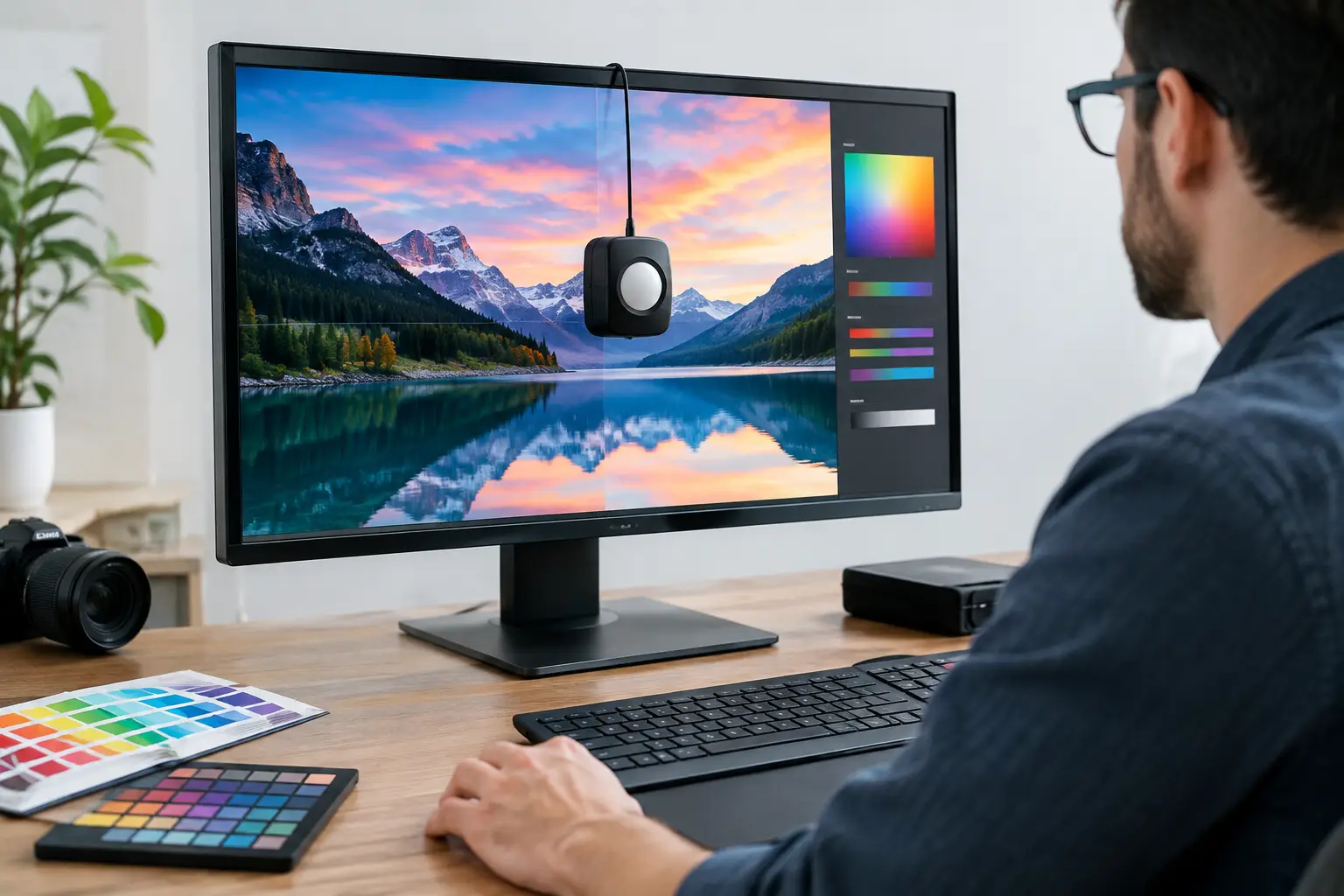
A file that looks perfect on screen but prints too dark, too warm, or undersaturated isn’t necessarily a problem with the printer or print shop. In many cases, the display simply shows colors and brightness that don’t match a standard. That’s why anyone working in graphic design, photography, video editing, or drafting should know how to calibrate a monitor for professional graphics rather than relying on the manufacturer’s default settings.
Proper calibration won’t turn every monitor into a studio-grade display, but it can make the image more consistent and reliable. That makes a practical difference: fewer revisions with clients, less trial and error with printouts, and more accurate decisions about color, contrast, and exposure.
Why Monitor Calibration Affects the Final Result
New monitors usually come with a display mode designed to stand out in a store. Colors may be overly saturated, whites excessively cool, and brightness much higher than necessary for extended work. This can look impressive in a game or movie, but it can be misleading when editing product photos, preparing a printed catalog, or creating brand assets.
Professional graphics work isn’t about making an image look “beautiful” based on instinct alone; it’s about achieving a predictable display. When your monitor is calibrated, a file opened on another workstation or sent to print is more likely to look the way it did while you were working on it. Other factors still matter, including paper type, ink, lighting, and print shop settings, but calibration removes one major source of uncertainty.
Calibration is valuable for digital work, too. Designers creating banners, online stores, or user interfaces need to make sure colors aren’t too dark or too bright for most users. Consistent color is especially important for branding, commercial photography, and products where color influences purchasing decisions.
Before You Calibrate a Monitor for Professional Graphics
Calibration doesn’t begin with clicking a button in an app. Your workspace and monitor both affect the measurements, so it’s worth preparing them first.
Let the Monitor Warm Up
Turn on the monitor at least 20 to 30 minutes before calibration. Many displays need time to stabilize their brightness and color temperature. For a new or large professional monitor, waiting half an hour is a safer choice.
Set Up Consistent Room Lighting
You don’t need to work in a completely dark room—in fact, that can be a mistake. Aim for moderate, consistent ambient light, with no direct sunlight on the panel and no colored lamp shining onto it. If you work near a window, try to maintain similar lighting conditions during the hours when you do most of your work.
A monitor facing a bright window can prompt you to increase its brightness to compensate for glare. Later, when you work in the evening, the display may look too bright, leading you to create files that print too dark. Simple window shading and even lighting can solve much of the problem.
Turn Off Aggressive Display Modes
Before measuring, reset the monitor to its factory settings or select a custom mode. Turn off gaming modes, dynamic contrast, artificial sharpening, automatic blue-light filters, and power-saving features that change brightness. These features may be useful for viewing, but they can undermine the consistency required for design work.
If the monitor is connected through an adapter, docking station, or laptop, check that the graphics card isn’t applying a special color mode either. Set the output to the full color range and make sure the digital connection is working properly. Software calibration can’t compensate for a faulty cable or adapter.
How to Calibrate a Monitor for Professional Graphics: A Step-by-Step Guide
The most accurate method is to use a colorimeter. This device sits on the screen, reads a series of displayed colors, and creates a custom color profile. You can make basic adjustments without specialized equipment, but for work intended for clients, print, or commercial photography, a colorimeter is a worthwhile investment.
- Choose the right color target. For most web and general design work, sRGB is a good starting point. If your monitor has a wide color gamut, don’t assume it displays sRGB accurately by default. Advanced photography or professional print work may require a different target, depending on your software, camera, and print shop requirements.
- Set the white point. A common target is D65, which corresponds to a color temperature of around 6500K. It’s suitable for most screen-based work. Professionals working primarily with print under controlled viewing conditions may prefer a warmer target, such as D50. Don’t choose it automatically; the right setting depends on how and where you’ll view the prints and on your production workflow.
- Adjust brightness for your work environment. A luminance level of 120 cd/m² is a common starting point for an office or studio with moderate lighting. You may want to go slightly lower in a darker room or higher in a very bright one. Excessive brightness is one of the most common reasons prints look darker than they do on screen.
- Choose a gamma of 2.2. This is the standard target for most operating systems, design software, and digital displays. Gamma determines how midtones are displayed, so changing it can affect the overall look of an image even when the whites and blacks appear correct.
- Take the measurements without interruptions. Clean the screen, position the colorimeter according to the software instructions, and keep shadows or external light from falling on the sensor. During measurement, the monitor will display a series of color patches. Don’t change any settings or move windows until the process is complete.
- Save and activate the color profile. The process usually creates an ICC profile. Make sure the operating system assigns it as the default profile for the correct monitor. If you use two monitors, each one needs its own profile. Never copy a profile from one monitor to another, even if they’re the same model.
- Check the results visually and with real files. Open images with skin tones, grays, deep shadows, and clean whites. Check gradients from dark to light and look for abrupt color shifts. Then compare the image with a test print or another calibrated display, if available. The goal isn’t to make the image look more dramatic, but to view it in a balanced, consistent way.
Manual Calibration vs. a Colorimeter
Operating systems include basic calibration tools that ask you to adjust brightness, contrast, and gamma by eye. These can improve a display that hasn’t been set up at all, especially on a home computer or temporary workstation. However, your eyes quickly adapt to cool whites, strong colors, and high brightness, making it difficult to achieve accurate, repeatable results this way.
A colorimeter provides objective measurements and creates a color profile. It’s the right solution for designers, photographers, video editors, prepress professionals, and businesses that need to present catalogs or marketing materials consistently. If you work with color every day, look for a monitor with extensive adjustment options, suitable color gamut coverage, and reliable display connections. Don’t rely on a high resolution specification alone.
There’s also a difference between software calibration and hardware calibration. With software calibration, the operating system corrects some aspects of the display through the graphics card. With hardware calibration, available on some professional monitors, calibration data is stored directly in the display. Hardware calibration is generally more accurate and stable, but it costs more and requires a compatible model.
Choosing Calibration Settings for Your Type of Work
Designers creating content for the web should generally focus on sRGB, moderate brightness, and viewing their work in color-managed applications. Photographers editing files for print should coordinate with the lab or print shop, including paper type and viewing conditions. Without the correct print profile, even a calibrated monitor can’t guarantee a perfect match.
For video editors, the color standard depends on the output. Web content, broadcast, and television displays don’t necessarily use the same targets. For drafting, 3D work, or CAD, accurate color is still useful, but resolution, panel uniformity, and comfort during extended work may be higher priorities.
A fast gaming monitor can also be suitable for casual design work, but not every model offers the color uniformity, adjustment range, or gamut coverage needed for professional graphics. Conversely, a professional monitor isn’t always the best choice for competitive gaming. Choose based on your primary use, not just one standout specification.
Common Calibration Mistakes
The first mistake is calibrating once and never checking again. A monitor’s backlight changes over time, especially after many months of use. Another common mistake is increasing brightness just to make the image look more impressive. When working with clients or for print, accuracy matters more than a momentary visual effect.
Using the wrong color profile is another frequent problem. A monitor connected to a laptop and then to a docking station or another computer may need to be checked again. Don’t assume the operating system will automatically apply the correct settings after every connection change.
Recalibrate every one to three months, depending on the monitor’s age, how often you use it, and the level of accuracy your work requires. After calibration, keep your workspace as consistent as possible: use the same display mode, similar lighting, and fixed brightness settings. A calibrated monitor isn’t just another specification—it’s a work tool that helps you make more confident color decisions on every file you create.
- How to Calibrate Your Monitor for Professional Graphics Work with Precisio
- How to Choose a Wireless Network for a Retail Store?
- Smart Homes That Truly Fit Your Home and Budge
- <h1>Case Study: An Office Computer Upgrade That Saved Time and Money</h1>
- Recommended Gaming Mice for Large Hands: How to Choose the Right One

