

 Install the app
Example of an Office Backup System for Small and Medium Businesses
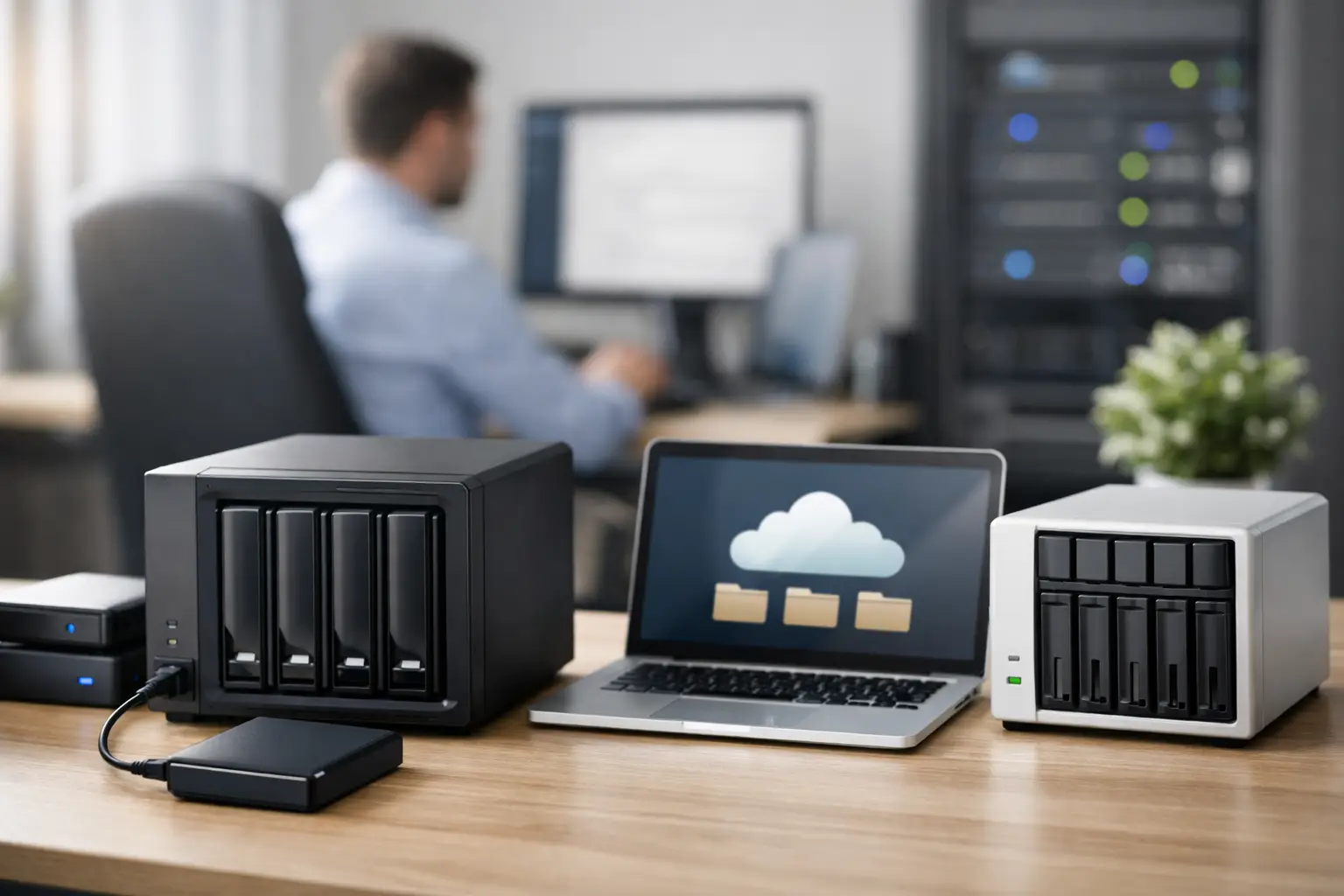
A deleted quote file, a stolen laptop, or a ransomware attack on the network folder can bring an entire office to a standstill in minutes. A good office backup system goes beyond just having an external drive connected to a single computer. It combines fast local storage, off-site copies, continuous monitoring, and equipment tailored to the number of users, the rate of growth, and the type of data in the business.
Small and medium-sized businesses do not need to purchase an enterprise-grade server room infrastructure to receive serious protection. The right choice begins with understanding what to back up, how long the business can afford to be down, and how much data can be lost in the event of a failure.
What should an office backup system protect?
Before selecting a NAS, hard disks, or cloud service, it’s essential to map out the data. In many offices, a shared file folder is only part of the picture. There are also executive computers, salespeople's laptops, databases, accounting software, CAD or graphic files, email accounts, and Microsoft 365 or Google Workspace services.
The difference between types of information affects the backup method. Regular Office files can be backed up daily, whereas an active database or sales system may require backup every few hours. The recovery time is also crucial: if employees need immediate access to files, cloud-only backups may be too slow when restoring hundreds of gigabytes.
Two questions help define the specification: how many hours of work can be lost, and how long can the business operate without access to information? The answers guide the backup frequency and the required level of redundancy.
An example of an office backup system for 20 users
Imagine an office with 20 employees, 15 desktops and laptops, a shared file folder of about 1TB, usage of documents, PDFs, images, and accounting files, and no complex server setup. The goal is to quickly restore a single file, get a malfunctioning computer back to work, and also protect against a physical incident in the office.
The proposed system is built from four complementary layers:
| Component | Example Specification | Role in the Setup | |---|---|---| | Central Storage | NAS with at least 4 bays, 2.5GbE connection | Storing shared files and local backups | | Internal Disks | 4 NAS disks of 8TB each in RAID 5 or RAID 6 configuration | Usable capacity with resilience to failure of one or two disks | | External Target | Business cloud storage or another NAS at a remote site | Protection from fire, theft, flooding, and ransomware attacks | | Uninterruptible Power Supply | UPS suitable for NAS, router, and switch | Proper shutdown during power outages and prevention of data damage |
The local storage: A NAS with four bays
A NAS with four bays is an effective starting point for an office of this size. With four 8TB disks, a RAID 5 configuration provides a usable capacity of approximately 24TB before accounting for system and file overhead, while RAID 6 offers around 16TB but can withstand the failure of two disks. For an office with critical information and large disks, RAID 6 provides superior safety. For an office primarily needing capacity and equipped with a sound external copy, RAID 5 may be a more balanced choice.
It is important to distinguish between RAID and backup. RAID maintains operational continuity in the event of a disk failure but does not recover deleted files, protect against ransomware encryption, or assist in the case of NAS theft. It is a component of availability, not a substitute for additional copies.
It’s advisable to choose a model with expandable memory, support for snapshots, dual network ports or a 2.5GbE connection, and an operating system that allows for managing permissions, alerts, and backups to an external target. In an office that produces heavy video, graphic, or CAD files, a 10GbE connection can save waiting times but requires compatible switches and network components.
Backing up computers, not just the network folder
A common mistake is to only back up the files on the server or NAS. In reality, employees often store documents on their desktops, in download folders, or within local applications. A laptop that falls, is stolen, or is encrypted may contain the latest version of important work.
The solution is a backup software with an agent for every critical workstation. A weekly system image backup can be set alongside daily or more frequent backups of user folders. This way, in the event of a disk failure, individual files can be restored, or the entire computer can be returned to working condition without lengthy manual installation of the operating system, drivers, and applications.
There is no need to back up every computer at the same level. A reception workstation based on a cloud system requires less capacity than a graphic computer with local projects. The specification should reflect the value of the data, not just the number of computers.
The offsite copy
The offsite copy is the component that differentiates convenient backup from a true recovery plan. The NAS can be backed up to a business cloud storage, a remote server, or another NAS at a different location. The choice depends on capacity, internet speed, and the business’s security policy.
Cloud storage is particularly suitable for encrypted and automated backups, without the need for maintaining an additional site. Conversely, restoring large volumes can take a long time if the internet line is limited. A second NAS at a remote site may sometimes allow faster restoration but increases hardware, electricity, maintenance, and communication costs at two locations.
In any case, encryption, two-factor authentication for the management account, and separate permissions for users should be implemented. It is also advisable to set up versioning or an immutable target for a defined period. If ransomware encrypts the files and the backup system immediately overwrites the intact copies, backup without a version history will not provide the expected protection.
The 3-2-1-1-0 rule in practice
The common practice rule is to have three copies of the data on two types of media, with one copy stored offsite. For businesses seeking an additional layer of protection, the 3-2-1-1-0 version can be applied: an additional copy that is offline or immutable, and zero errors confirmed during backup checks.
In our example, the first copy is the active files on the NAS. The second copy is a separate local backup of the workstations or snapshots. The third copy resides in the cloud or on a remote NAS. The immutable copy could be a versioning policy in the cloud or media that is disconnected after periodic backups.
The last part—zero errors—is critical. A backup marked as “completed” in the interface is not necessarily a backup that can be restored. At least once a month, a restore check should be performed for a single file, with broader checks of folders, computers, or business systems conducted several times a year.
How to choose capacity without overspending?
Start by measuring the existing data volume, then add space for growth, previous versions, and computer backups. An office currently holding 1TB of files may not be satisfied with 2TB. If daily versioning, system images, and large files are retained, the backup volume can increase rapidly.
A reasonable starting point is to plan for three to five times the usable capacity of active data, depending on the frequency of changes and the retention policy. An office that exchanges few documents can manage with less, while a production, design, or marketing office with heavy media files will need a larger margin.
When selecting disks, use disks designed for continuous operation in NAS environments rather than basic desktop drives. It’s advisable to purchase disks from the same series and with the same capacity, but not necessarily from the same batch, and to keep an alternative disk available if information availability is particularly crucial. Warranty, load rating, and suitability for array operation are just as important as price per terabyte.
Settings that must be in the system
After installing the hardware, a structured setup process is required. Create a separate admin account from the daily use account, enable two-factor authentication, set email alerts for backup failures, low capacity warnings, or disk errors, and ensure that the clock and automatic updates are functional.
A practical backup policy for such an office may include backing up work files every two hours, daily backups of workstations, daily retention for one month, weekly copies for three months, and monthly copies for a year. This is not a fixed formula: in a business with document retention requirements or sensitive information, longer retention periods and stricter access restrictions may be necessary.
Don’t forget about cloud services. Deleting a file from OneDrive, SharePoint, or an inbox can sync to all users. The recycle bin and versioning provide partial protection but are not always a substitute for dedicated backup of Microsoft 365 or Google Workspace services.
When to consider a more advanced solution?
If the business operates a virtual server, an ERP system, a large database, security cameras, or dozens of remote employees, a basic NAS setup may not be sufficient. In such cases, consider a dedicated backup server, backup software with business application support, faster storage, and a recovery plan that defines who decides, who restores, and what the priorities are in case of failure.
Even for a small business, it’s advisable to designate a responsible person, either internal or external, who monitors backup reports rather than just installing the system on day one. Quality equipment, from NAS and disks to UPS and switches, is a worthwhile investment only when set up, monitored, and tested over time.
A good backup system is not measured on the day it is purchased, but on the day a file, computer, or entire office needs to be restored to operation. Plan for recovery in advance, test it in practice, and choose components that will allow the business to grow without leaving the data behind.
- How to Choose a Wireless Network for a Retail Store?
- Smart Homes That Truly Fit Your Home and Budge
- <h1>Case Study: An Office Computer Upgrade That Saved Time and Money</h1>
- Recommended Gaming Mice for Large Hands: How to Choose the Right One
- When to Repair or Replace Your Computer Monitor: A Repair Shop’s Guide

