

 Install the app
When to Repair or Replace Your Computer Monitor: A Repair Shop’s Guide
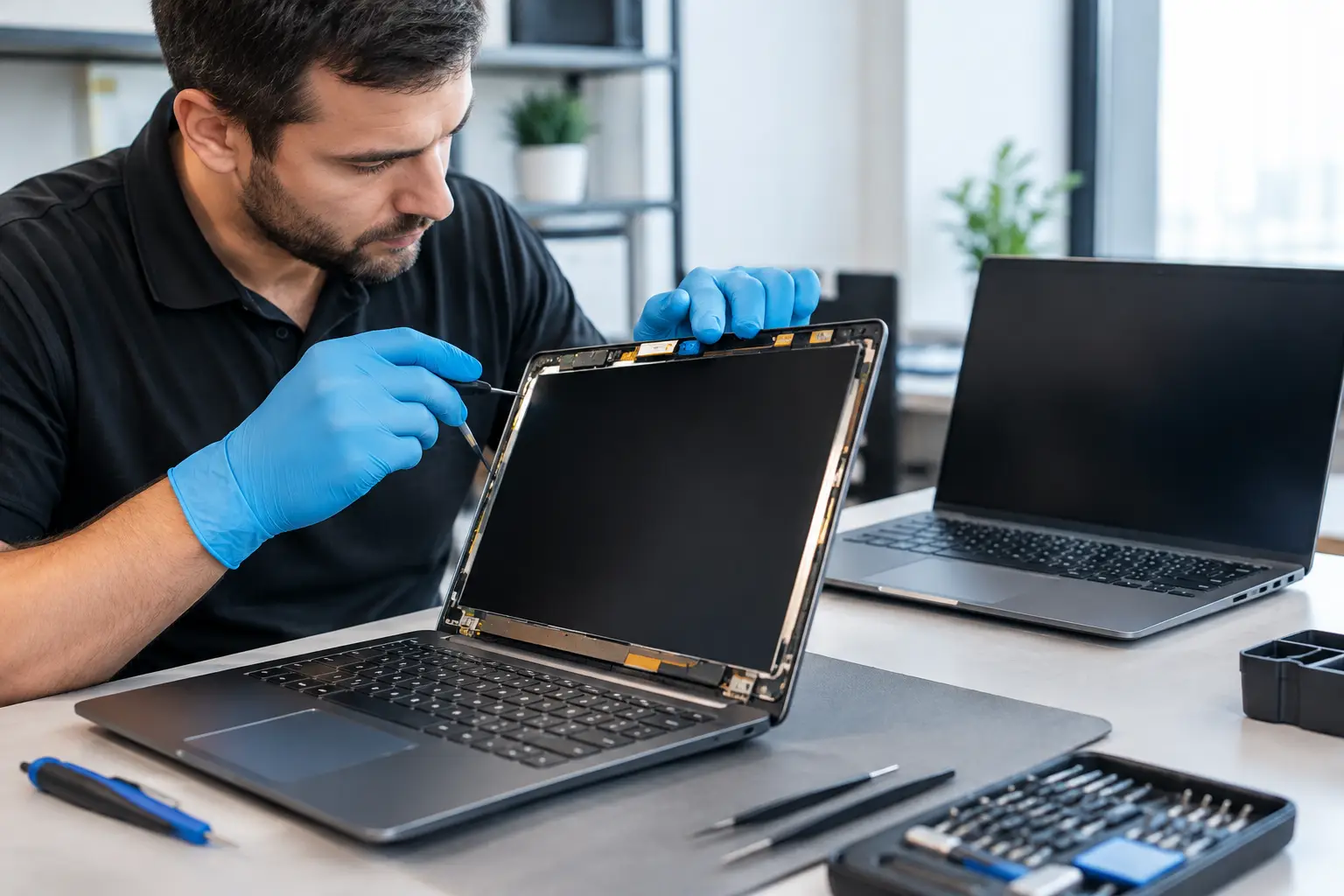
A computer monitor that stays black, flickers, displays lines, or has a cracked screen can bring work, gaming, or study to a sudden halt. Before rushing to buy a new monitor or take it to a repair shop, it’s worth identifying the problem, checking what you can troubleshoot at home, and weighing the repair cost against the monitor’s age and the performance you can expect afterward.
The decision isn’t always straightforward. Repairing a large professional display, a high-refresh-rate gaming monitor, or a premium high-resolution model can be well worth it. For an older, entry-level monitor, however, labor and replacement parts may cost nearly as much as a new model with a full warranty and more up-to-date technology.
Before Visiting a Monitor Repair Shop: Basic Checks
Not every display problem is caused by the monitor itself. The issue may be a cable, connection, operating system setting, or graphics card. A few quick checks can save you time and unnecessary diagnostic costs.
Start by turning both the monitor and computer off and on again. Then check that the cable is securely connected at both ends. If possible, try a different cable or port—for example, switch from HDMI to DisplayPort, or vice versa. If your monitor has an external power adapter, check its connection and the wall outlet as well.
Connect the monitor to another computer, game console, or laptop. If the problem persists with a different video source, it’s more likely to be caused by the monitor. If the display works normally with another device, the issue may lie with the graphics card, computer, or display settings.
Another useful check is to open the monitor’s built-in settings menu. If the menu itself flickers, shows lines, or is barely visible, the monitor likely has an internal fault. If the menu looks normal but the image from the computer doesn’t, start by checking the cables, graphics driver, and video source.
Common Monitor Problems and What They May Indicate
A black screen doesn’t necessarily mean the monitor has completely failed. The power indicator can show whether the monitor is receiving power. If an image appears briefly and then disappears, the backlight may be faulty. This type of repair may be possible on modern LED monitors, but the cost depends on the screen size, parts availability, and the monitor’s internal design.
Vertical or horizontal lines, colored patches, and a distorted image can be caused by an internal board, an internal cable, or the display panel itself. A cable or control-board fault may be worth repairing. A fault in the panel—the main display layer—is usually the most expensive to fix and may not be cost-effective.
Flickering, changes in brightness, and intermittent signal loss may be related to the power supply, electronic board, or an unstable connection. For high-refresh-rate monitors, also check that the computer is set to the correct refresh rate and that you’re using a compatible cable. An unsuitable cable can limit resolution, cause flickering, or make the image disappear, even when the monitor is working properly.
A crack, break, or spreading black spot after an impact almost always indicates panel damage. A repair shop can check whether a replacement panel is available and how much it would cost. However, for standard office monitors, the repair may cost nearly as much as a new model. Don’t press on the damaged area or try to take the monitor apart yourself—this could worsen the damage and put you at risk.
When Is Monitor Repair Worth It?
Whether a repair makes sense depends on four factors: the final repair cost, the price of a replacement monitor with similar specifications, the monitor’s age, and the warranty offered on the repair. Ask for a quote that includes diagnostics, labor, parts, and tax, and check whether the diagnostic fee will be deducted if you approve the repair.
Repair is more likely to be worthwhile for a relatively expensive monitor, such as an extra-large display, curved monitor, professional photo or video editing monitor, 4K monitor, or high-refresh-rate gaming monitor. A relatively new monitor that has only recently fallen out of warranty may also be worth repairing, especially if the problem is limited to the power supply or an electronic board.
Replacement is usually the better choice if the panel is broken, the monitor is several years old, or the repair costs around half to two-thirds as much as a new model with similar specifications. A new monitor may also offer features the old one lacks, such as USB-C connectivity, a higher refresh rate, improved color reproduction, an ergonomic stand, and a manufacturer’s warranty.
There’s no single rule that works for every buyer. A basic 24-inch monitor for office work should be assessed differently from a 32-inch gaming or graphics display. Always compare the repair cost with a monitor that has similar specifications—not just the cheapest model in the category.
How to Choose a Monitor Repair Shop
A professional repair shop will typically ask for the exact monitor model, a description of the problem, and sometimes a photo or video showing the issue. The model number is usually printed on the back of the monitor or listed in its system menu. This information can help the shop check whether suitable parts are available before you bring the monitor in.
Make sure the shop provides a clear explanation of the diagnosis and proposed repair. Ask whether it will use an original, compatible, or refurbished part, and what that means for reliability and warranty coverage. A quality compatible part may reduce the cost, but if you use the monitor professionally—especially where color accuracy matters—ask in advance whether the repair could affect display quality.
Check the warranty period for both the repair work and replacement parts. A very short warranty or no written guarantee isn’t automatically a deal-breaker, but it should factor into your decision and the price you’re willing to pay. For physical damage, ask for a clear assessment before ordering a replacement panel: panels may be unavailable, and replacement isn’t always cost-effective.
For businesses, downtime can matter just as much as the repair cost. A service desk, checkout station, control room, or small office can be affected by a delay of several days. Ask about diagnostic turnaround times, parts availability, and whether a temporary replacement monitor is available. In some cases, buying a new monitor right away and keeping the old one for repair as a backup may be the more practical option.
What to Prepare Before Taking Your Monitor in for Repair
Before handing over the monitor, take a photo or video of the problem and note when it occurs: immediately after startup, only once the monitor warms up, at a particular resolution, or with a specific connection. This information can speed up diagnosis and help prevent a situation where the problem doesn’t appear at the repair shop.
You don’t need to provide passwords or personal information, since monitors generally don’t store user files. However, if you have a smart monitor or a display that functions as a standalone device, consider restoring it to factory settings after saving any settings you need. Remove stands, adapters, and accessories that aren’t needed for testing unless they’re directly related to the problem.
When transporting a large monitor, use the original packaging if you still have it. Otherwise, protect the panel carefully and avoid placing it face down without adequate padding. Additional damage during transport could turn a simple fault into a much more expensive repair.
When It’s Better to Replace Your Monitor
If you decide to buy a new monitor, use the opportunity to choose specifications that suit your needs rather than simply replacing your old model with the same one. For office work, a 24- to 27-inch screen, an appropriate resolution, and an adjustable stand can make a full workday more comfortable. For gaming, consider refresh rate, response time, panel type, and support for synchronization technologies. For design, video editing, and CAD, resolution, color gamut, and color accuracy after calibration are especially important.
It’s also worth considering connectivity. A modern laptop may benefit from a USB-C connection that supports video and, in some cases, charging. A gaming setup may need DisplayPort to take full advantage of the maximum refresh rate. TopMarket’s range of monitors makes it easy to compare screen sizes, resolutions, and technical features before deciding whether to repair or upgrade.
A faulty monitor isn’t always beyond repair, but repairing it isn’t always the best deal. A careful assessment, a detailed quote, and a comparison with a new monitor that meets your needs can help you choose a solution that gets you back to work, study, or gaming without paying twice for the same decision.

