

 Install the app
Video Editing Computer Buying Guide by Budge
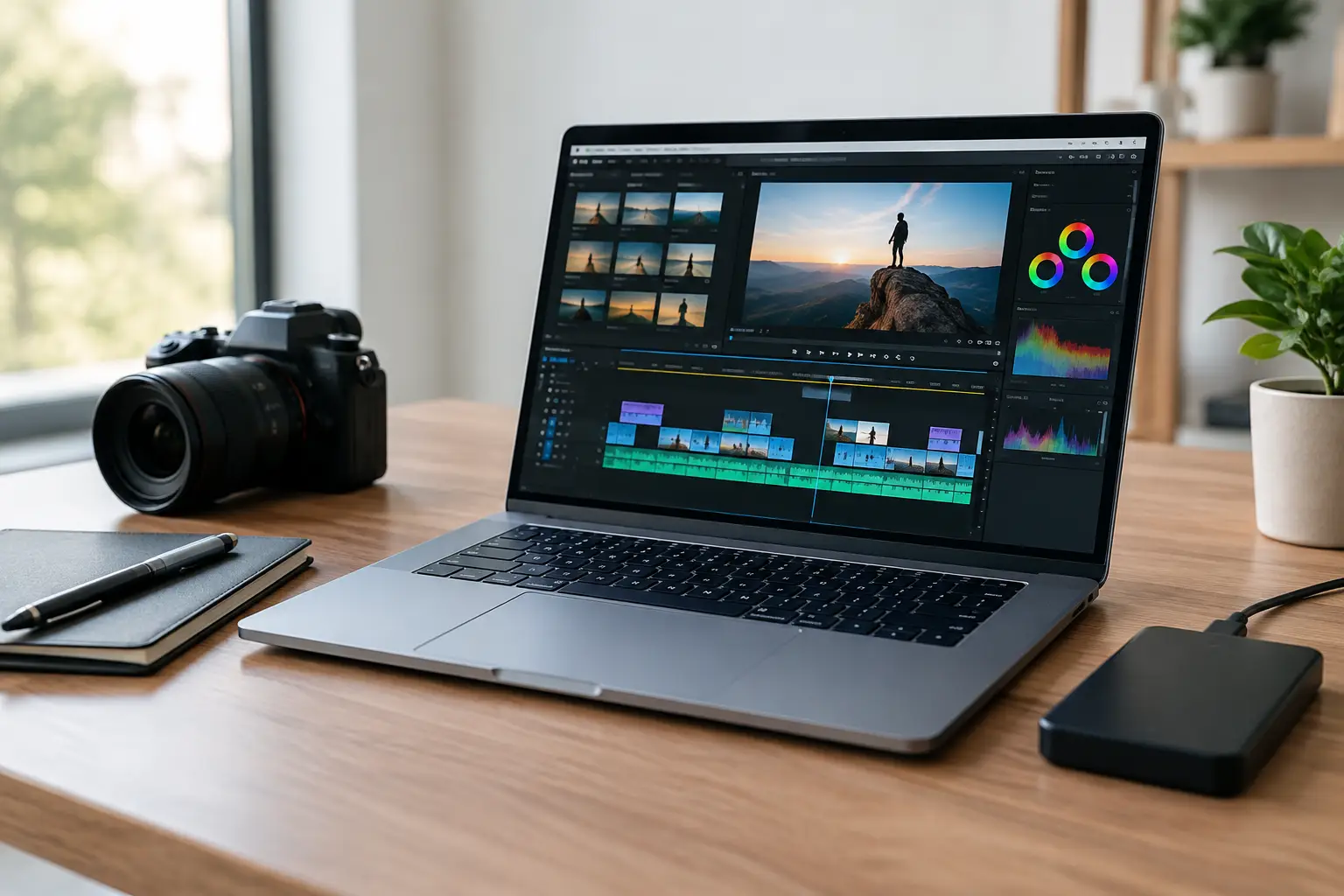
A video project may seem straightforward—until you add 4K footage to the timeline, then layer in color corrections, titles, music, and effects. At that point, an underpowered computer doesn’t just increase export times; it slows down your entire workflow. Any guide to buying a computer for video editing should start with one simple question: What kind of footage do you actually edit, and how often?
Creating short social media videos doesn’t necessarily require the same workstation as producing long-form 4K videos, commercials, or multicamera projects. The right choice is a balanced combination of processor, graphics card, memory, storage, display, and upgrade options—not simply the most expensive component on the shelf.
A Video Editing Computer Buying Guide Starts with Your Workload
Before comparing models, define the types of projects you work on. Full HD editing with basic cuts, captions, and light color correction can run well on a quality mid-range computer. By contrast, 4K editing, heavy raw footage, effects, animation, multiple layers, or running several applications at once calls for a significantly more powerful system.
Your software matters, too. Different editing programs distribute workloads differently between the processor and graphics card. That’s why choosing a computer based only on core count or graphics memory capacity isn’t enough. Check which tools you use, whether you rely on hardware acceleration, and whether you expect to work with more demanding footage in the future.
Waiting time matters as well. A computer that delivers smooth playback can save valuable time on every project and reduce the need to create proxy files. If editing is part of your business, speed isn’t just a convenience—it’s an operating cost.
The Processor: The Foundation of Editing Performance
The processor handles many editing tasks, including importing files, timeline playback, transcoding, encoding, and exporting. For basic editing, choose a modern mid-range processor or better with at least 6 cores. For frequent 4K editing, effects, or long projects, look for a processor with 8 or more cores and a high clock speed.
Don’t focus on core count alone. Single-core performance affects software responsiveness and many timeline operations, while additional cores are especially helpful for rendering, exporting, and multitasking. A well-balanced processor from a recent generation is usually a better choice than an older model with impressive-looking specifications on paper.
In a desktop computer, investing in a powerful processor can extend the system’s useful life and leave room for future upgrades. With a laptop, consider the cooling system, too: a high-end processor in a slim chassis may slow down during sustained workloads if cooling isn’t adequate.
Graphics Card: When Does It Really Make a Difference?
A dedicated graphics card can accelerate effects, color correction, image processing, preview playback, and exports in supported formats. It’s especially valuable for 4K footage, demanding effects, complex transitions, multilayer editing, animation software, and 3D work.
For simple Full HD editing, an entry-level graphics card may be sufficient, provided the rest of the system is up to the task. For more professional work, look for a card with at least 8GB of graphics memory. For demanding 4K projects, multiple displays, or complex effects, 12GB or more provides more headroom.
Keep the trade-offs in mind: an expensive graphics card won’t make up for a weak processor, limited system memory, or slow storage. If your budget is tight, it’s usually better to build a balanced system than to spend too much of it on the graphics card alone. Also check the display outputs and ensure they support the monitors you plan to use.
RAM and Storage: Two Components You Shouldn’t Skimp On
RAM determines how much data your computer can keep readily available while you work. 16GB is suitable for light Full HD editing and smaller projects, but may limit smooth work with large files or multiple open applications. For most video editors, 32GB is a good starting point. For complex 4K editing, animation, heavy raw footage, or demanding multitasking, 64GB can be a worthwhile investment.
With memory, capacity isn’t the only consideration—upgradeability matters, too. If you choose 32GB, check whether there are free memory slots for future expansion. Some laptops have memory soldered to the motherboard, so you’ll need to choose the right capacity upfront rather than count on upgrading later.
Fast SSD storage is a practical necessity, not a luxury add-on. Install your operating system, editing software, cache files, and active project files on an SSD. A 1TB drive is a good starting point, but editors working with large amounts of footage will benefit from 2TB or more.
A practical setup uses separate drives: a fast drive for the operating system and software, a second SSD for active projects, and larger-capacity storage for backups and archiving. A hard drive is still a cost-effective option for storing older footage, but it shouldn’t replace a fast drive for day-to-day editing.
Desktop or Laptop for Video Editing?
A desktop computer generally offers more performance for the money, better cooling, and broader upgrade options. You can add memory, replace the graphics card, expand storage, and upgrade the power supply as needed. It’s the natural choice for a studio, office, or permanent editing station.
A laptop is a good fit if you work on location, move between the office and home, or need to stay mobile. Consider the laptop’s weight, display quality, number of ports, USB-C charging if needed, and cooling performance under load. A high-spec laptop can deliver excellent editing performance, but may cost more than a desktop with comparable capabilities.
Don’t choose a laptop based on screen size alone. A 15- or 16-inch display is convenient for mobile work, but an external monitor is recommended for long editing sessions. A docking station can turn your laptop into a well-equipped workstation with a monitor, keyboard, mouse, and external storage.
Display, Ports, and Cooling Complete the Setup
Video editing isn’t just about what’s inside the computer. A quality display with a suitable resolution, good color coverage, and sufficient brightness helps you make more accurate editing and color-correction decisions. For an editing display, consider at least QHD resolution. If color accuracy is critical, check color-space support and calibration options.
Check which ports you need in advance: HDMI or DisplayPort for monitors, fast USB ports for external drives and card readers, a reliable network connection for file transfers, and suitable audio jacks. Content creators who regularly transfer footage from camera cards can benefit from a fast built-in card reader or a high-quality external reader.
In a desktop, an airflow-friendly case, a quality power supply, and adequate cooling are just as important as fast components. Long rendering sessions create sustained workloads, and an overheating system may slow down, become noisy, or wear out components over time. When choosing a high-performance setup, budget for the components that don’t always make the product headline.
Recommended Specifications by Workload and Budget
For a quick overview, consider these four usage levels:
- Basic Full HD editing: A modern 6-core processor, 16GB to 32GB of RAM, a 1TB SSD, and an entry-level or advanced integrated graphics solution, depending on your software.
- Regular content creation and light 4K editing: An 8-core processor or better, 32GB of RAM, a dedicated graphics card with 8GB of graphics memory, and a fast 1TB to 2TB SSD.
- Professional 4K editing: A powerful processor, 64GB of RAM, a graphics card with 12GB or more of graphics memory, at least two SSDs, and separate backup storage.
- Animation, effects, and 3D work: A high-end processor and graphics card, at least 64GB of RAM, ample storage, and cooling designed for sustained workloads.
Don’t be tempted by high-end specifications if a large part of your budget also needs to cover a monitor, backup storage, external drives, or camera equipment. On the other hand, if editing is a source of income, a computer that completes tasks faster may justify its cost from the first few projects.
Before You Order: A Quick Compatibility Checklist
Review the full specifications, not just the model name. Make sure the memory capacity is sufficient and upgradeable, the storage suits your files, and a dedicated graphics card is included if your workload requires one. For a desktop, check that the case, power supply, and motherboard allow for future expansion. For a laptop, pay close attention to the warranty, cooling, ports, and weight.
TopMarket makes it easy to compare desktop computers, laptops, monitors, drives, and complementary components in one place, helping you build an editing setup that fits your budget instead of settling for a computer that’s powerful only on paper.
Choose a computer based on the most demanding project you expect to tackle over the coming year—not just the video you’re editing today. This approach gives you room to work, helps you avoid replacing your system too soon, and lets you focus on creating instead of watching the progress bar.

