

Chromebook Review: Choosing the Right One for Home or Business
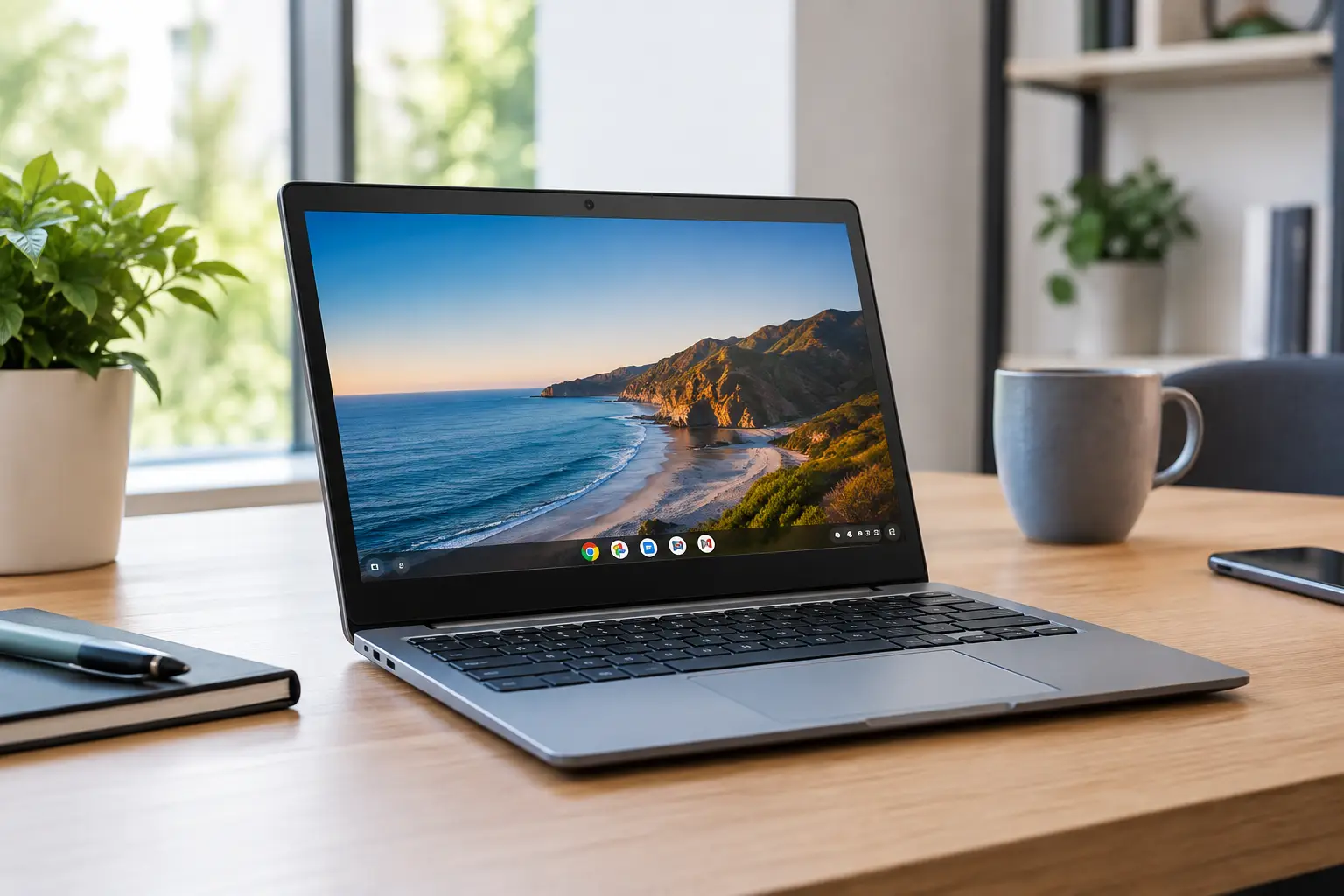
A laptop that starts up in seconds, lasts through a full day of classes, and costs relatively little sounds like an easy choice. In practice, choosing a Chromebook takes a closer look at how you plan to use it. Some models are excellent for browsing, documents, and online classes, but they are not automatically a replacement for a Windows or Mac computer for every user.
A Chromebook is a laptop powered by Google’s ChromeOS. The operating system is built around the Chrome browser, cloud services, and apps from the Google Play Store. This makes it especially well suited to email, documents, video calls, learning platforms, websites, and Android apps. It is less suitable for users who need professional desktop software, demanding games, or specialized business equipment.
Chromebook Buying Guide: Who Are They Really For?
A Chromebook’s biggest advantage is its simplicity. Once you sign in to your Google account, your email, cloud files, bookmarks, and settings are ready to use. System updates run in the background, built-in security is strong, and there is little need for ongoing maintenance such as frequent installations, software cleanups, or managing traditional antivirus software.
For students, a Chromebook can be an especially effective option. It is convenient for writing in Google Docs, submitting assignments, remote learning, viewing presentations, and researching online. At home, it can also offer excellent value for browsing, streaming, online banking, and managing documents.
For a small office or business, suitability depends on the systems you use. If your work is based on a browser, Google Workspace, the web versions of Microsoft 365, a CRM system, cloud invoicing, and video calls, a Chromebook can reduce both purchase costs and IT support time. However, anyone who relies on locally installed accounting software, specialized Windows applications, CAD tools, professional video-editing software, or complex connections to company servers should check compatibility before ordering.
Before You Buy: Specs That Make a Difference
Not all Chromebooks offer the same experience. Although ChromeOS is relatively lightweight, the specifications directly affect how quickly tabs open, the quality of video calls, how smoothly you can work with multiple files, and how responsive the laptop feels over time.
Processor and Memory
For basic browsing, email, documents, and video calls, an efficient Intel N-series or MediaTek processor may be enough. For models in this category, look for at least 4GB of RAM. If you tend to keep many tabs open while joining video calls and working with cloud files, 8GB is a better choice.
Models with Intel Core or AMD Ryzen processors are designed for users who want faster performance, smoother multitasking, and a better experience during extended use. They are also better suited to running Android apps, using the Linux environment when needed, and connecting external displays. There is no need to buy a powerful processor just for the sake of it, but choosing a model that is underpowered for your needs may become frustrating after a few months.
Storage and Cloud Connectivity
Chromebooks are designed for cloud-based work, so 64GB or 128GB of storage is common. For everyday use, especially when documents are saved to Google Drive or OneDrive, 64GB may be enough. If you download movies, store photos locally, install many apps, or need to work without a reliable internet connection, choose 128GB or more.
Check whether the Chromebook has a memory card slot. It can be a useful, low-cost way to expand storage, especially for students and families. Keep in mind that cloud services require a good internet connection. If your home has weak Wi-Fi coverage, investing in a quality wireless router may be just as important as choosing the right laptop.
Display, Keyboard, and Design
An 11.6-inch display makes a Chromebook lightweight and easy to carry, but it may feel cramped when working with spreadsheets and documents for long periods. A 14-inch screen is often the best balance between portability and workspace, while a 15.6-inch model is better suited to regular use at home or in the office.
Full HD resolution is a better choice for reading, working with documents, or watching videos. HD resolution may be adequate on very small screens, but the difference in sharpness and available workspace is noticeable. A touchscreen adds convenience, especially on 2-in-1 models that fold into tablet mode, but it is not essential if you mainly work with a keyboard and mouse.
A comfortable keyboard matters more than flashy specifications when you spend hours writing assignments, emails, or documents. Check whether the keyboard has a Hebrew layout, whether the keys are full-sized, and whether the touchpad responds smoothly. For a child’s laptop, a sturdy chassis and resistance to everyday wear may be more valuable than extra storage.
Battery, Ports, and Webcam
Most Chromebooks offer good battery life, sometimes enough for a full workday. Actual battery life varies depending on screen brightness, Wi-Fi quality, video calls, and workload. If the laptop is for studying away from home, consider a model that charges via USB-C. This may let you use a compatible spare charger, docking station, or portable battery.
Don’t overlook the ports. At least one USB-C port, a standard USB port, and a headphone jack are still useful for a mouse, external drive, projector, or headphones. Not every model has a built-in HDMI port, so an adapter may be required. If you plan to use an external monitor, check that the Chromebook supports the resolution you need.
The webcam is not a minor detail, either. A 720p camera may be sufficient for remote learning and work meetings, but microphone quality, camera placement, and good lighting matter just as much. If video calls are part of your regular routine, don’t choose a model based on the lowest price alone.
What Can’t a Chromebook Replace?
A Chromebook is not the right choice for every task. Full Windows software does not normally install on ChromeOS, so if you depend on a particular application, check whether it has a web version, an Android app, or a suitable alternative. Demanding PC games, editing software such as Adobe Premiere, engineering design tools, and specialized business applications generally require a more powerful Windows or macOS computer.
Some users assume that Android apps can solve every limitation. Sometimes they can, but the experience on a large screen with a keyboard may not match that of desktop software. Before buying Chromebooks for a business, make a short list of all required software, printers, signature systems, and peripherals, then check each item individually.
How to Choose a Chromebook by Budget and Use
In the entry-level category, a Chromebook with 4GB of RAM, 64GB of storage, and a compact display is suitable for browsing, documents, and basic schoolwork. It can be a good second computer for the home or an option for a younger student, as long as you do not expect it to handle many tasks at once.
In the mid-range, look for 8GB of RAM, 128GB of storage, a 14-inch Full HD display, and USB-C connectivity. This is usually the best all-around choice for students, office workers, and families looking for a laptop that will serve them well for years.
Higher-end models with a Core or Ryzen processor, a better-quality display, a 2-in-1 design, and docking station support offer an experience closer to that of a conventional laptop. These models are well suited to mobile professionals, managers, and anyone who spends long hours working in a browser and cloud-based systems.
When comparing prices, look beyond the processor name. Check the RAM, storage capacity, display type, warranty period, keyboard layout, and what is included in the box. At TopMarket, you can compare specifications, brands, and price ranges to find a model that meets a real need—not just a temporary deal.
Before adding a Chromebook to your cart, think about how you will use it over the next three years. How many tabs will you keep open? Will you need to work away from home? Will you connect an external monitor? Which applications must run on the laptop? Clear answers to these questions will help you choose the right model better than any general promise about speed or price.

