

 Install the app
Guide to Buying a Monitor for Comfortable and Accurate Work
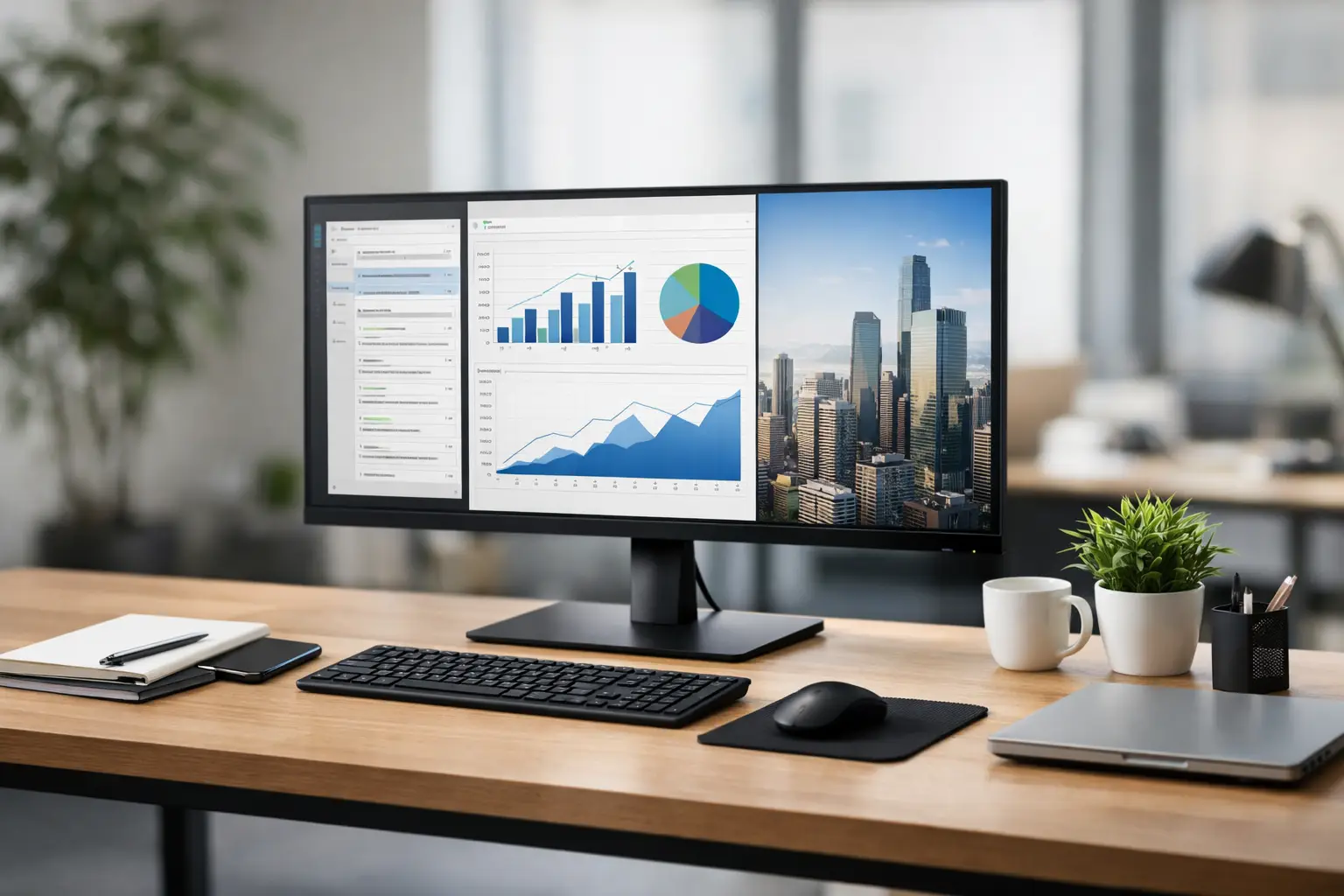
A screen that is too small, an incompatible resolution, or a missing connection can turn even a powerful computer into a frustrating workstation. A Guide to Buying an Office Monitor begins with a simple question: what do you really do in front of the screen for most of the workday? Editing documents, spreadsheets, video calls, programming, accounting, design, or multitasking with several windows - each use case has a specification that fits it best.
There’s no need to pay for specifications intended for gaming in an office monitor, but it’s also unwise to choose solely based on price or screen size. The right choice combines workspace, text clarity, eye comfort, adjustment options, and connections that suit the current computer and any future equipment.
A Guide to Buying an Office Monitor Begins with Workspace
The commonly accepted size for an office workstation is 24 to 27 inches. A 24-inch monitor with Full HD resolution is suitable for basic workstations, service centers, cash registers, studies, and tasks where most windows aren’t crowded. It’s also an efficient choice when the screen is close or the desk is small.
For most users, a 27-inch screen is an excellent balance. With a QHD resolution of 2560x1440 pixels, it provides a comfortable space for two documents side by side, wide spreadsheets, and business system windows. The text appears sharper compared to Full HD, without the interface becoming too small for most users.
32-inch monitors are ideal for those replacing two screens with one, working with large tables, control panels, CAD software, or content editing. They require a deeper desk and a proper seating distance. On a narrow desk, a screen that’s too large will cause constant head movement and detract from comfort instead of improving it.
Resolution: It's Not Just a Higher Number
Full HD resolution is sufficient for regular work on a 24-inch screen, but on a 27-inch screen, the pixel density is relatively low, and text and fine lines may appear less sharp. QHD is generally the smart choice for a 27-inch office monitor, especially when opening many windows or reading documents for hours.
A 4K resolution offers very high sharpness and a large workspace. It’s particularly suitable for graphic designers, video editors, users working with detailed images, and those who prefer exceptionally sharp text. However, in many cases, screen scaling in the operating system will be required to maintain comfortable readability. Before making a purchase, ensure that the computer, docking station, and cables support the desired resolution and refresh rate.
Panel Type Affects Text, Color, and Angle
For office monitors, an IPS panel is usually the safest choice. It displays consistent colors, wide viewing angles, and is user-friendly for working with documents, presentations, and visual content. The advantage is noticeable when two people are looking at the screen or when the user isn’t sitting directly in the center.
A VA panel can offer higher contrast and deeper blacks, making it pleasant for video content viewing as well. However, viewing angles may be less consistent, and in some models, pixel response may not be suitable for fast motion. For regular office work, this isn’t necessarily a disadvantage, but IPS remains a more balanced solution for most setups.
OLED screens provide impressive picture quality, but for a workstation with static windows, toolbars, and open sheets for hours, it’s essential to carefully consider the usage. This technology is excellent in certain scenarios but is not always the most economical or suitable for constant work with static interfaces.
Correct Connections Save Adapters and Troubles
HDMI connections are suitable for most laptops and desktops, while DisplayPort is common in business computers, workstations, and graphics cards. It’s crucial to check not only which connections the monitor has but also what is available on the computer. An adapter may work well, but it’s best to opt for a direct connection whenever possible.
USB-C is a significant advantage for modern laptop users. A monitor with USB-C can transmit video, data, and sometimes even charge with one cable. In this case, it’s essential to check the power supply: a lightweight laptop may only require 65W, while a performance laptop or mobile workstation might need 90W or more. Without the appropriate power supply, the computer will work, but the battery may not charge adequately.
Some monitors also feature a USB hub, network connection, or KVM switch. These are especially useful for those working with two computers, such as a personal and work computer, who want to use the same keyboard and mouse without swapping cables each time. For a business outfitting multiple stations, uniform connectivity simplifies installation, maintenance, and future upgrades.
Ergonomics is a Work Specification, Not an Add-On
A quality monitor won’t fix poor sitting posture. Therefore, it’s wise to choose a model with height, tilt, and swivel adjustment options. Height adjustment is particularly important when more than one user works at the same station or when using a laptop alongside the monitor.
The monitor should be positioned so that the top is approximately at eye level or slightly below it. The distance varies according to size and resolution, but generally, it should be about an arm's length. If the monitor doesn’t come with an adjustable stand, compatibility with the VESA standard allows for connecting a desk arm or wall mount, freeing up desk space.
A monitor that rotates to a vertical position can be useful for programming, reading long documents, managing social media, or working with correspondences. It may not be necessary in every office, but in a dedicated setup, it can significantly enhance workflow.
Settings That Facilitate Long Work Sessions
Features like Low Blue Light or Flicker-Free are not substitutes for ergonomics and breaks, but they can contribute to a more pleasant user experience. It’s more important to choose brightness that fits the room lighting, avoid reflections, and position the monitor so that it doesn’t face a window or a strong light source directly.
A matte finish is usually the practical choice for an office, as it reduces reflections. A glossy screen may look impressive in a store or a dark room, but in a well-lit workspace, it can reflect light and make reading difficult. It’s also advisable to consider a thin bezel if planning to work with two monitors, as the gap between them will be smaller and more convenient.
A refresh rate of 60Hz is sufficient for most business applications. A 75Hz or 100Hz monitor can provide smoother scrolling and cursor movement, especially for those who work long hours with dense interfaces. It’s not a necessity, but when the price difference is reasonable, it’s a nice addition. Conversely, an extremely high refresh rate should not come at the expense of resolution, connectivity, or appropriate warranty.
A Large Single Monitor or Two Monitors?
Two 24-inch or 27-inch monitors are suitable for those comparing data, working on a document alongside a business system, conducting video calls while working, or using multiple software tools. The advantage is clear task separation. The downside is the need for a larger desk space, two cables, and sometimes even a suitable docking station.
An ultra-wide monitor can replace a dual setup and simplify the workspace. It’s ideal for users who prefer a continuous surface without a bezel in the middle. On the other hand, not all software or users effectively utilize the width, and sometimes two standard monitors can be more flexible and less expensive. It’s wise to choose based on the actual nature of work, not just the appearance of the setup.
Before Ordering: A Quick Fit Check
Before making a purchase, check four details: the dimensions of the desk and the distance from seating, the existing connections on the computer, the resolution the computer supports, and whether an adjustable stand or VESA connection is needed. For businesses, it’s also worth adding warranty terms, stock availability, and uniformity across setups to the list.
At TopMarket, you can compare sizes, resolutions, brands, and specifications to choose a solution that fits the budget and actual work needs. Don’t focus solely on the promotional price: a screen that is easy to read from, connects without unnecessary adapters, and remains relevant over time is a work component that pays back the investment every day.
- How to Calibrate Your Monitor for Professional Graphics Work with Precisio
- How to Choose a Wireless Network for a Retail Store?
- Smart Homes That Truly Fit Your Home and Budge
- <h1>Case Study: An Office Computer Upgrade That Saved Time and Money</h1>
- Recommended Gaming Mice for Large Hands: How to Choose the Right One

