

How to Choose a 4K Monitor for Work and Gaming
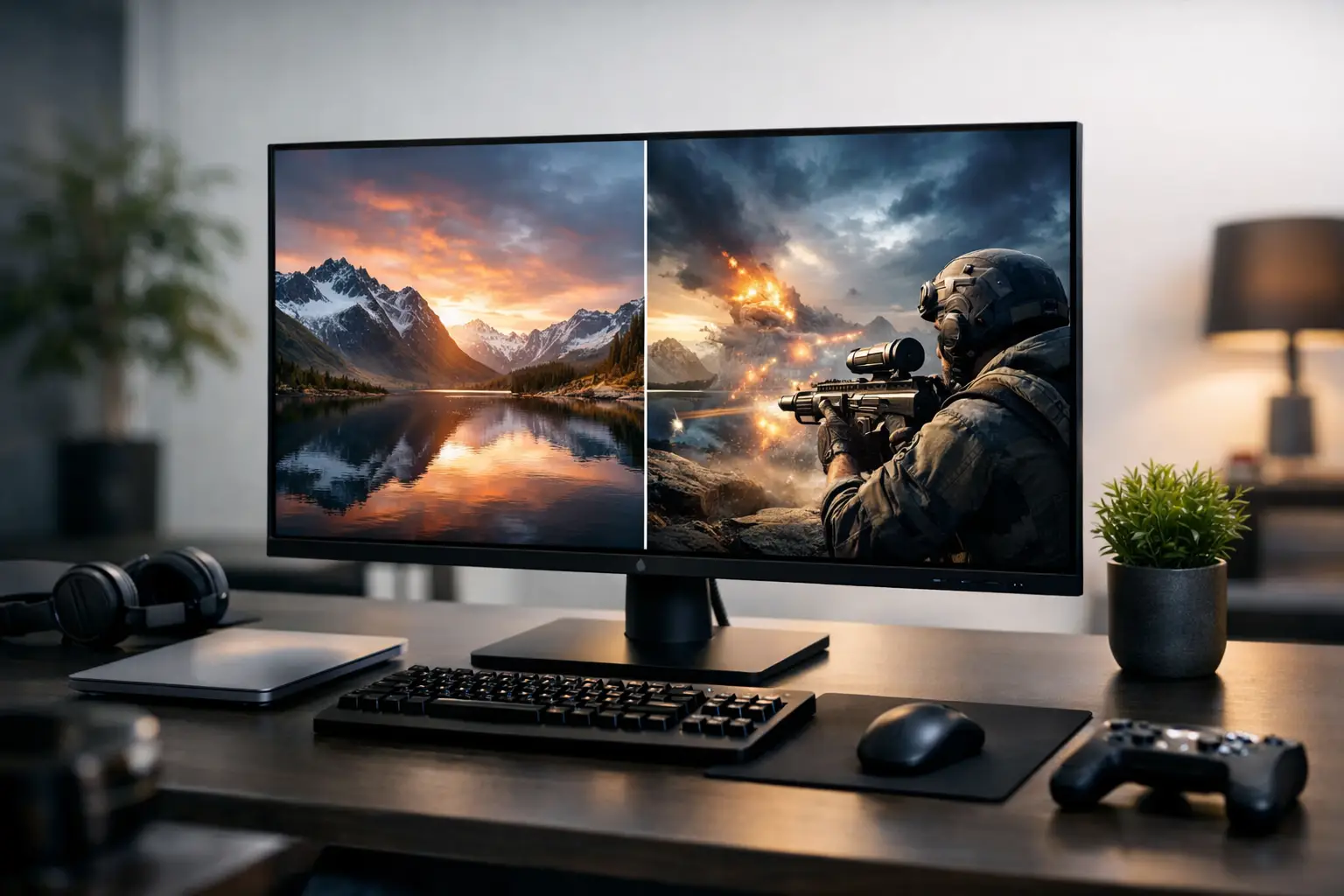
A 4K computer monitor can enhance your workspace more than most hardware upgrades—provided it's chosen based on actual use. High resolution displays sharp text, allows for more simultaneous windows, and highlights details in images and videos. However, 4K alone doesn't guarantee a good viewing experience; unsuitable size, low refresh rates, limited connections, or weak panels can turn impressive specs into a disappointing purchase.
The right choice begins with a simple question: What will be displayed on the screen for most of the day? Office work, photo editing, competitive gaming, CAD design, or content viewing all require different considerations. This allows for a quick narrowing of options and comparisons based on relevant data.
What to Expect from a 4K Monitor?
4K resolution, also known as UHD, typically measures 3840 by 2160 pixels. This is about four times the pixel count of Full HD, and 2.25 times that of QHD. In practice, this means higher image density and more screen real estate.
On a 27-inch monitor or larger, the difference is especially noticeable in text, data sheets, software interfaces, and media editing. You can place two documents side by side, work with a browser window and messaging software concurrently, or view a detailed timeline in editing software. For businesses, office managers, and professionals working long hours with data, this advantage translates to less scrolling and fewer window switches.
However, at higher resolutions, text and interfaces can become too small without appropriate display settings. Most operating systems allow you to set a scale of 125% or 150% to achieve a comfortable balance between sharpness and readability. So, don’t dismiss 4K just because the screen felt cramped during the initial setup.
Screen Size: The Key Factor in Experience
The screen size determines how well the 4K resolution will be utilized. A 24-inch 4K monitor can be very sharp, but sometimes it’s too cramped for work without scaling up the interface. It’s suitable for those sitting close to the screen, working with text, and wanting a compact desk, but it’s not a universal choice.
A 27-inch monitor is an excellent starting point for most users. It provides high sharpness, useful workspace, and dimensions that fit most home and office setups. This size strikes a good balance for office work, study, photo editing, and content viewing.
A 32-inch 4K monitor suits those wanting to display larger windows without aggressively increasing the interface size. It's particularly convenient for larger spreadsheets, video editing, professional software, and users preferring to sit slightly farther back. The downside is the need for sufficient desk depth and sometimes a monitor arm to maintain a comfortable viewing distance.
On ultra-wide monitors, 4K doesn't always indicate the same resolution. UltraWide models may have different resolutions, so checking the exact pixel count rather than relying solely on marketing is essential.
IPS, VA or OLED Panel – Based on Usage
The type of panel affects colors, viewing angles, contrast, and response times. For general office use, IPS panels are usually the safe choice. They offer consistent colors and wide viewing angles—an important advantage when working with documents, presentations, photos, or with multiple people at the same screen.
VA panels often excel in higher contrast and deeper blacks. They can be suitable for movie watching and for users preferring images with depth, but in certain models, response times may not be optimal for fast-paced gaming. Check detailed reviews for motion blur ratings and don’t assume all VA panels behave the same.
OLED provides true black, impressive contrast, and extremely fast response times. It’s a fantastic option for gaming and content creation, but the price is usually higher, and you should consider prolonged use with static content, like data sheets, toolbars, and fixed windows. Those working most of the day with a static interface should review warranty policies and burn-in protection features of the specific model.
Refresh Rate and Response Time: Not Just for Gamers
A refresh rate of 60Hz is usually sufficient for office work, browsing, studying, and content viewing. For these users, it might be better to invest in a quality panel, ergonomics, and connections rather than paying extra for 144Hz that won't be utilized.
For gaming—especially in action, racing, and shooting games—a 4K monitor with 120Hz, 144Hz, or higher provides smoother motion and better control. However, there’s a critical condition: the computer must be capable of outputting a high frame rate at 4K resolution. A mid-range graphics card might run new games at 4K and 60 frames per second, but not necessarily at 144 frames per second and higher settings.
Variable refresh rate technologies like Adaptive Sync, FreeSync, or G-SYNC compatibility help reduce screen tearing when frame rates fluctuate. In gaming, look for a combination of high refresh rates, low response times, and variable sync support, rather than choosing based solely on one figure on the packaging.
Connections: A Small Check to Avoid Disappointment
Before purchasing, check what ports your computer, docking station, and graphics card have. To achieve 4K at 60Hz, a modern HDMI or DisplayPort connection is generally suitable. For 4K at 120Hz or 144Hz, a more advanced version of HDMI or DisplayPort may be required, and the cable itself needs to support the necessary data rate.
USB-C is a significant advantage for laptop users. With a screen that supports video transfer, charging, and USB data through one cable, you can connect your laptop for a cleaner desk setup and avoid an additional adapter. It's essential to check how much power the monitor provides: a lighter laptop may function well with a lower wattage, while a professional or gaming laptop may require more.
If the monitor will also be used with a gaming console, check support for HDMI that suits 4K at the desired refresh rate. Not every 4K monitor with a high refresh rate provides the same support across all HDMI inputs.
Color Accuracy and HDR for Creators and Professionals
For photo editing, video work, graphic design, and production, it’s vital to check color coverage rather than settling for a general claim about “vibrant colors.” High sRGB coverage suits most digital and web applications. Those working in printing, professional photography, or video may also need DCI-P3 or Adobe RGB coverage, depending on their workflow.
Factory calibration is advantageous, especially when a low Delta E value is specified. Even then, professionals needing consistent accuracy over time may benefit from using a dedicated calibration tool. A good monitor does not replace proper color management in software and the operating system.
HDR requires careful examination. A basic HDR label doesn’t necessarily guarantee high brightness, local dimming zones, or noticeable contrast in games and movies. If HDR is a key consideration, check brightness specs, backlight type, and the number of dimming zones. For regular use, a high-quality panel with good SDR can be preferable to weak HDR marketing.
Ergonomics and Accessories for an Efficient Workspace
A quality monitor should also fit the body and workspace. A stand with height adjustment, tilt, rotation, and sometimes pivot allows you to position the screen at eye level and reduce unnecessary strain on the neck. In an office with multiple users, this flexibility is more important than ultra-slim design.
Also, check for VESA mount support. This allows for connection to a monitor arm or wall mount, an efficient solution for small desks, dual monitor setups, and work environments requiring frequent repositioning. Built-in USB hubs, KVM switches for connecting two computers, and internal speakers can be useful but should not dictate your choice if display quality or essential connections are compromised.
How to Align Your Budget with Usage
With a budget focused on office work, look for a 27-inch 4K monitor with an IPS panel, 60Hz refresh rate, appropriate connections, and an adjustable stand. This specification provides good value for most users without paying for gaming features that aren’t required.
For graphics and creation, prioritize color accuracy, wide color coverage, uniform lighting, and calibration options. For gaming, prioritize refresh rates, response times, variable sync support, and proper compatibility with console or graphics card connections. In hybrid work setups with laptops, USB-C with charging and built-in hubs can justify a higher price and simplify daily setup.
At TopMarket, you can compare monitors by size, resolution, panel type, refresh rate, connections, and warranty, choosing a model that suits your existing equipment rather than paying for specs that won’t be used. Before ordering, verify the dimensions of the monitor with its stand, the types of inputs, and warranty terms.
The right monitor isn’t necessarily the one with the highest specs, but the one that suits your sitting distance, computer, software, and working hours. By determining your priorities in advance, it's easier to choose a monitor that remains comfortable, sharp, and useful long after the purchase day.

