
How to Choose a CAD Workstation Without Overpaying
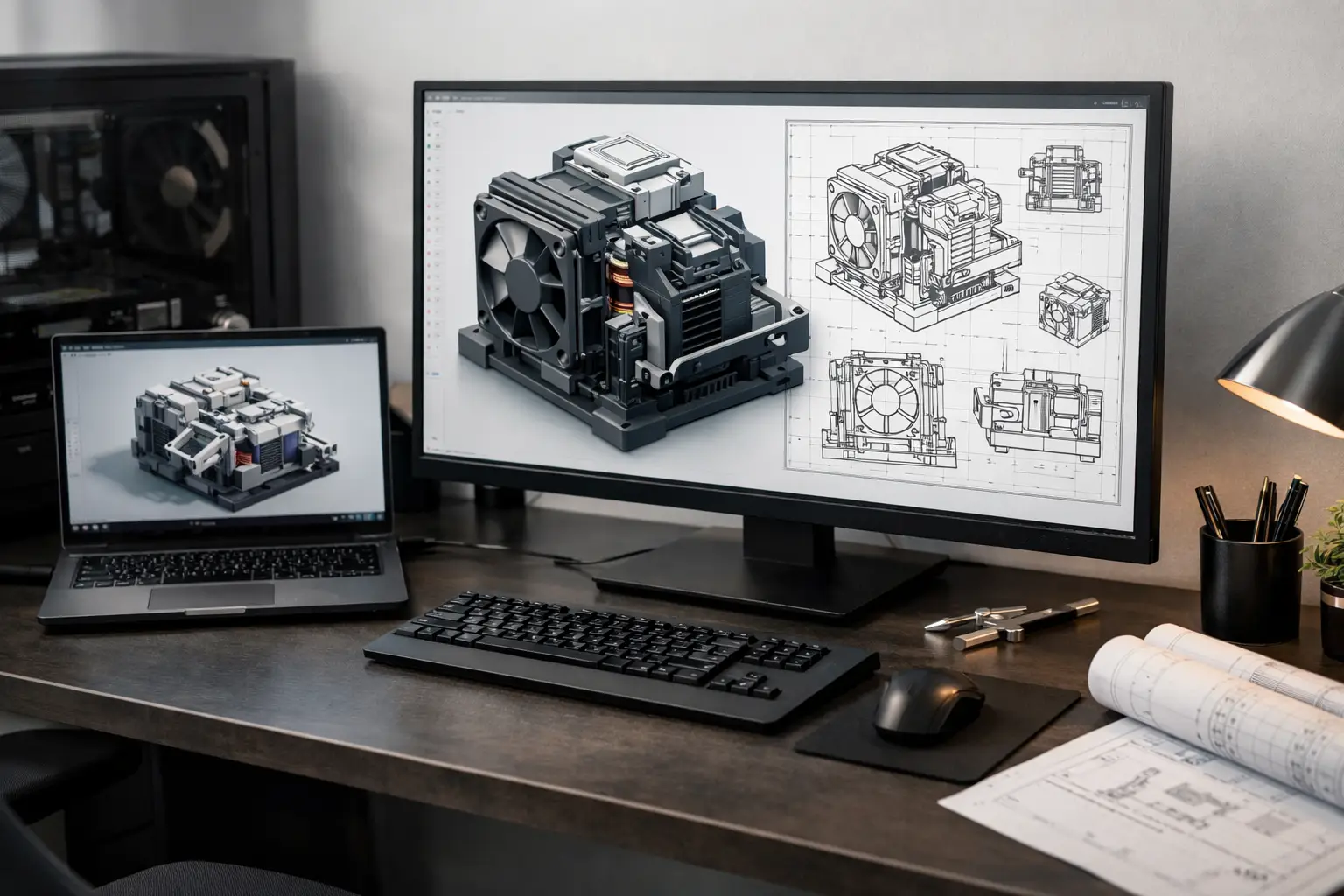
Anyone who works with AutoCAD, SolidWorks, Revit, or similar design software knows that moment: the file opens, everything looks fine, and then you start rotating a model, rendering, or working on a heavy assembly—and the computer just can't keep up. Therefore, the question of how to choose a CAD workstation isn't just about strong specifications on paper; it's about finding the right fit for the type of work, the software, and the budget.
A CAD workstation is measured less by impressive numbers and more by balance. You might buy an overly expensive processor while skimping on memory, or opt for a professional graphics card that won't give you any real advantage for your specific project. The result is high expenditure with no noticeable improvement. If the goal is to work quickly, stably, and without bottlenecks, you need to understand where performance really matters.
How to Choose a CAD Workstation Based on Job Requirements
The first step is to define what you actually do on a typical workday. Someone who primarily drafts in 2D doesn't need the same workstation as someone running large 3D models, BIM, simulations, or rendering. Even within the CAD realm, there's a significant gap between lightweight drafting, mechanical work, architectural design, civil engineering, and product design.
If most of your work is in AutoCAD 2D, the emphasis will typically be on a fast processor, sufficient memory, and a quick SSD. If you’re working with SolidWorks, Inventor, or CATIA on complex models, the graphics card and system stability carry more weight. In Revit or BIM environments, both RAM and processor speed are critical, especially with large files and collaborative projects.
This is where many buyers go wrong. They seek out the "strongest computer" instead of asking which component will impact actual work time. A good workstation isn't necessarily the most expensive one but the one tailored to the actual workload.
The Processor—Where the Difference is Felt Daily
In many CAD applications, single-core performance is still very important. Opening drawings, switching between views, performing certain editing tasks, and some calculations rely more on high clock speed than on a large number of cores. Therefore, a 24-core processor isn’t always a smarter choice than one with fewer cores but a higher frequency.
On the other hand, if you’re incorporating rendering, simulations, parallel processing, or heavy multitasking, a higher core count can indeed save time. Here, you should consider the full work pattern. Users who render regularly will benefit from a stronger multi-core processor, while those working mostly on drafting and navigation will find a high-reactivity processor more beneficial.
The practical recommendation is not to buy based solely on the model name. You need to check if the system is intended for agility in regular tasks or for heavy computation workloads. This difference directly impacts the value for money.
Graphics Card—Professional or Gaming?
This is one of the most common questions about how to choose a CAD workstation. On paper, some gaming cards offer high power at an attractive price. In practice, CAD workstations assess not only raw power but also driver compatibility, stability, and the ability to work long-term with professional applications.
In certain software, a professional graphics card designed for workstations offers clear advantages in stability, display quality, and manufacturer certification. This is especially important in a business environment, within engineering teams, or when crashes and display issues cannot be afforded. However, not every CAD user needs an expensive professional card. For light to moderate work, and in software where the differences are smaller, sometimes a more cost-effective solution can be chosen without sacrificing the work experience.
The decision depends on a combination of software type, model complexity, and stability requirements. If your work supports you, it's better to choose a component designed for professional use rather than one that just looks good on a specification sheet.
How Much RAM Do You Really Need?
RAM is one of the most common areas for misguided savings. A system with a good processor and fast drive will still feel slow if there isn't enough RAM. For basic CAD, 16GB might be sufficient, but that’s an entry-level option and not always a smart long-term choice.
For most professional users, starting with 32GB is advisable. It provides a good balance for more stable work, opening large files, running multiple applications simultaneously, and for prolonged use. In heavy projects, BIM, very large assemblies, or work combined with graphics and rendering software, even 64GB is not uncommon.
It's wise to think not just about what's needed today but also about two to three years ahead. If you choose a workstation with an easy upgrade path, you can start right and not get locked into a limited specification.
Storage—SSD is Not Just a Bonus
In a CAD workstation, a fast SSD drive is a basic requirement. It affects system boot time, software loading, file opening, and project saving. The difference between a system with a fast SSD and a slower drive is felt every day, not just in benchmarks.
In many cases, it’s better to work with a combination of an NVMe drive for the operating system, active software, and files, alongside another drive for archiving, backup, or large libraries. For those working on multiple projects simultaneously, large files, or texture and rendering libraries, settling for minimal capacity is not an option. Even with a fast system, insufficient storage quickly becomes an operational issue.
Screen, Connections, and Cooling—Details That Influence Your Workday
Many buyers invest in all the internal components while forgetting that actual work happens in front of a screen. For CAD, a monitor with good resolution, ample workspace, and decent display accuracy can influence productivity almost as much as a hardware upgrade. Those who work long hours on drawings and plans will distinctly feel the difference between a cramped screen and a spacious working environment.
The number of connections is also important. If you work with dual monitors, peripheral devices, external storage, or a wired network, it’s advisable to check in advance that the workstation provides what you need without unnecessary adapters. In a desktop workstation, good cooling is not a luxury. An overheated system may lose performance, especially under load. In a portable workstation for design, this becomes even more critical.
Desktop or Laptop?
If your work is predominantly done from a fixed office, a desktop workstation will generally offer better performance, more upgrade options, and a better cost-to-value ratio. It also allows for more efficient cooling, quieter operation under load, and often a longer lifespan under prolonged use.
On the other hand, some users need mobility—client meetings, working on-site, studying, or frequently moving between home and office. In such cases, a portable workstation can be an excellent solution, but it's essential to understand the trade-off: within the same budget, a laptop typically offers lower performance than a desktop. Additionally, future upgrades will likely be more limited.
If mobility is a genuine need, don't compromise on cooling, screen, or memory capacity just to achieve a slimmer form factor. In this category, a balanced specification is more critical than impressive design.
How to Adjust Your Budget Without Falling for Marketing Tricks
The most effective way to shop is to divide the market into three tiers. A basic budget is suitable for 2D work, studying, light drafting, and non-intensive tasks. A mid-range budget suits most professional users—it’s generally where the best cost-effectiveness lies. A high budget is intended for heavy models, advanced BIM, simulations, rendering, and commercial work where every minute counts.
In practice, it’s not always worth jumping to the next tier for every component. Sometimes, a bump to 32GB RAM is smarter than a processor upgrade, and sometimes, the right graphics card can enhance stability more than any other upgrade. You need to view the system as a whole.
If you’re comparing several models, check the specifications beyond the title. The same "workstation" category can encompass significant differences in processor level, graphics card type, memory size, expansion options, and warranty. For professional purchases, these are not minor details.
What to Check Before Finalizing an Order
Before purchasing, ensure full compatibility with your primary software, verify that there’s enough RAM from the start or a clear upgrade path, check what type of storage is included, and confirm that the screen and connections meet your actual work environment. If it’s for business use, warranty and service are almost as important as the specifications themselves.
In a broad category like workstations, the advantage is the ability to compare performance levels, brands, and configurations without guessing. This is precisely why smart buying starts with understanding your needs and not just searching for price.
A CAD workstation is a tool. When it’s properly tailored, work flows, files open promptly, and the software feels like an asset, not a hindrance. If you choose based on project types, the actual workload, and the budget you genuinely want to maintain, it will be much easier to find a system that performs well now and in the future.
- Setting Up a Dual Workstation for Efficient and Comfortable Work
- How to Choose a Mechanical Keyboard for Work, Gaming, and Typing
- What Charger is Right for Your Phone? Here's How to Choose Wisely
- Guide to Buying a Security Camera for Home, Business, and Outdoor Use
- Tablet Repair Lab - When to Repair and When to Replace?
- 5 Akhad Ha'am St., Netanya, Israel

- Phone: +97298821001
- Sunday - Thursday: 11:00 - 24:00
Friday: 11:00 - 16:00
Saturday and holiday: 20:00 - 24:00 - Contact us form

© 2002 - 2026 TopMarket.co.il - Powered by AnyWeb.co.il