
Guide to Upgrading Memory and Storage in a Compute
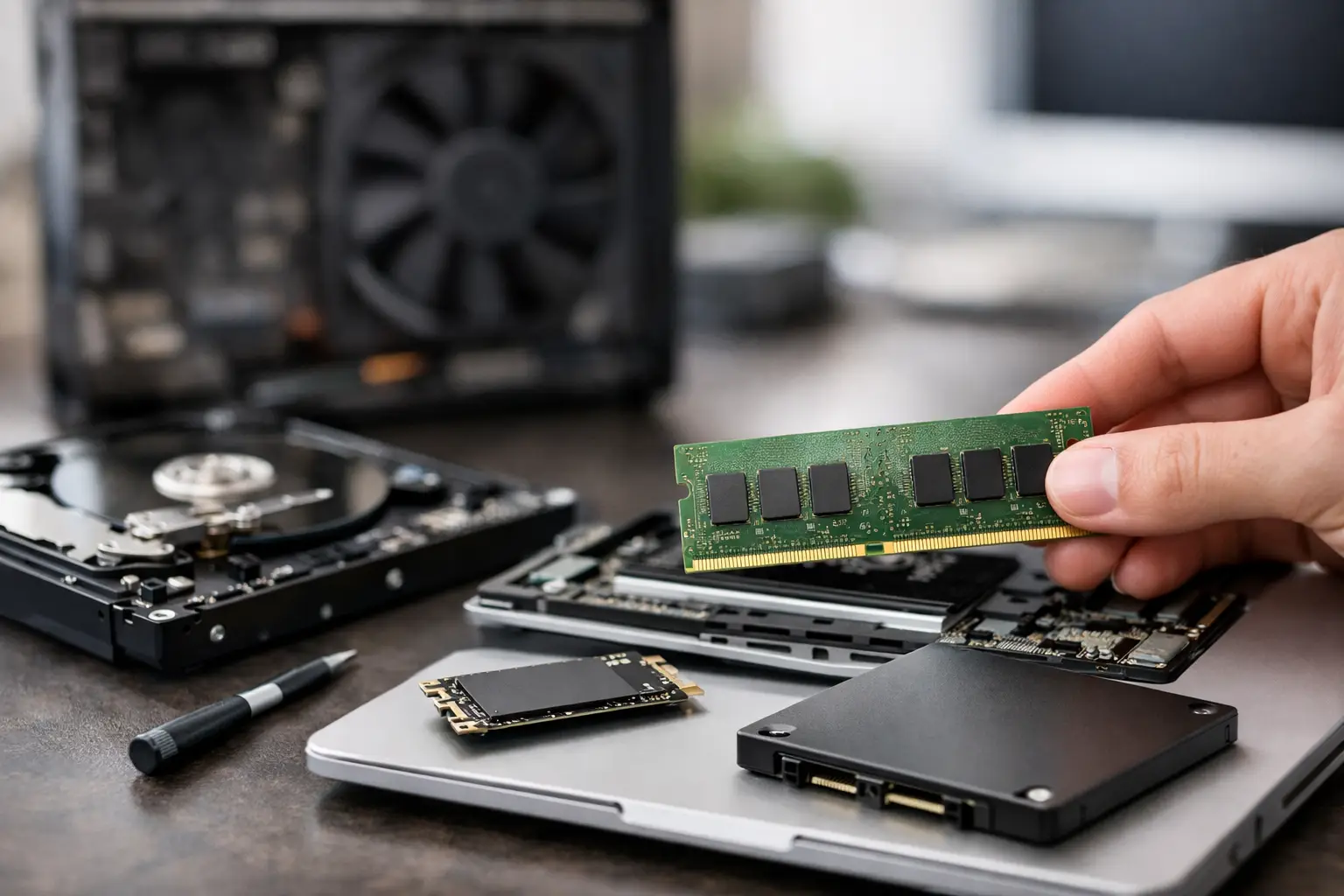
Your computer is booting slowly, multiple browser tabs are beginning to lag, and heavy applications feel like they are dragging the system down. In such situations, a guide to upgrading your computer’s memory and storage is not just theoretical, but a relatively simple way to achieve noticeable improvements without replacing the entire computer.
In most cases, the ideal upgrade targets one of two components - RAM for better performance in multitasking and everyday tasks, or a faster storage drive to enhance loading times, system startup, and file transfers. Sometimes, you may need to choose one over the other, while other times a combination of both may yield the best results. The real question is not which option sounds better on paper, but what is actually limiting your performance.
Guide to Upgrading Memory and Storage in Your Computer - Where to Start
The first step is identifying the bottleneck. If your computer stalls when you open many programs at once, work with large spreadsheets, edit images, run CAD software, or switch between windows all day long, it’s likely that the RAM is the issue. If the computer boots slowly, games load slowly, or any action that involves files feels sluggish, then storage is probably the main culprit.
In Windows, you can quickly check this through Task Manager. If, during normal operation, the memory usage shows high levels consistently, adding more RAM will likely help. If the disk is highly active most of the time and the computer responds sluggishly, moving to an SSD or upgrading to a faster SSD would be a smarter move.
There are also mixed cases. A laptop with 8GB of RAM and an old mechanical hard drive can typically benefit from both upgrades, but if the budget is tight, it’s advisable to prioritize based on primary use. For a student frequently using a browser, Zoom, and Office—upgrading RAM can be crucial. For an old office computer that’s slow to boot, an SSD will enhance the experience much faster.
When to Upgrade RAM
RAM affects your computer's ability to handle multiple tasks simultaneously without slowing down. When memory runs low, the system starts relying more on the temporary storage, which is significantly slower. That's when lagging, slow transitions between applications, and less smooth responses begin to occur.
For most users today, 8GB is just a basic requirement. It may suffice for browsing, documents, and light work, but when genuinely using several applications concurrently, it quickly reaches its limits. 16GB is the sweet spot for most users—office work, studies, multitasking, light photo editing, and even modern gaming. 32GB is more suited for those working with professional software, virtual machines, video editing, or heavy projects.
It's essential to pay attention not only to capacity but also to configuration. Two identical modules generally work better than a single module of the same size, thanks to dual-channel operation. This means that 2x8GB may be better than 1x16GB, as long as it’s compatible with the motherboard or laptop. Conversely, if there are only two slots and you want to leave room for future upgrades, sometimes a larger single module is a sensible choice.
What to Check Before Buying RAM
Compatibility is the key issue. You need to verify if your computer supports DDR4 or DDR5, what speed is supported, how many slots are available, and the maximum memory capacity. In laptops, it’s also important to check if the memory is soldered to the motherboard. Many slim models do not allow for any upgrade whatsoever or allow upgrades in only one additional slot.
For desktop computers, the checks are simpler, but there’s still no room for assumptions. Incompatible memory simply won’t function correctly, and sometimes won’t even be recognized. If one stick is already installed and you’re adding another, it's best to choose a module with specifications as close as possible—capacity, speed, and timings. Mixing is sometimes possible, but it's not always ideal.
When to Upgrade Storage
If an old HDD is still installed as the primary drive, the most significant upgrade is almost always moving to an SSD. While this doesn’t add processing power, the daily user experience changes dramatically—faster boot times, quicker application launches, better system responsiveness, and reduced waiting times.
If you already have an SSD, the next question is which type. A SATA SSD still offers a very good improvement for most users, particularly when replacing an HDD. However, in newer computers with M.2 NVMe connection, much higher speeds can be achieved. This is especially important when transferring large files, working with heavy media, professional projects, and certain games.
Storage capacity is as crucial as speed. Many users buy too small of a drive and find themselves back to the same issue after a few months. The operating system, applications, work files, games, and media libraries fill up space quickly. 500GB may suffice for basic use, but 1TB is often a more comfortable purchase point for a main computer. For gamers or content creators, even 2TB is not an extravagance.
SSD or HDD - What About Combining Them
HDDs are still relevant when a lot of storage is needed at a low cost, such as for archiving, backups, or storing files that don’t require quick access. However, the system drive should almost always be an SSD in nearly every scenario. The common and efficient combination is an SSD for the system and software, and an HDD for larger files.
In laptops, choices are more limited since there might be space for only one drive. In a desktop computer, there's greater flexibility, so you can construct a balanced solution based on your budget—fast NVMe drive for the system and another larger drive for storage.
How to Check Compatibility Before Upgrading Storage
Just like with memory, you must check the connection type. Some computers may only accommodate 2.5-inch SATA drives. Others may have an M.2 slot, but not every M.2 slot supports every type of drive. Some models support SATA through M.2, while others support NVMe PCIe. The difference is crucial.
Additionally, physical limitations need to be checked. In slim laptops, the drive length, the placement of components, and internal access can affect your choice. In some business computers, opening the case is easy, while in others, it requires a more delicate disassembly. If there’s uncertainty, it’s better to verify according to the exact model rather than relying on general assumptions.
Upgrading a Laptop vs. Upgrading a Desktop Computer
Upgrading a desktop computer is usually simpler, cheaper, and more flexible. There are more slots, more physical space, and broader options for future upgrades. Therefore, a user looking to extend the life of their system a few more years may sometimes find an excellent cost-benefit ratio just by upgrading memory and storage.
In laptops, the picture is more complex. Some models are very upgrade-friendly, providing quick access to RAM and SSDs, while others are nearly completely sealed. Furthermore, some manufacturers incorporate soldered components to save space. Therefore, before any purchase, it’s essential to ensure not only what the current specifications are but also what can actually be replaced.
For users buying a new computer with long-term plans, this is a point worth checking beforehand. Sometimes a slightly more expensive model with convenient upgrade options saves a complete replacement later on.
Guide to Upgrading Memory and Storage Based on Usage
For regular home and office use, targeting 16GB RAM with an SSD of either 500GB or 1TB is generally sufficient. This setup is perfect for browsing, Office applications, studies, video, file management, and daily tasks without stress.
For gaming, 16GB remains a very solid baseline, but in newer systems, 32GB is starting to be relevant for those wanting some reserve for the next few years, background streaming, or particularly heavy games. In storage, a fast 1TB SSD is a more convenient choice, considering games take up a significant amount of space.
For professional work like video editing, graphics, design, development, or working with large files, aiming for 32GB or more, alongside a fast NVMe SSD, is advisable. Here, the difference in speed becomes less theoretical and more noticeable in actual work.
Common Mistakes to Avoid
The first mistake is purchasing based solely on price without checking compatibility. Incompatible cheap memory or a drive not supported by the computer does not save money, but instead creates delays and unnecessary replacements.
The second mistake is upgrading capacity without considering usage. Some users will buy 32GB RAM when their actual problem is an outdated HDD, while others may purchase a particularly fast SSD when the computer is crashing due to a lack of memory.
The third mistake is forgetting to back up. Before replacing a storage drive, especially if it contains the operating system and important files, ensure that all data is backed up. A good upgrade improves performance without creating unnecessary risk.
Buying components from a reputable source also benefits from greater transparency in specifications, availability based on stock, clear warranties, and the possibility to compare models based on needs and budget. Sites like TopMarket help particularly when having to filter between brands, capacities, standards, and speeds without wasting time guessing.
If you're torn between upgrading memory or storage, think about the moment when your computer is most frustrating. If this happens during work with many applications, start with RAM. If it happens during boot, loading, or file opening, start with an SSD. When the choice is based on real usage rather than just specifications, the upgrade feels right from day one.
- Setting Up a Dual Workstation for Efficient and Comfortable Work
- How to Choose a Mechanical Keyboard for Work, Gaming, and Typing
- What Charger is Right for Your Phone? Here's How to Choose Wisely
- Guide to Buying a Security Camera for Home, Business, and Outdoor Use
- Tablet Repair Lab - When to Repair and When to Replace?
- 5 Akhad Ha'am St., Netanya, Israel

- Phone: +97298821001
- Sunday - Thursday: 11:00 - 24:00
Friday: 11:00 - 16:00
Saturday and holiday: 20:00 - 24:00 - Contact us form

© 2002 - 2026 TopMarket.co.il - Powered by AnyWeb.co.il