

 Install the app
How to Choose a UPS for Your Computer Without Overpaying
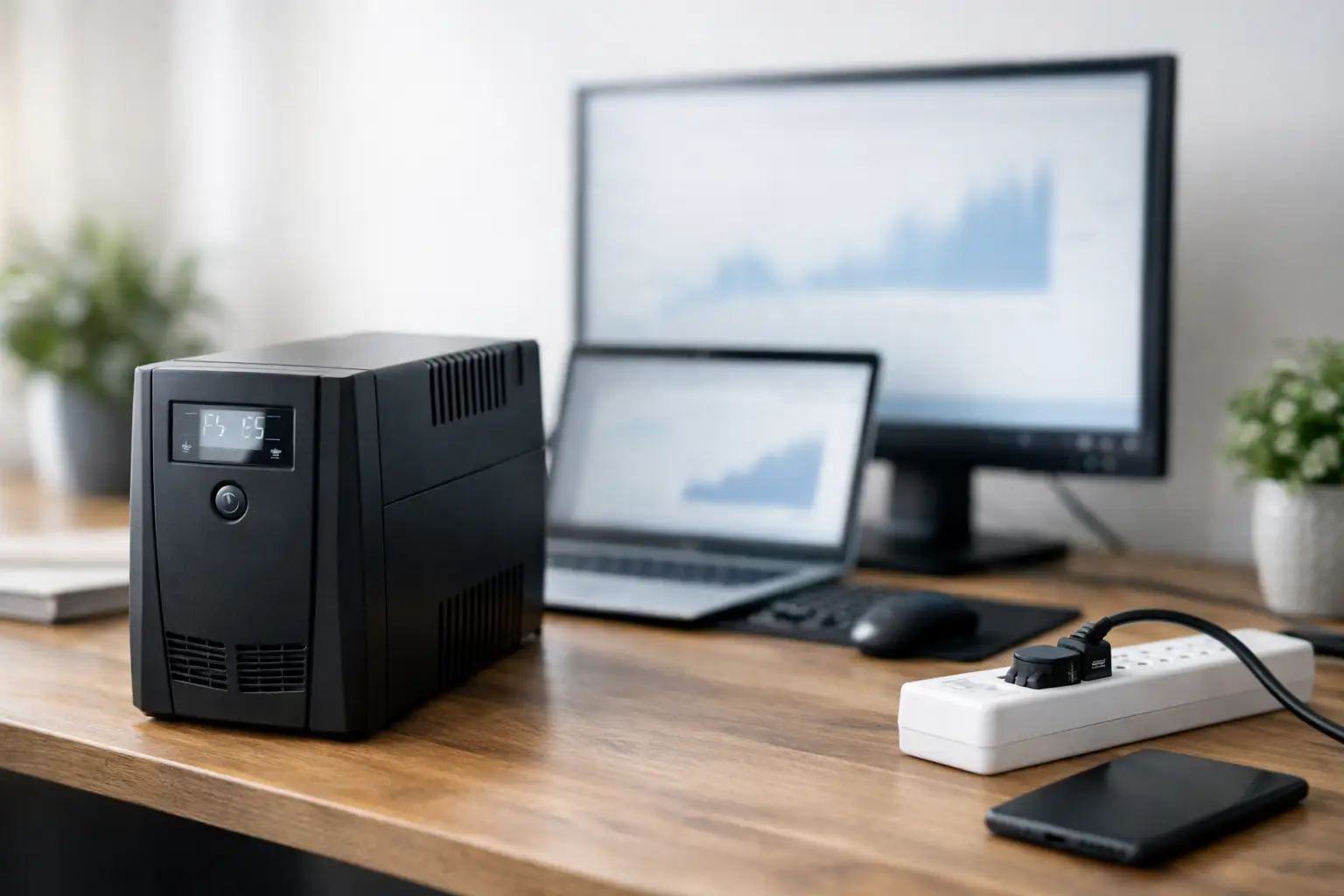
A brief power outage of just a few seconds can disrupt a game, interrupt a meeting, lead to the loss of unsaved work, and in certain cases, damage your equipment. Therefore, the question of how to choose an uninterruptible power supply (UPS) for your computer is not merely one of convenience, but rather about appropriately matching your system's power consumption with the level of protection you truly require.
A UPS is not just meant to "keep the computer running" during a power outage. It also stabilizes voltage, filters surges, and gives you critical minutes to save files, close applications, and shut down properly. The right choice depends on the type of computer, the display, the peripheral equipment, and the straightforward yet essential question of how long you need to stay operational.
How to Choose a UPS Based on Actual Power Requirement
The most common mistake is choosing a UPS based on gut feeling. A small office computer, a gaming setup with an 850W power supply, and a graphics workstation do not require the same solution. To make the right choice, you need to first look at actual power consumption rather than just the maximum output stated on the power supply.
If you have a basic office computer with a single screen, you will likely find yourself in a low consumption range. In contrast, a gaming computer with a powerful graphics card, multiple screens, and speakers can consume power rapidly. Workstations equipped with a strong processor, professional GPU, and extensive storage require even more attention.
It is also important to understand the difference between watts (W) and volt-amperes (VA). UPS manufacturers usually present both figures, but not everyone buying knows what really matters. Watts represent the power consumed by the equipment, while VA represents the rated capacity of the UPS. In practice, you need to ensure that the UPS supports the system's watt consumption with a reasonable safety margin. Don't buy at the edge. If your computer and monitor consume a total of 350W, it’s better to choose a model rated for more than that, rather than one that states a theoretical limit.
This safety margin is important for two reasons. First, the system doesn't always draw the same amount of power at every moment. Second, UPSs operating too close to their maximum will be less efficient and may sometimes provide very short backup times.
How Long of a Backup Do You Really Need?
Many buyers seek "as many minutes as possible," but in most cases, half an hour is unnecessary. For home or office use, the primary goal is to provide enough time for orderly saving and safe shutdown. Typically, 5 to 10 minutes is sufficient. If you have sensitive work, open files, or need to bridge short power outages that happen frequently, aiming for more is reasonable.
This is where one of the important nuances comes in—the backup time depends on the load. The same model might provide 12 minutes for an office setup, but only 3 to 4 minutes for a heavy gaming computer. Therefore, you shouldn't just look at the "up to X minutes" figure. You need to check what the runtime is under a load that closely resembles your actual usage.
If the computer is running a cash register system, cameras, small network equipment, or an office server, the considerations change. Sometimes even 10 minutes won't suffice since the goal isn't just a safe shutdown but operational continuity. In such cases, it is already sensible to choose a stronger UPS or a solution intended for a business environment.
What Type of UPS Is Right for You?
Not all UPS units are built the same. For the typical home and office user, the most common models are Line-Interactive. This is generally the balanced choice between price, voltage stabilization, and adequate protection for a computer, monitor, and crucial peripheral equipment.
There are also Offline or Standby models, which are usually better suited for very basic needs and low budgets. They can fit simple setups but provide less control and stability compared to more advanced solutions.
At the higher end are Online models. These are more suitable for servers, critical equipment, laboratories, or particularly sensitive systems. They are more expensive, and for a regular computer desk at home, it’s usually not justified to pay for them without a real need.
So, when asked how to choose a UPS for your computer, the answer is often not to "buy the strongest one," but rather to select the working technology that matches the sensitivity level of your equipment and your budget.
Pure Sine Wave or Not?
This has become a more important point in recent years. Some modern power supplies, especially in gaming computers, workstations, and systems with high-quality power supply that comply with Active PFC standards, operate better with UPS units that provide a pure sine wave or something very close to it.
For simple systems, this is not always necessary. However, if you have a strong computer, a high-quality and expensive power supply, or just want better compatibility when switching to battery, it's worth looking into beforehand. It costs more but can prevent unstable behavior, sudden shutdowns, or unnecessary noise during power outages.
This is precisely the difference between buying based on price alone and buying based on technical compatibility. Those who only look for the lowest price may quickly discover that the UPS powers on, but does not truly fit their system.
Which Devices to Connect to the UPS and Which Not
The simple rule is to connect only equipment that must remain active for a few minutes. Typically, this includes the computer itself, the main screen, and sometimes even a router or modem if you want to maintain internet connectivity during an outage.
It's not advisable to connect laser printers, small heating units, especially powerful speakers, or devices with high and unstable power consumption. Such equipment can shorten backup time and may unnecessarily overload the UPS. If there are outlets intended solely for surge protection rather than battery backup, those are good for secondary equipment.
Here too, priorities matter. An office user will want to keep the computer and monitor running. A gamer may also wish to keep the router going. A small business with a cloud-based workstation will likely prefer to protect communication equipment along with their workstation.
Connections, Software, and User-Friendliness
It's easy to focus only on power output, but small details make a difference in daily use. Check how many sockets there are, how many are battery-backed, and whether there's a USB connection or communication with the computer. In certain models, you can set up a structured automatic shutdown if the power outage lasts too long.
This is an especially useful feature for those who leave a computer running in the background for long downloads, backups, or while working from home and not always at the screen. A front display, clear battery status indication, and mute-able audible alerts—these may seem secondary but are crucial in the long run.
If your environment is quiet, such as a study or small office, it's worth checking the noise level. Some models are quieter, while others have fans or alerts that can be quite noticeable.
Size, Battery, and Maintenance
A UPS is not a product you buy and forget forever. The battery has a lifespan, and at some point, it will need to be replaced. Therefore, it is advisable to check in advance whether the model comes with a replaceable battery, the availability of parts, and the warranty conditions.
The physical size also matters. Some models are larger and heavier than they appear in pictures, especially if you plan to place them under a cramped computer desk. In an apartment, small office, or gaming room, it’s wise to measure the space beforehand rather than discover at the last minute that there’s no room for adequate ventilation.
It’s important to remember that a UPS does not like extreme heat and does not enjoy being cramped between walls and furniture. Proper placement will affect both safety and battery life.
Suitability Based on Usage Type
For a regular home or office computer, in most cases, a medium Line-Interactive UPS will provide a good solution at a reasonable price. For study setups, office work, browsing, and office applications, there is no need to move up to a more expensive category.
For gaming computers, it’s better to carefully check both the power requirement and the quality of the power output. Such systems tend to have rapid load changes and are often more expensive, so the level of protection should correspond accordingly.
For a professional workstation, particularly for video editing, 3D, engineering, or CAD, it’s worth considering a solution with more buffer, greater stability, and sometimes even more advanced management. Here, the cost of a mistake is higher - both in terms of hardware and lost working time.
If you are purchasing equipment for a small office or several workstations, it’s better not to try to save with one weak model for multiple systems. Typically, it’s more effective to tailor a solution for each station or select business models based on actual consumption. In a place with a wide variety like TopMarket, you can compare specs, suppliers, and usage categories more effectively, especially when multiple budget levels are on the table.
How to Avoid Making the Wrong Choice
If you are in doubt, don’t start with the brand or the price. Start with the question of what exactly is connected to the computer, how much power it consumes, and how long you really need to finish work or save data. Then check the type of UPS, compatibility with the power supply, number of sockets, warranty, and battery replacement options.
Those who buy too small pay twice. Those who buy too large without need simply waste budget. The right choice is one that provides sufficient power, realistic backup time, and appropriate protection without paying for capabilities you won't use.
In the end, a good UPS is not supposed to draw attention—it just needs to be there right when the power goes out, and you definitely don’t want to find out that you made a mistake in your selection.
- How to Choose a Wireless Network for a Retail Store?
- Smart Homes That Truly Fit Your Home and Budge
- <h1>Case Study: An Office Computer Upgrade That Saved Time and Money</h1>
- Recommended Gaming Mice for Large Hands: How to Choose the Right One
- When to Repair or Replace Your Computer Monitor: A Repair Shop’s Guide