
and be the first to learn about all promotions and offers!
- 5 Akhad Ha'am St., Netanya, Israel

- Phone: +97298821001
- Sunday - Thursday: 11:00 - 24:00
Friday: 11:00 - 16:00
Saturday and holiday: 20:00 - 24:00 - Contact us form
+972 9-882-1001
Sunday - Thursday: 11:00 - 24:00
Friday: 11:00 - 16:00
Saturday and holiday eve: 20:00 - 24:00
Email info@topmarket.co.il
Address
How to Properly Upgrade Storage in a Laptop
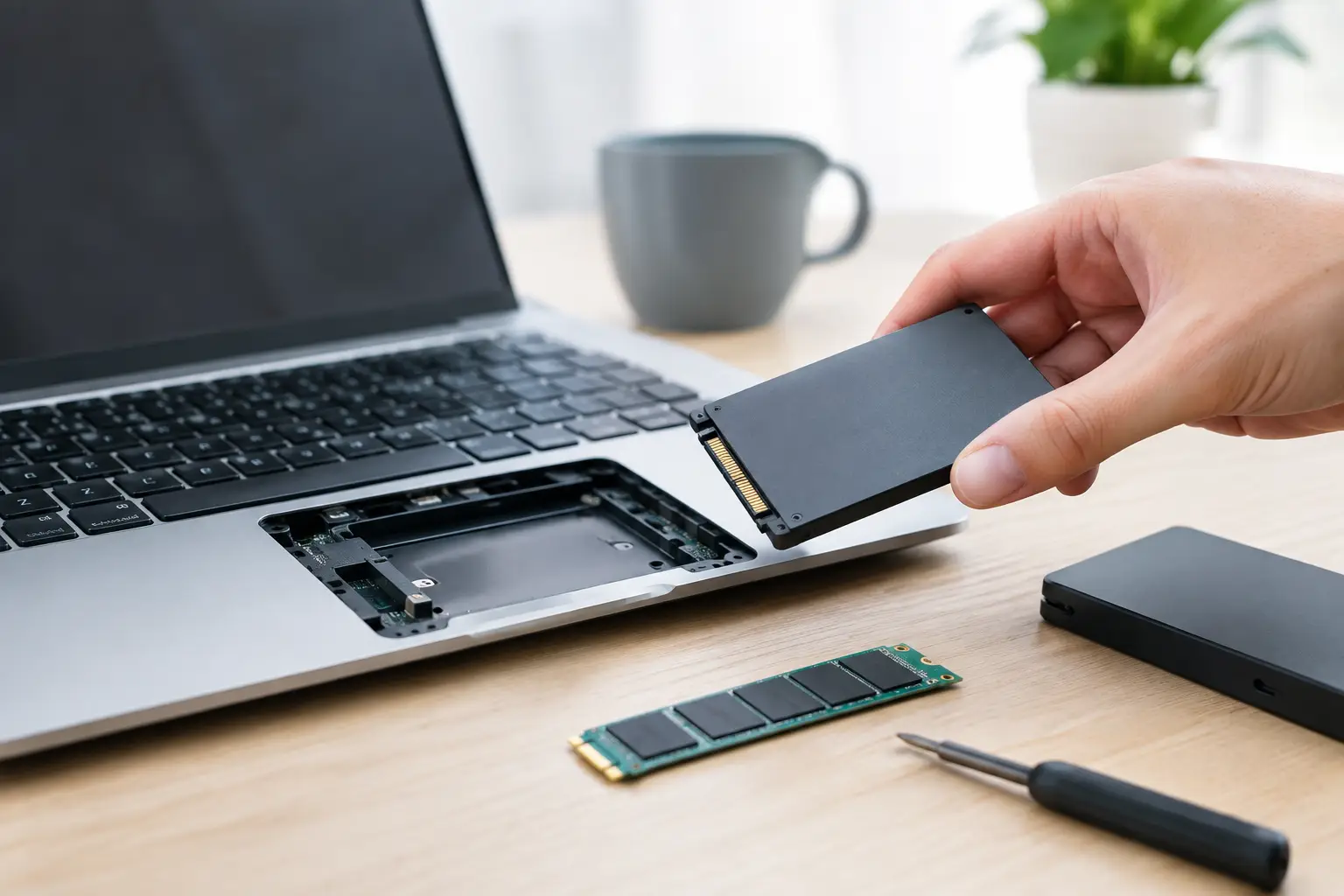
Is your laptop displaying a "storage full" message, failing to update due to lack of space, or is a new game just too big for your drive? In many cases, there's no need to replace the entire computer. The question of how to upgrade storage in a laptop begins with checking compatibility, continues with selecting the right drive, and ends with safely transferring data. A smart choice can add hundreds of gigabytes or even several terabytes, improve work speed, and postpone the expensive purchase of a new computer.
Before Upgrading Storage in a Laptop: What Can Be Replaced?
Not every laptop allows for an additional drive, and not every model enables you to swap the existing drive without limitations. In ultra-thin models, the storage may be soldered to the motherboard, making it non-upgradable. In other models, there may be only one slot available, meaning the upgrade will involve replacing the existing drive with a larger one. Larger computers, gaming laptops, and mobile workstations often come with two storage slots or space for a 2.5-inch drive.
The most accurate way to determine compatibility is to locate the full model number of the laptop and check the manufacturer’s specifications or service manual. It’s crucial to distinguish between a general series name and the precise model: two laptops from the same series may have vastly different internal configurations.
Also, check the warranty status. Opening the bottom cover shouldn't automatically void the warranty, but manufacturers and marketers may have conditions regarding damage incurred during installation. If you lack experience in disassembling computers, or if it’s a critical work laptop, opting for professional installation can reduce risk.
Types of Drives to Know
The choice isn't just between small and large capacities. The type of connection and physical format determine whether the drive will be compatible with the laptop.
M.2 SSD Drive
This format is common in most new laptops. M.2 drives are small and slim, but they come in two main interfaces: SATA and NVMe. They may appear similar on the outside, but don’t necessarily work in the same slot.
NVMe drives utilize PCIe connections and typically deliver significantly higher performance—noticeable improvements in operating system boot times, game loading, video editing, handling large files, and virtual machines. SATA drives in M.2 format are slower, but they still offer much faster speeds compared to mechanical drives and may be the only option in certain computers.
You’ll also need to check the drive's length. The 2280 size is very common, meaning a width of 22mm and a length of 80mm; however, additional sizes like 2242 and 2230 exist. Don’t base your choice solely on a picture—ensure the supported size matches your laptop.
2.5-Inch SSD Drive
Older laptops, and some of the larger models, use a 2.5-inch SATA drive. This is a cost-effective and reliable solution for upgrading from a mechanical hard drive. While the speed is less than that of NVMe drives, the improvements over mechanical drives are dramatic: faster system responsiveness, quicker program launches, and a more pleasant daily work experience.
In certain cases, there’s room for both an M.2 drive and a 2.5-inch drive. This useful configuration allows for a fast drive for the operating system and applications, alongside another drive for large files, media libraries, or games.
External Storage When Internal Upgrade Isn’t Possible
If the drive is soldered or there’s no free slot, an external drive is an effective solution for backups, file transfers, and large libraries that don’t require continuous access. A fast external SSD is also suitable for working with video files or mobile projects. However, it is not a complete substitute for internal storage when the operating system itself suffers from lack of space.
How Much Space Is Really Needed?
Having an oversized drive isn't necessarily wasteful, but you should buy according to usage patterns rather than just promotional prices. A home user working with documents, a browser, images, and educational software can manage with 500GB, provided they don’t keep a large media library on the computer. For most users, 1TB is a good balance between cost, workspace, and room to grow without deleting files every few months.
Gamers should calculate based on the actual size of games. Modern games can take up over 100GB each, and more space is required for updates, system files, and additional software. A 1TB drive is suitable for a reasonable library, while a 2TB drive is ideal for those wanting to keep many games installed without constantly managing deletions and downloads.
Video editors, photographers, designers, and CAD users need to consider source files, cache files, backups, and intermediate versions too. In such cases, 2TB or more may be a wise investment. Don't fill the drive to the brim: leave at least 15%-20% free to maintain proper performance, room for updates, and flexibility in work.
How to Upgrade Laptop Storage Without Losing Data
Before any action, back up your data. Even a simple installation can go awry due to an error in data copying, a faulty cable, or an unexpected shutdown. Copy documents, images, projects, and important files to an external drive or cloud service. Don’t rely on the assumption that files are only in the desktop folder.
When replacing the system drive, you have two options: cloning the existing drive or performing a clean installation of the operating system. Cloning copies the operating system, software, settings, and files to the new drive. This is a convenient option, especially if there's no desire to reconfigure the workspace, but it requires an appropriate adapter or enclosure to connect the new drive during the transfer.
A clean installation is suitable when the computer is cluttered with old software, the operating system is unstable, or when you simply want to start fresh. It requires more time: you'll need to reinstall software, drivers, and restore files. The advantage is a cleaner, more organized working environment.
Before disassembling the laptop, completely shut it down, disconnect the power supply and all external devices, and work on a clean surface. Gently open the cover using a proper tool, disconnect the internal battery if the design allows it, and avoid applying force to connectors or screws. M.2 drives are usually secured with just a small screw, so be sure to keep the screw safe and return it without over-tightening.
After installation, power on the laptop and check that the drive is recognized in the system settings. If it's an additional drive, it may need to be initialized, partitioned, and assigned a drive letter before appearing in the file explorer. If the new drive isn’t recognized, don’t rush to conclude that it’s faulty: check the interface compatibility, the drive connection, and the computer’s BIOS settings.
Performance, Reliability, and Warranty: Don’t Choose Based Solely on Price
In the SSD drive category, there are significant differences in quality. An impressive speed specification is important, but it’s not the only measure. Check the type of interface, drive capacity, warranty period, and write endurance, especially if the computer is used for video editing, graphic work, or files that are updated frequently.
Cooling can also play a role. Fast NVMe drives can heat up under load, but not every laptop provides space for a heatsink, and sometimes a tall heatsink can even prevent closing the lid. In such cases, choose a drive that physically fits the laptop’s design and avoid purchasing accessories that won’t fit.
When comparing models, focus on well-known brands, clear warranties, and complete specifications. At TopMarket, you can compare volumes, interfaces, and specifications of storage drives alongside adapters and enclosures, making it easy to gather everything you need for the upgrade in one purchase.
If you’re torn between 500GB and 1TB, or between SATA and NVMe drives, the right decision is the one that fits your current laptop and your usage for the next year as well. A few minutes spent checking compatibility before purchase can save you from returns, downtime, and unnecessary costs—and provide the laptop with plenty of room to work.
- 5 Akhad Ha'am St., Netanya, Israel
- Phone: +97298821001
- Sunday - Thursday: 11:00 - 24:00
Friday: 11:00 - 16:00
Saturday and holiday: 20:00 - 24:00 - Contact us form

© 2002 - 2026 TopMarket.co.il - Powered by AnyWeb.co.il
