

 Install the app
SSD vs NVMe: Which Drive is Right for Your Computer?
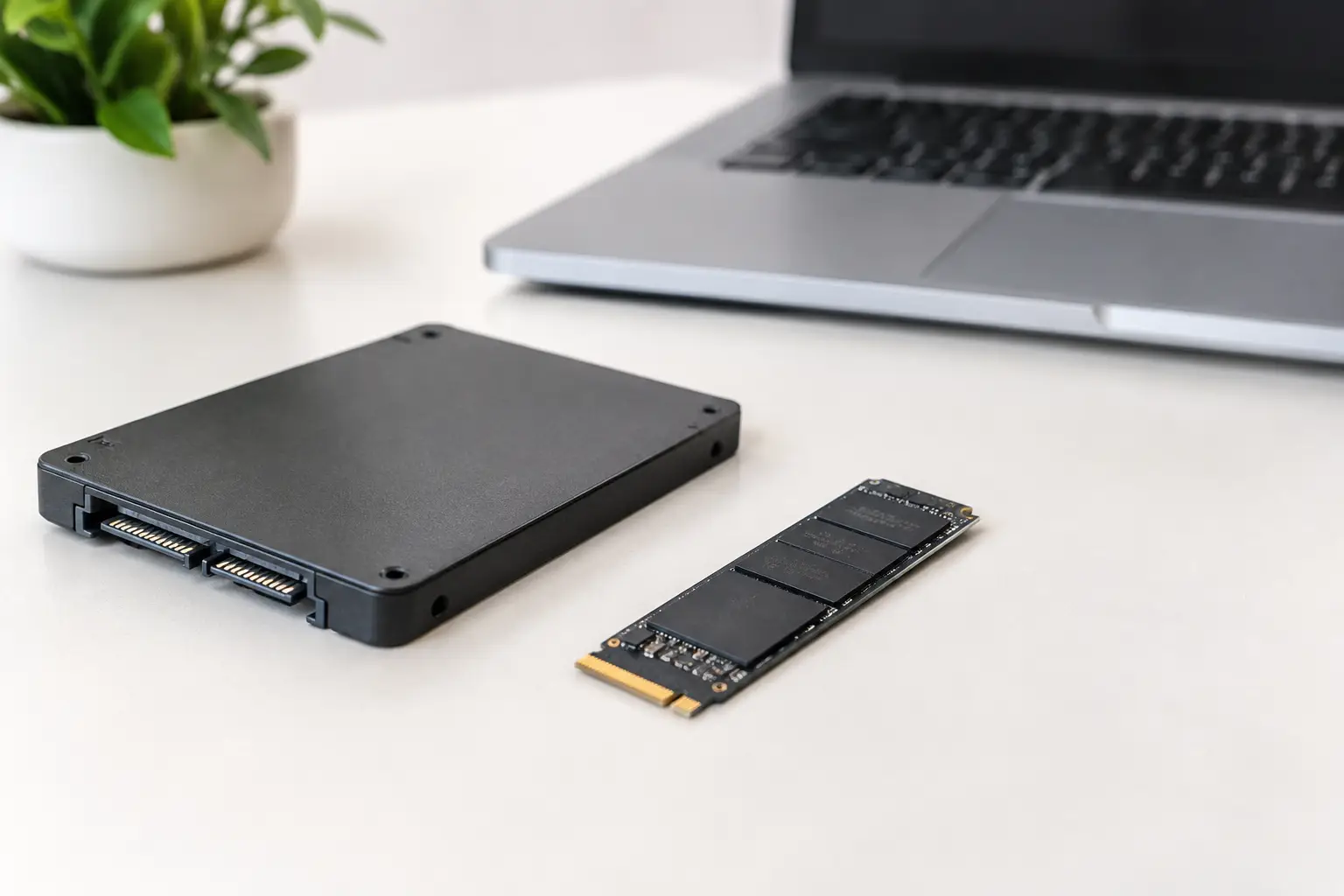
If you are upgrading your computer, building a gaming system, or choosing a new laptop, the question of SSD vs NVMe arises almost immediately. However, this common phrasing can be somewhat misleading: NVMe is not a competitor to SSD; rather, it is an advanced method by which an SSD communicates with the computer. The correct comparison is typically between a SATA SSD and an NVMe SSD utilizing a PCIe connection.
This difference impacts loading speeds for games, transferring large files, working with videos and professional software, and can sometimes affect price, heat, and motherboard compatibility. The right choice is not always the fastest drive on paper; it’s the one that suits your specifications, workload, and budget.
SSD vs NVMe: What Are We Really Comparing?
An SSD is a storage drive based on flash memory, with no moving mechanical parts. Unlike an older hard drive, it provides much shorter access times, silent operation, and better shock resistance. Even a SATA SSD represents a significant upgrade for a computer equipped with a standard hard drive.
SATA is an older, common interface. SATA SSDs typically come in a 2.5-inch format and connect to the computer via a data cable and a power cable. There are also M.2 drives that operate using the SATA protocol, so it is incorrect to assume that every M.2 drive is necessarily NVMe.
NVMe is a protocol specifically designed for flash memory that utilizes fast PCIe lanes. NVMe drives are typically found in a small M.2 format that connects directly to a dedicated slot on the motherboard. They can transfer data at speeds several times faster than SATA drives, especially models that use PCIe Gen 4 or Gen 5.
In simple terms: SSD describes the storage technology, while NVMe describes the fast communication method. Therefore, an NVMe drive is an SSD, but not every SSD is NVMe.
Speed: When Is It Noticeable and When Is It Less So?
A quality SATA drive typically reaches a maximum sequential read speed of about 550MB per second. A basic NVMe drive from the PCIe 3 generation can hit around 3,000MB per second or more, while fast PCIe 4 models can sometimes reach about 7,000MB per second. PCIe 5 drives may have significantly higher speed figures, but they require compatible hardware and adequate cooling.
The speed difference seems dramatic, and in certain tasks, it indeed is. Copying a large video library, loading heavy project files, working with high-resolution images, or installing large games will finish much faster on an NVMe. Users working in editing, 3D, software development, or workstations will particularly benefit.
In regular office use, the difference is less stark. Opening a browser, working on documents, video calls, and emails will be fast and pleasant even with a SATA SSD. If the budget is tight, it might be better to choose a 1TB SATA drive rather than a too-small NVMe that fills up quickly.
In gaming, balance is also required. NVMe improves loading times and assists in modern games that stream many assets from storage, but it generally won't add dozens of frames per second. For actual gaming performance, the graphics card, CPU, and memory still matter more. The drive mainly affects load times, installations, and data streaming.
Compatibility Before Purchase: Don’t Skip This Check
Before ordering a new drive, check what the computer can accommodate. In a desktop motherboard, verify if there’s an M.2 slot, how many slots are available, and which of them support NVMe. On some boards, a particular slot only supports SATA, and in others, using an M.2 drive might share communication lanes with SATA connections or expansion slots.
In laptops, the physical length of the drive matters greatly. Most common drives are sized 2280, meaning 22mm wide and 80mm long, but there are other sizes as well. It’s also important to check if the slot is available, whether the existing drive is replaceable, and whether the computer supports PCIe 3, 4, or 5.
A PCIe 4 drive will usually work in a PCIe 3 slot, but at a reduced speed. This is not necessarily a problem: sometimes, purchasing a faster drive gives flexibility for future upgrades, but there's no reason to pay a premium for performance that the system can’t utilize. Similarly, a PCIe 5 drive is not an automatic choice for every new computer, especially if it’s more expensive and requires significant cooling.
For computers without an M.2 slot, or older computers where compatibility is unclear, a 2.5-inch SATA SSD is a straightforward, reliable, and common solution. Just ensure there’s an available SATA connection and physical space for installation.
Capacity, Endurance, and Reliability: The Data That Follows Speed
Sequential speed is a prominent marketing specification, but it’s not the only metric worth comparing. The drive's capacity determines how much space remains for the operating system, applications, games, and personal files. An almost full drive can slow down, so it's recommended to keep some free space and not choose a borderline capacity just for a lower price.
For most users, 1TB is a balanced starting point for a new computer. 500GB might suffice for a study computer, an office workstation, or light home use. For gamers with a large game library, video editors, photographers, and users who hold many local files, 2TB or more may be more cost-effective at the time of purchase.
Also check the endurance figure, often listed as TBW, which indicates the total amount of writing the manufacturer estimates the drive can handle throughout its life. For an average user, this usually isn’t a decisive factor, but for workstations that write a lot of data, in small servers, video editing, or security recordings, it's wise to choose a model with high endurance and appropriate warranty.
The type of memory also has an impact. TLC drives are generally considered a good balance of performance, endurance, and cost. QLC models can offer large capacity at an attractive price and are well-suited for storage of games and files, but they may be slower in sustained writing. There’s no one right answer here—the question is whether the drive is meant for the operating system and regular work, or primarily for high-capacity storage.
Heat and Cooling in NVMe Drives
Fast NVMe drives, particularly from newer generations, can get hot under prolonged load. During the transfer of large files or sustained rendering, an overheating drive may throttle performance to protect itself. This phenomenon is called thermal throttling.
In desktop computers, it’s advisable to use the cooling solution that comes with the motherboard if it exists and is suitable. Some drives already include a heat sink, but ensure it fits in the available space and does not obstruct the graphics card. In laptops, there is typically not enough room for a large heat sink, so it’s essential to choose a model that suits the device's structure and does not add a component that could prevent proper closing of the case.
There’s no need to turn every upgrade into a cooling project. A quality NVMe drive in a case with decent airflow will perform well for most home and business uses. Cooling becomes more crucial in powerful gaming systems, workstations, and when using high speeds for extended periods.
How to Choose Based on Computer Type and Use?
For a home or office computer, a SATA drive with an appropriate capacity still offers an excellent upgrade if there’s no available M.2 slot. If NVMe support exists and the price is comparable, a 1TB NVMe drive is usually the more cost-effective choice for the future.
For a laptop for studies or work, first check physical compatibility and capacity. An NVMe drive will help the system feel snappier, but a balanced and reliable model is preferable over a particularly fast one with limited capacity. Pay attention to warranty and the manufacturer’s transfer tools if planning to clone the existing drive.
In a gaming computer, NVMe is a natural choice for the system drive and the most active games. There’s no need to buy the fastest model on the market: a quality PCIe 4 drive with 1TB or 2TB typically offers a good balance between price, speed, and actual performance. If additional capacity is needed within a lower budget, it’s possible to combine a second SATA drive for less demanding games or archiving.
For editing, planning, or professional workstations, prioritize a fast NVMe with good writing endurance. In such cases, combining a fast NVMe drive for active projects and an additional drive for backup or archiving allows for better organization. Here too, external or cloud backup remains essential—no internal drive replaces backup.
When comparing models on TopMarket, don’t settle for the product title alone. Check the interface, supported generation, capacity, read and write speeds, endurance figure, warranty period, and whether cooling is required. An accurate specification saves you from making an unsuitable purchase and allows for a real comparison between models in the same category.
The smart choice is not between terms, but between needs. If your computer supports it and the budget allows, NVMe is usually the right drive for a new system. If you are upgrading an existing computer or primarily need a reliable volume at an efficient price, SATA SSD still offers excellent value. Choose a drive that leaves you with enough room to work, play, and save files even after the excitement of the upgrade transitions to everyday use.
- Recommended Compact Printers for Home and Small Office
- How to Calibrate Your Monitor for Professional Graphics Work with Precisio
- How to Choose a Wireless Network for a Retail Store?
- Smart Homes That Truly Fit Your Home and Budge
- <h1>Case Study: An Office Computer Upgrade That Saved Time and Money</h1>

