

Mini PC vs. Desktop: Which Computer is Right for You?
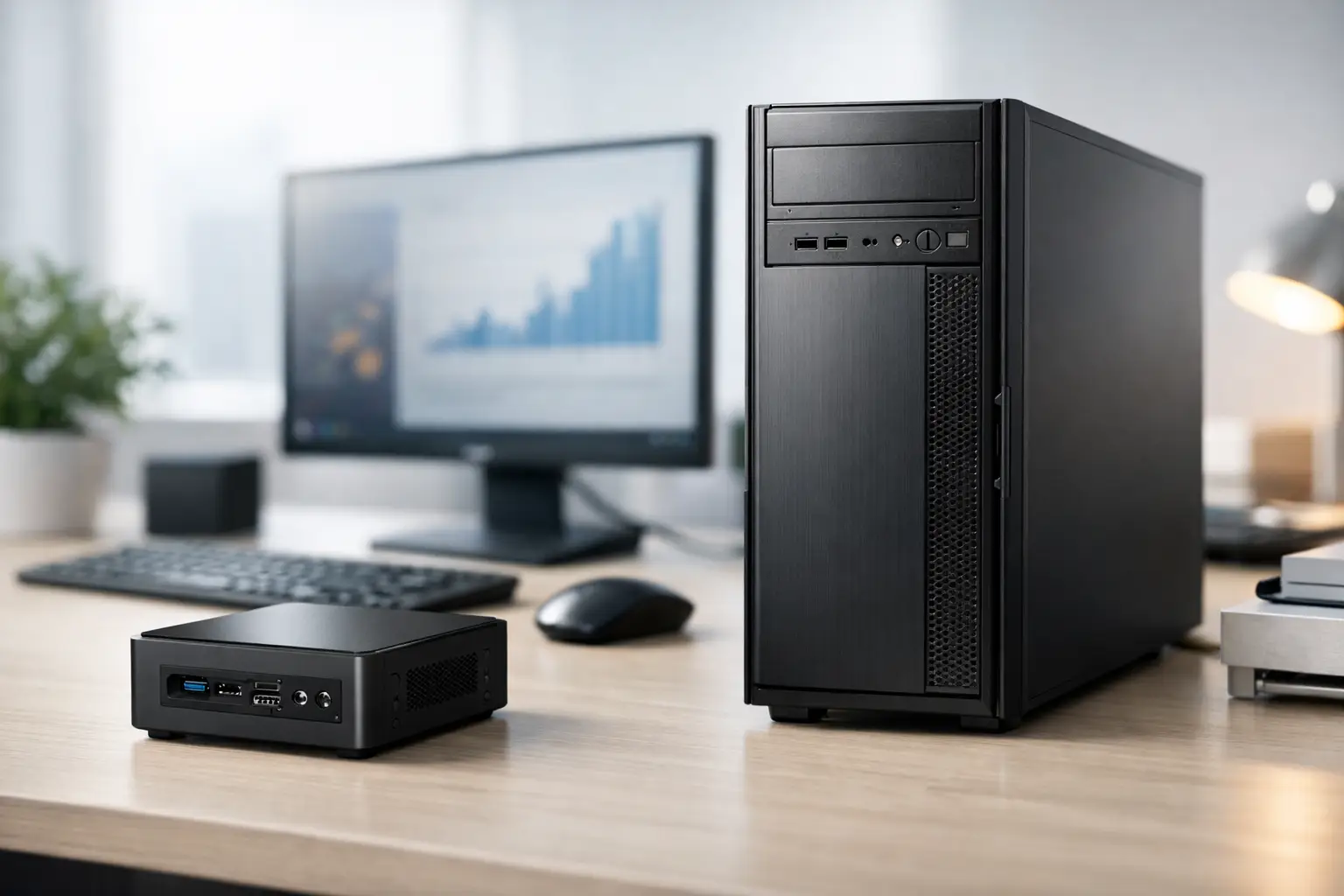
Your old computer is taking up space under the desk, the fans are noisy, and you need a new solution. The real question arises: Mini PC vs. Desktop - should you opt for a compact box that can be placed behind the monitor, or a full desktop case with more power and expansion options? The answer doesn't solely depend on the size of your desk. It depends on the software you run, the equipment you connect, your budget, and whether you want to upgrade the computer in a couple of years.
A mini computer, also known as a Mini PC, is a fully functional desktop in a tiny case. A standard desktop generally refers to a computer housed in a Tower or Desktop case with separate internal components and ample space for a graphics card, drives, and larger cooling systems. Both types have their place at home and in the office, but they are intended for very different scenarios.
Mini PC vs. Desktop: The Differences That Influence Your Purchase
Size, Location, and Work Environment
The immediate advantage of a Mini PC is space-saving. It can be placed on your desk, behind a compatible VESA monitor, next to a living room TV, or in a crowded reception area. It is particularly suitable for offices with many workstations, classrooms, cash registers, service desks, and home users who prefer a tidy desk without a large case on the floor.
A full desktop requires more space but offers a different level of comfort. The case is usually located under the desk, keeping the workstation clear while providing easy access to connections, drives, and internal components. In an office where the computer remains in a fixed location, or in a gaming room where the case is part of the setup, size is not necessarily a disadvantage.
Performance: Not Every Small Computer Is Weak
Modern Mini PCs can come equipped with powerful Intel Core or AMD Ryzen processors, fast RAM, and NVMe SSDs. For browsing with multiple tabs, Microsoft 365, Zoom, accounting systems, studying, streaming 4K content, and general office work, a quality Mini PC can deliver excellent performance without taking up much space.
The gap appears under prolonged loads and demanding tasks. A small case has less volume for cooling, which means the processor may run at a lower frequency for extended periods to maintain a proper temperature. Video rendering, lengthy compilations, heavy CAD work, simulations, multiple virtual machines, or processing large image files will usually benefit from a desktop computer with a robust processor and advanced cooling.
It's important to differentiate between peak performance and sustained performance. A Mini PC may feel very fast when opening applications and conducting daily tasks. A larger desktop is more likely to maintain its processing power even after hours of load.
Graphics Card and Gaming
This is one of the clearest considerations. Most Mini PCs use integrated graphics in the processor. This is sufficient for office work, media viewing, light photo editing, and simple or older games. Some models include more powerful graphics chips, but space, cooling, and power consumption remain limited.
For modern gaming at Full HD or 1440p resolution with high graphic settings and high refresh rates, a desktop with a dedicated graphics card is almost always the right choice. It allows you to select a GPU suited to your games and monitor, incorporate a suitable power supply, and upgrade in the future. Content creators working with Premiere Pro, DaVinci Resolve, Blender, or 3D applications will also benefit from this advantage.
Some Mini PCs have solutions for external graphics cards via USB4 or Thunderbolt, but this is an expensive addition that requires an external case, power supply, and precise compatibility. In many cases, a dedicated desktop will be a more cost-effective and straightforward option.
Upgrade and Repair Options
In a classic desktop, you can usually swap out memory, add an SSD or HDD, upgrade the graphics card, replace the power supply, or even change the processor depending on the motherboard. This flexibility extends the system's lifespan and allows adaptation to changing needs. A business starting with an office computer can add memory and storage later. A gamer can upgrade the graphics card without buying a whole new system.
In a Mini PC, upgrade options are more limited. Most models allow RAM and SSD upgrades, and possibly the addition of another drive. The processor and graphics are typically soldered to the motherboard and are non-replaceable. Therefore, it’s essential to purchase specifications that not only meet today’s needs but leave room for the coming years.
If you know you'll need to use more demanding software in the future, or if you want to switch to gaming, a desktop case may be a more flexible investment. However, if the use is defined and clear, such as an office workstation, cash register, or living room computer, the limited upgradeability of a Mini PC may not be an issue.
Connections, Monitors, and Peripherals
Don't choose based solely on the processor. In an office or home setup, the number of connections determines how convenient the computer will be on its first working day. A quality Mini PC can include USB-A, USB-C, HDMI, DisplayPort, Gigabit or 2.5GbE networking, Wi-Fi, and Bluetooth. Many models can connect two screens, and sometimes even three or four, but it’s essential to check the resolution and refresh rates supported at each port.
A desktop typically has an advantage in the number of connections and the ability to add more in the future. You can install a fast network card, a capture card, a sound card, additional USB ports, or dedicated storage connections. This is significant for editing stations, users with multiple screens, photographers, security systems, and businesses connecting professional equipment.
The location of the connections is also important. A Mini PC installed behind the monitor looks neat, but swapping out a USB drive or connecting headphones may be less convenient. A desktop case with front ports may be more practical in environments where equipment is frequently connected and disconnected.
Noise, Power Consumption, and Longevity
A Mini PC generally consumes less power than a powerful desktop, particularly when based on an energy-efficient processor and without a dedicated graphics card. In an organization with dozens of workstations, this difference can be relevant for both electrical consumption and heat generated in the workspace. At home, a small and quiet computer fits well in a workspace or next to a TV.
However, not every Mini PC is silent in every scenario. Under load, a small fan may be louder than larger fans in a well-ventilated desktop case. A larger desktop can dissipate heat efficiently and operate surprisingly quietly, provided that suitable cases, cooling, and fans are chosen.
Reliability has a practical side as well: A desktop allows for relatively easy dust cleaning, fan or power supply replacement. In a Mini PC, components are more compact, and repair can be less convenient. In dusty, hot environments or those operating for long hours, it’s worth considering cooling quality and warranty, not just the sale price.
How to Choose the Right Specs According to Use
For office use, studying, and browsing, look for a computer with a modern processor, at least 16GB of RAM, and a 512GB SSD. In many cases, a Mini PC with such specifications will be an efficient, fast, and space-saving choice. If it’s a very basic workstation, even 8GB of RAM may suffice, but 16GB provides comfortable headroom for multitasking with browsers, video calls, and documents.
For software developers, heavy Excel users, IT professionals, and anyone running virtual machines, consider a processor with more cores, 32GB of RAM or more, and fast storage. An advanced Mini PC may be appropriate, particularly if a dedicated GPU isn’t necessary. For extended use or future expansion, a desktop will still be a more reliable solution.
For graphic designers, video editors, architects, and gamers, start with the software and game requirements, not the size of the case. Check the recommended processor, RAM capacity, graphics card requirements, storage size, and connections for monitors. In most cases, you’ll end up with a desktop with a dedicated graphics card, at least 32GB of RAM, and a fast SSD, with options for adding storage later.
Before ordering, check five details: the type of processor and its generation, the amount of RAM and upgrade options, SSD size and type, number of monitor and USB ports, and warranty terms. With a wide selection like that of TopMarket, you can compare Mini PC models, ready-made desktops, and system components without compromising on real compatibility with your needs.
The Price: Look at the Complete System
A Mini PC may seem cheap, but make sure to check what’s included in the package. Some models are sold without memory, without a drive, or without an operating system. On the other hand, a low-priced desktop might come with a basic power supply, limited RAM, or small storage. Compare the full specifications and not just the price tag.
Also, consider the costs of surrounding equipment: monitor, keyboard, mouse, webcam, speakers, operating system, and perhaps a Wi-Fi adapter. If you already have a monitor and peripherals, a Mini PC might be a particularly cost-effective solution. If you’re building a new gaming station, it’s better to price the entire system together to avoid discrepancies between the computer's performance and the monitor's capabilities.
The right choice isn’t necessarily the smallest or the most powerful computer on the shelf, but rather the one that gets your work done without paying for capabilities you won’t use. Define the three heaviest tasks you’ll perform, the number of screens, and the desired upgrade space - from there, the appropriate specifications will become much clearer.

