

Recommended Webcams for Work, Gaming, and Video Calls
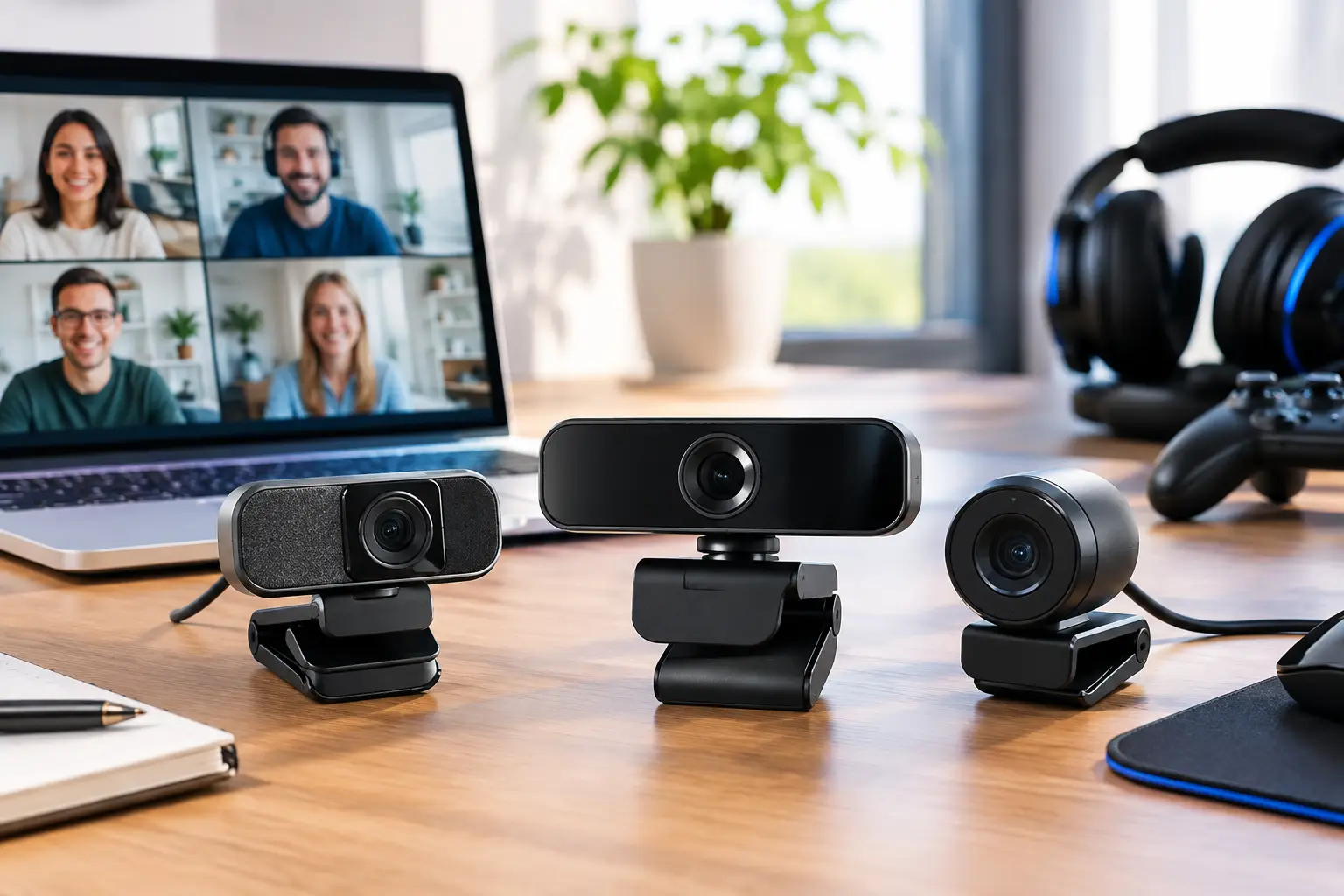
A built-in laptop camera may be enough for a quick video call, but it can quickly become a limitation when you need to look sharp in a work meeting, record a lesson, stream a game, or speak with clients. Choosing from the range of recommended webcams starts with understanding how you’ll actually use the camera: not everyone needs 4K, and a built-in microphone won’t necessarily solve audio problems in a noisy room.
The right choice combines image quality, compatibility with your computer and display, easy setup, and a price that fits your needs. A good webcam is about more than a high resolution printed on the box. It should deliver a consistent picture in your home or office lighting, offer the right viewing angle, and work easily with popular video-calling apps.
Recommended Webcams by Use Case
Before comparing specifications, identify your main use. If you work from home and want a noticeable upgrade over your laptop’s built-in camera, a reliable 1080p webcam is usually a good fit. Content creators and streamers may prefer a higher frame rate, manual controls, and better low-light performance. A team meeting in a shared room calls for a wider field of view and better microphones.
| Main use | Specifications to look for | Usually less important | |---|---|---| | Work meetings and online classes | 1080p, 30 fps, autofocus | 4K video and 60 fps | | Family calls and everyday home use | 720p or 1080p, simple USB connection | Advanced manual image controls | | Streaming and gaming | 1080p at 60 fps or 4K, control software | Built-in microphone as the only audio solution | | Recording tutorials and professional content | 4K or high-quality 1080p, fast autofocus, stable exposure | Very wide field of view when filming one person | | Small meeting room | Wide field of view, noise-reducing microphones | Extra-high frame rate |
This table is a useful starting point, but it can’t replace checking your actual recording conditions. A high-quality 1080p webcam pointed toward a bright window may look worse than a basic 720p camera positioned in front of balanced lighting. Along with choosing a model, consider the camera’s position and the lighting around it.
Resolution and Frame Rate: What You’ll Actually See
720p is a basic resolution suitable for occasional calls, but it’s less suitable if you meet with clients, teach online, or spend long hours on camera. For most people, 1080p offers the best balance of price, clarity, and system requirements. It delivers a clear picture on most video platforms without requiring an unusually fast internet connection or taking up excessive storage when recording.
4K webcams make sense when video quality is central to your work, such as creating content, recording courses, showcasing products, or filming footage for later editing. Keep in mind that many video-calling platforms compress video and may even limit its resolution. For an ordinary video call, the benefit of 4K may be modest compared with the added cost.
A frame rate of 30 fps provides natural-looking motion for meetings, classes, and everyday calls. At 60 fps, movement looks smoother, making it a popular choice for gamers, streamers, and instructors demonstrating fast actions. However, a higher frame rate requires better lighting and sometimes a more reliable internet connection. There’s little reason to pay for 60 fps if you mainly join a weekly team meeting.
Autofocus or Fixed Focus?
Fixed focus works well if you usually sit in the same position in front of your screen. It’s generally simple and reliable, and can also be more affordable. Autofocus is a better choice if you move around while filming, hold documents or products up to the camera, or want the image to stay sharp when you change your distance from the screen.
On inexpensive models, autofocus may repeatedly hunt for focus in low light. So don’t just check whether the feature is included; consider whether you actually need it for your day-to-day use. For a lecturer who sits in front of a computer, a webcam with fixed focus and good optical quality may be the more practical choice.
Lighting, Sensor, and Exposure: Specifications Worth Checking
Lighting can make the difference between a professional-looking image and one that appears gray and grainy. Webcams use relatively small sensors, and in a dark room they increase their sensitivity to light. This can result in digital noise, motion blur, and less accurate skin tones.
A webcam with automatic light correction can improve the image, especially at home or in an office where lighting changes throughout the day. But even the best camera can’t compensate for a bright window behind you. Ideally, light should come from in front of you or at a slight angle from the side. A simple desk lamp or small ring light can improve your video more than upgrading from a 1080p model to a 4K one.
Pay attention to the field of view as well. An angle of around 65 to 78 degrees is suitable for most one-person video calls. A field of view of 90 degrees or more captures more of the room, which is useful when two people are on camera or when you want to show your workspace. On the other hand, it also reveals more of your background, clutter, or people nearby.
Built-In Microphone: Convenient, but Not Always Enough
Many webcams include a built-in microphone, and some have a pair designed to pick up the speaker’s voice while reducing background noise. For one-on-one calls in a quiet room, this is a convenient option that avoids extra equipment and unnecessary connections. Check that the microphone is positioned relatively close to you and that there isn’t a fan, air conditioner, or particularly noisy keyboard nearby.
For sales calls, frequent professional meetings, podcasts, or streaming, a headset with a microphone or a dedicated desktop microphone will usually deliver a more noticeable improvement than any camera upgrade. This is a good example of why it pays to allocate your budget wisely: a good 1080p webcam paired with a quality microphone will make a better impression than an expensive 4K webcam with poor audio.
Privacy matters, too. A physical privacy shutter is a simple, useful feature, especially for a computer in a family room, shared office, or child’s study area. If a model doesn’t include one, you can choose a compatible accessory, as long as it doesn’t press against the lens or interfere with the mounting mechanism.
Connectivity, Setup, and Workspace Compatibility
Most webcams connect via USB and are recognized automatically by modern operating systems. This is the practical choice for most users: plug in the camera, select it in your video-calling app, and get started. More advanced models may include manufacturer software for adjusting the field of view, white balance, brightness, contrast, and sometimes digital zoom.
Before buying, check which ports are available on your computer. If it only has USB-C ports, you may need an adapter or docking station. For a desktop computer, it’s often better to connect the webcam directly to a rear port on the motherboard, especially if the front ports are already being used by several devices.
The mounting clip matters just as much as the cable. The webcam should sit securely on a thin or curved monitor, or on a monitor arm, without blocking too much of the screen. If you use an ultrawide monitor or want precise control over the camera angle, look for a model with a tripod mount. A small tripod lets you position the camera at eye level instead of pointing it up from a low angle, which is less flattering and shows more of the ceiling.
How to Compare Models Without Paying for Unnecessary Features
When comparing recommended webcams, start with three specifications: resolution, frame rate, and field of view. Then consider autofocus, light correction, and microphone quality. Only after that should you weigh extras such as a privacy shutter, tripod, control software, or compact design.
Well-known brands in this category often offer advantages in support, software, and accessory availability, but simpler models can also be excellent when your needs are clear. You don’t need a professional camera to replace your laptop webcam for family calls, and there’s no reason to settle for a basic model if you’re recording tutorials that represent your business.
Also check the warranty terms and make sure the model is compatible with your operating system and the software you use. For a small business where several employees join video meetings every day, buying the same model for multiple workstations can simplify setup, support, and equipment management over time.
The Right Choice Starts with Your Setup
Before adding a webcam to your cart, sit in front of your screen and assess your actual setup: how far you are from the camera, the lighting in the room, the level of background noise, and whether you’ll be filming only yourself or your surroundings as well. Matching the specifications to your needs can help you avoid overspending and deliver an improvement you’ll see and hear on your next call.

