

Internal vs. External SSDs - Which is Best for Your Computer and Backup?
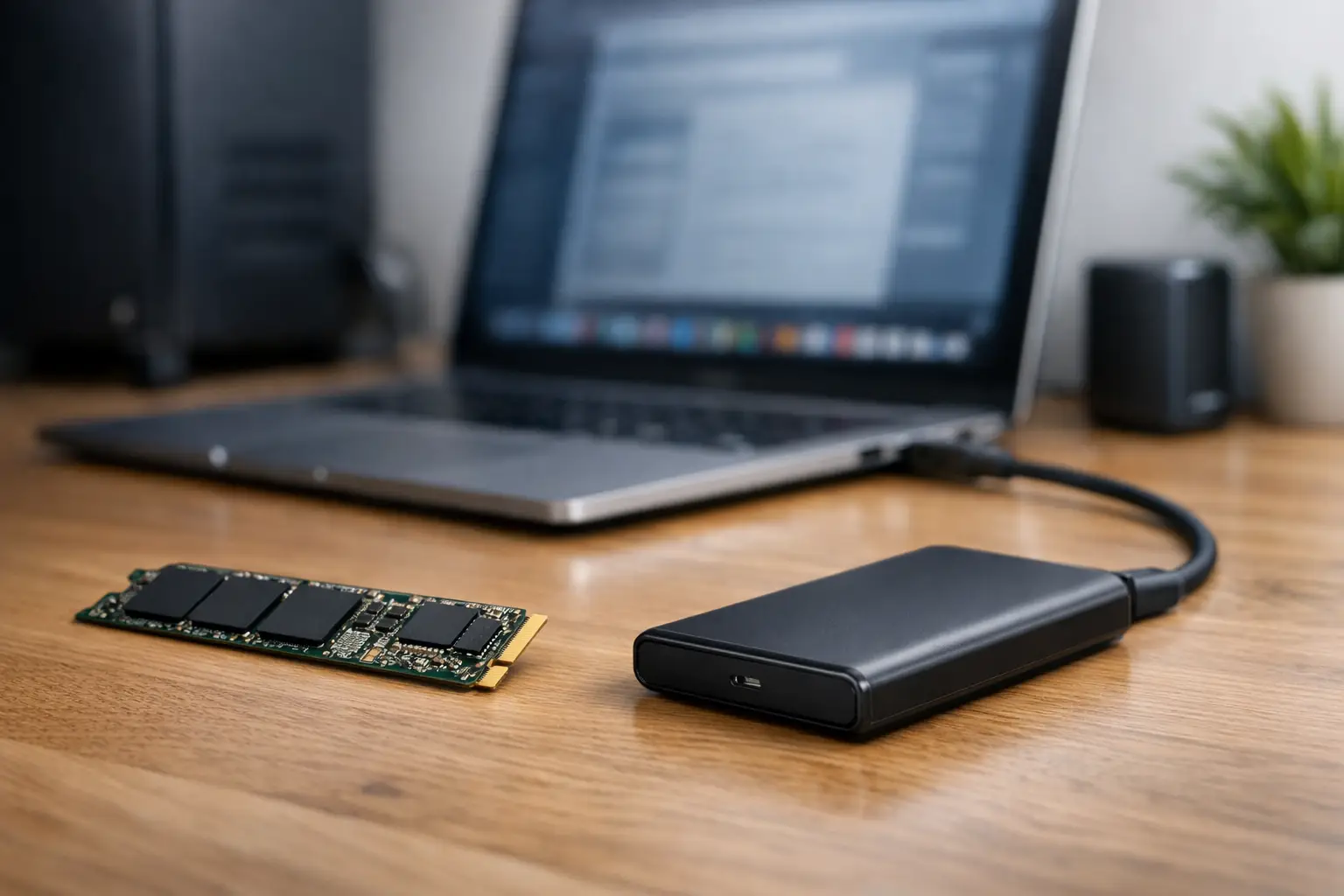
Transferring a 120GB game, backing up photos from your phone, or upgrading a slow computer may seem like similar tasks, but they require different drives. In comparing internal SSDs versus external SSDs, the key question is not just which drive is faster, but where the files are being used, how often they move between devices, and what level of performance will truly be utilized.
An internal drive is designed to be a permanent component of your computer, while an external drive is intended for portability, backup, and data transfer. Both utilize flash memory, making them significantly faster than traditional mechanical drives, but their interfaces, prices, cooling solutions, and everyday usability differ greatly.
Internal SSD vs. External SSD: The Difference Starts with the Connection
An internal SSD connects directly to the motherboard, typically via an M.2 slot or SATA connection. An M.2 drive using the NVMe standard leverages PCIe lanes and is capable of achieving very high speeds, depending on the generation of the interface, the motherboard, and the model of the drive. It is the natural choice for the system disk, professional software, gaming libraries, and files that are frequently opened and edited.
An external SSD typically contains an SSD drive and a case with a USB controller. It connects via USB-C, USB-A, or Thunderbolt, making it easy to transfer between a laptop, desktop, console, and sometimes even compatible phones or tablets. Its speed depends not just on the drive itself but also on the computer's port, the cable, and the connection standard. A drive that operates at USB 3.2 Gen 2 will not reach its full performance if connected to an older USB port.
In simple terms: an internal drive has a direct and faster pathway to the computer components. An external drive sacrifices some performance for flexibility and portability. This does not make it an inferior solution; it is simply designed for a different scenario.
When is an Internal SSD the Right Choice?
If your computer is booting slowly, applications are opening with a delay, or games take a long time to load, upgrading to an internal drive is usually the most noticeable improvement in terms of cost. In an old computer with a hard drive, even a basic SATA SSD will significantly change the boot time of the operating system and the responsiveness of the computer. In a new computer with NVMe support, a fast M.2 drive is more suitable for heavy work and future demands.
For gamers, an internal SSD allows for shorter load times and quick transitions between areas in large games. It is also suitable for a permanent game library, where there is no need to disconnect and transfer the drive. It is important to check how many M.2 slots the motherboard has, which PCIe generation is supported, and whether there is cooling for the drive. In particularly fast models, proper cooling helps maintain consistent performance during large file transfers or game installations.
For video editors, designers, CAD users, and developers, a fast internal drive also provides a more efficient work environment. Projects, cache files, raw materials, and temporary folders benefit from direct access and low latency. In such cases, consider a role distribution: a fast internal drive for the system and active projects and an additional drive for archiving or backups.
There is also a practical consideration regarding capacity. When most files stay on the computer, an internal capacity of 1TB or 2TB may be more cost-effective than relying on multiple external drives. Before purchasing, check the actual storage capacity and the type of files: modern games, 4K video, and photo libraries can fill 500GB quickly.
When is an External SSD Preferable?
An external SSD is suitable for those who work from multiple stations, need to take files to meetings, back up personal material, or want to expand storage without opening the computer. A student moving between a home computer and a campus computer, a photographer transferring raw materials on-site, or a small business needing to transfer files between employees all benefit from this portability.
The major advantage is immediate installation. You simply connect a cable, format as needed, and start working. There is no need to check for available slots, disassemble a case, or deal with operating system installation. In slim laptops, where the internal drive is not accessible or the internal capacity is limited, this is often the simplest solution.
For backup, an external SSD offers high speed and particularly good convenience compared to an external hard drive. It is compact, silent, and more shock-resistant as it contains no mechanical parts. However, good backup isn’t just about buying a drive. It’s essential to maintain regular backups, organize folders clearly, and disconnect the drive after backing up important material. A drive that’s permanently connected to the computer is more exposed to accidental deletion, failures, and malware.
An external drive is also useful when you want to take games or large files between devices. In consoles and computers, check the manufacturer's limitations in advance: not all systems allow playing next-gen games directly from USB storage, and sometimes the drive is suitable only for storage and transfer.
Speed on Paper vs. Real-World Speed
The speed numbers on the specification sheet are important, but they need to be read in the right context. An advanced internal NVMe drive can show read speeds in the thousands of MB per second, while a common external SSD via USB 10Gbps will typically reach about 1,000MB per second under good conditions. This is still excellent speed for transferring movies, pictures, and backups.
The gap becomes more significant when working with many small files, installing software, loading games, and using the drive as a system drive. Here, an internal drive has a clear advantage, as the direct connection and low latency affect the overall experience. On the other hand, if you are transferring a documents folder once a week or using the drive for archiving, the difference may not always justify the higher cost.
It's also important to avoid a common bottleneck: a cable that does not support the full speed, a cheap USB hub, or a slow front port can limit a fast external drive. Opt for a quality cable that matches the drive's specifications and connect it directly to a compatible port on the computer.
Compatibility, Enclosures, and Durability
For an internal drive, compatibility begins with the type of computer. A desktop computer may support both M.2 and SATA, while a laptop might have only one M.2 slot or length limitations for the drive. Check the manufacturer's manual for your computer or motherboard before ordering. A PCIe 4.0 drive will generally work in a PCIe 3.0 slot, but at lower speeds.
For an external drive, check the USB standard, the type of connection, and the need for adapters. For users traveling with the drive, consider the enclosure; an aluminum body can help with heat dissipation, a rugged casing provides better grip, and a water or dust resistance rating is relevant for those working outside the office. Size and weight are also important when the drive is carried in a bag daily.
Another option for those seeking flexibility is to purchase an internal SSD along with a compatible external enclosure. This can be a good choice if you already have an available drive or want to select the drive's performance and enclosure separately. However, ensure that the enclosure supports the correct protocol—NVMe is not the same as SATA—and has adequate cooling.
How to Choose Capacity and Specifications Without Breaking the Budget
Choosing capacity should start with usage rather than promotions. 500GB may suffice for office computers, studies, and backup of documents, but it will quickly limit a gaming library or video materials. 1TB is a useful balancing point for many users. 2TB and above are more suitable for content creators, gamers with extensive libraries, and businesses storing large files over time.
Do not choose a drive based solely on capacity. Check the type of interface, read and write speeds, manufacturer warranty, type of connection, and whether the drive includes backup or encryption software. For an internal drive, also check the durability rating for writing and the presence of cache when work involves heavy copying. For an external drive, prioritize connection specifications that actually match your computers, not just the most impressive number on the packaging.
For those looking for a complete solution, an efficient combination can be selected: an internal SSD of appropriate size for operating the computer and daily work, alongside an external SSD for backup, travel, and project transfers. This way, you don’t pay a premium for portability where it isn’t needed, and you don’t sacrifice speed where it saves time every day.
Before adding a drive to your cart, note which devices will be connected to it, how much capacity you use monthly, and which files must be immediately accessible. With this data, it becomes easier to compare models, warranties, and prices—and choose storage that will serve you well even after the deal ends.

