
Setting Up a Dual Workstation for Efficient and Comfortable Work
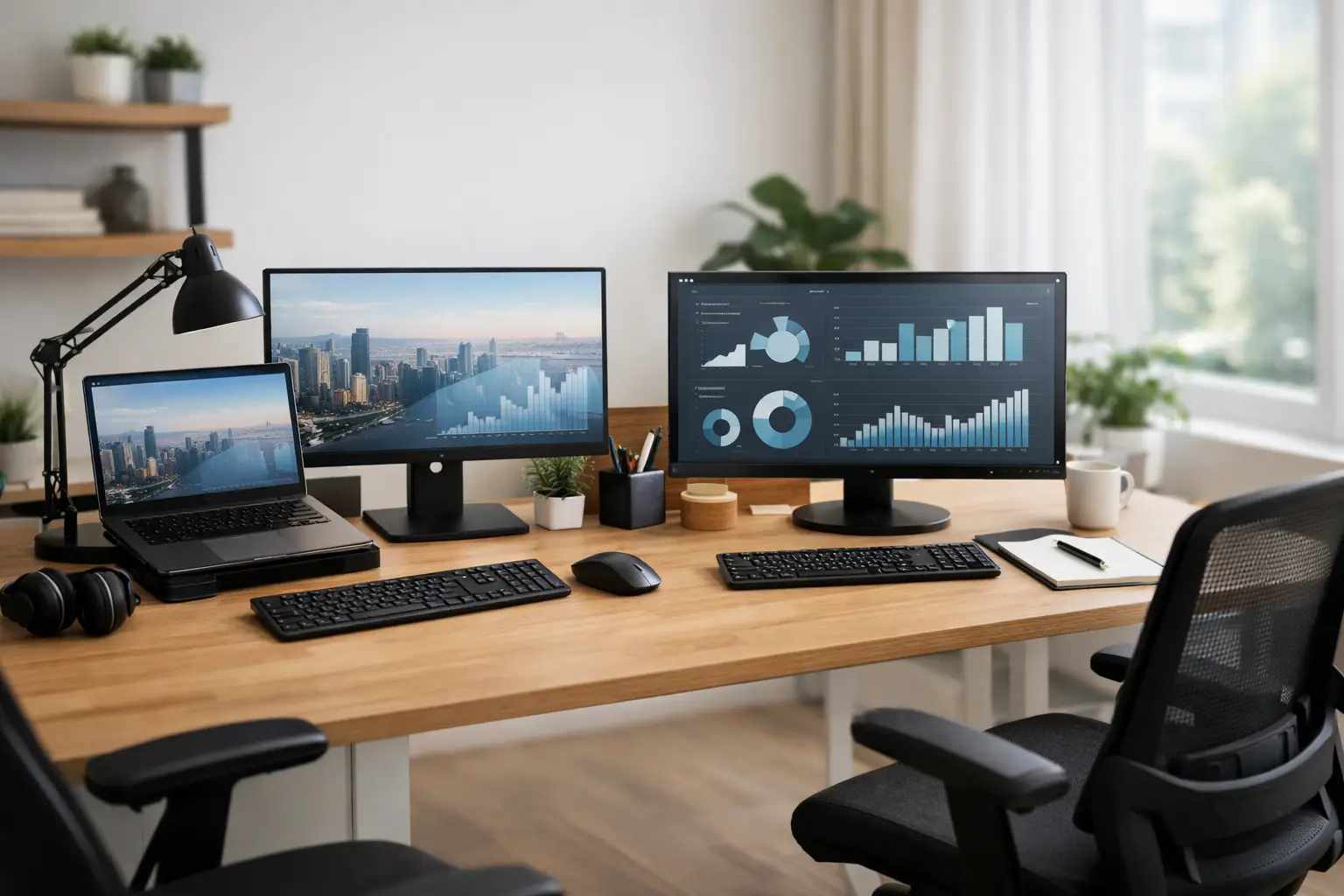
Having two monitors on a small desk can significantly boost your productivity, but it can also quickly become a source of clutter, cables, and neck strain. Setting up a proper dual workstation begins not with the additional monitor, but with an alignment between the workspace, the type of tasks, the existing computer, and the budget. Whether it's a home office, service station, trading environment, video editing, or working with spreadsheets, every component of the setup should serve a genuine need.
Planning the Desk for a Dual Workstation
Before selecting monitors, measure the desk. This may seem basic, but it's a crucial step in determining whether the setup will be comfortable over time. For 24-inch monitors, a desk width of around 120 cm is generally sufficient, while for 27-inch monitors, a width of 140 cm or more is recommended. If you’re adding a laptop, printer, docking station, or physical documents, additional space is necessary.
The desk depth is also critical. A depth of 60 cm is suitable for a basic setup, but 70 to 80 cm allows for better distance from the eyes and provides space for a keyboard and mouse. With larger monitors or higher resolutions, a viewing distance of about 60 to 80 cm is often more comfortable. There isn’t a one-size-fits-all rule: a user who primarily works with text might prefer monitors relatively close together, while a designer or video editor would benefit from a wider viewing space.
Also, check the location of the power outlet, network connection, and light sources. A workstation placed directly in front of a window may suffer from glare during certain hours of the day. Monitors with anti-glare coatings help, but don’t replace the proper positioning of the desk relative to natural light.
Identical Monitors or Mixed Screens?
Two identical monitors are the simplest and most uniform solution. They offer the same height, color, frame, and refresh rate, making them particularly comfortable for working with multiple windows, Excel, management systems, technical support, and trading. A dual arm is also easier to adapt when the weight and dimensions are the same.
However, integrating different monitors can be more effective in certain cases. For example, a 27-inch QHD monitor for central tasks alongside a 24-inch vertical monitor for chat, documents, or code. Another option is a super-wide monitor alongside a standard monitor, though this setup requires a larger desk and a graphics card with enough ports. Avoid choosing a second monitor solely based on a promotional price if it will create significant discrepancies in sharpness, colors, or height.
Choosing Monitors Based on Work Type
For office use, studies, browsing, and documents, two 24-inch monitors with Full HD resolution still provide good value, especially when the budget is tight. If working long hours with text, an IPS monitor with good viewing angles, flicker reduction technology, and an adjustable stand is a better choice than a basic inexpensive monitor.
For users managing large spreadsheets, working with business software, or opening multiple windows at once, a pair of 27-inch QHD monitors is an excellent balance. The higher resolution allows for more information to be displayed without excessively shrinking the text. Ensure the operating system is set with the appropriate scaling, especially if there are vision issues or if a QHD monitor is combined with a Full HD monitor.
For graphics, photography, video editing, and CAD work, color accuracy, color coverage, uniformity of lighting, and advanced connections are more significant. Here, it may be preferable to invest in a high-quality calibrated main monitor and use the second monitor for tools, timelines, previews, or auxiliary windows. Two identical professional monitors are a great solution but not a necessity for every budget.
Gamers who also work from the same station need to differentiate between a work monitor and a gaming monitor. A monitor with 144Hz or higher can be an excellent primary display for gaming, but it’s wise to ensure it’s also comfortable for reading text, not just fast. The second monitor doesn’t necessarily need a high refresh rate, so savings can be made without compromising daily use.
Computer, Graphics Card, and Docking Station
The most common mistake when setting up a dual workstation is assuming any computer can run two monitors at any resolution. Most modern desktop computers support this, but checking the display outputs on the graphics card or motherboard is essential. DisplayPort and HDMI are the common connections, and some monitors and computers also feature USB-C.
With a laptop, support depends on the model, processor, docking station, and USB-C port. USB-C does not automatically guarantee video output. It’s necessary to check if it supports DisplayPort Alt Mode or Thunderbolt, and what the maximum resolution is for running two monitors simultaneously. A computer that can display two Full HD monitors may not necessarily handle two 4K monitors at high refresh rates.
A good docking station simplifies work: a single cable for the laptop can carry power, video, networking, keyboard, mouse, and USB peripherals. This solution is especially useful for employees who move between home and the office or between meetings and a fixed workstation. However, a basic docking station may limit resolution or refresh rates, making the specifications of the connections more critical than just the number of ports.
For a business workstation with long working hours, it’s advisable to choose cables of appropriate lengths and quality. A cable that is too long causes unnecessary clutter, while a cheap or non-standard cable may lead to disconnections, flickering, or resolution limits. There’s no need to buy the most expensive cable, but it should meet the required standard and actual resolution.
Ergonomics, Arms, and Cable Management
The top of the main monitor should be approximately at eye level or slightly below it. When both monitors are used equally, position the connection point between them in front of the center of your body, at a slight inward angle. If there is one main monitor, it should face you, and the secondary monitor should be to the side. A vertical monitor is especially suitable for long documents, code, email boxes, and continuous information display.
Monitor arms free up desk space and make it easier to adjust height and angle. Before purchasing, check the monitor's VESA standard, its weight without the stand, and the thickness of the desk where the arm will be attached. A cheap dual arm that isn’t rated for the monitors' weights may sag or fail to hold the correct position. For particularly heavy or wide monitors, it may sometimes be better to use two separate arms.
Proper cable management truly impacts the upkeep of the workstation. A quality power strip with suitable protection, a cable channel under the desk, reusable zip ties, and simple labeling for each cable can save time during equipment swaps. Leave a bit of extra cable near adjustable arms, so it doesn’t stretch when adjusting the monitor.
Recommended Configurations Based on Budget and Use
A basic office setup can include two 24-inch Full HD monitors, a laptop or desktop with two display outputs, a comfortable keyboard and mouse, and a dual arm if required. This configuration is efficient for emails, organizational systems, studies, customer service, and remote work.
A more advanced setup for business, finance, or multitasking usually relies on two 27-inch QHD monitors. It’s advisable to incorporate a docking station if using a laptop, a wired network connection for greater stability, and monitors with a broad range of adjustment options. The investment is higher, but the digital workspace grows significantly.
A creator, developer, or professional’s setup might combine a primary 27 or 32-inch monitor with a vertical secondary screen. In this scenario, it’s important to consider the graphics card's performance, the primary monitor's color quality, and the computer’s storage capacity, not just focus on the monitors themselves.
Before ordering, run through four brief checks: the desk dimensions against the monitors' sizes, the number of video outputs on the computer, the VESA compatibility for the arm, and the resolutions and refresh rates that the connections genuinely support. A centralized purchase of monitors, cables, docking stations, arms, and peripherals can prevent shortages and partial compatibility. At TopMarket, you can compare categories of computers, monitors, and accessories by specifications, brands, and budgets.
A good dual workstation isn’t about having the two largest monitors but rather one that allows you to work more hours with less effort and fewer distractions. Choose the components based on the tasks that occupy most of your working day, and leave room for equipment and needs that may arise later.
- Setting Up a Dual Workstation for Efficient and Comfortable Work
- How to Choose a Mechanical Keyboard for Work, Gaming, and Typing
- What Charger is Right for Your Phone? Here's How to Choose Wisely
- Guide to Buying a Security Camera for Home, Business, and Outdoor Use
- Tablet Repair Lab - When to Repair and When to Replace?
- 5 Akhad Ha'am St., Netanya, Israel

- Phone: +97298821001
- Sunday - Thursday: 11:00 - 24:00
Friday: 11:00 - 16:00
Saturday and holiday: 20:00 - 24:00 - Contact us form

© 2002 - 2026 TopMarket.co.il - Powered by AnyWeb.co.il
