

SSD vs. Hard Drive - What Should You Really Buy?
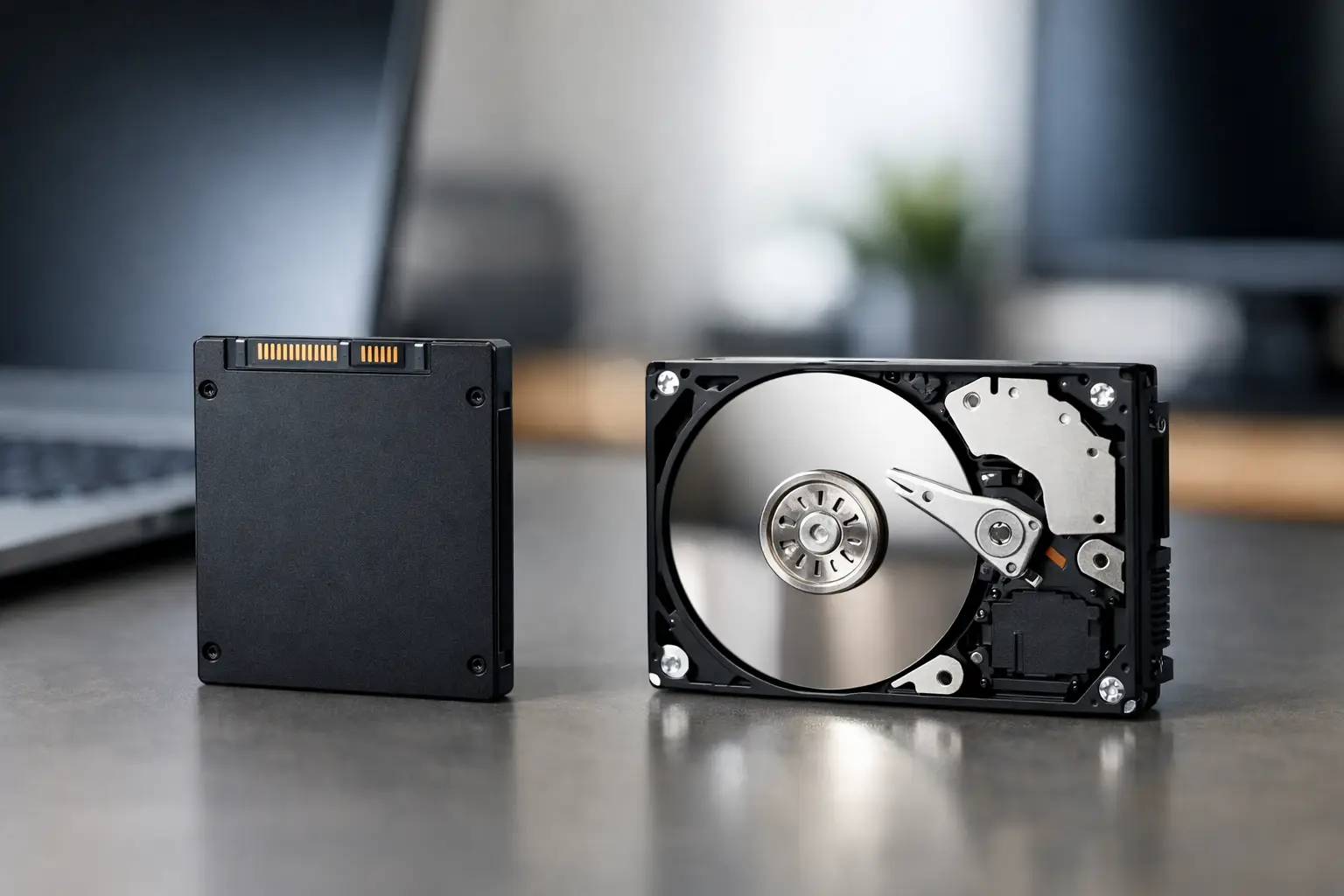
Replacing the storage drive is one of the most noticeable ways to upgrade a computer. When comparing SSD vs. hard drives, it's not just about the number of gigabytes and price: the choice affects the boot time of the operating system, game loading, file copying, noise level during operation, and the overall lifespan of the computer. For some buyers, an SSD is the clear choice, but a hard drive still offers a significant advantage when a large capacity is required on a tight budget.
SSD vs. Hard Drive: The Technological Difference
A mechanical hard drive, or HDD, operates using rotating platters and a read/write head that physically moves within the drive. This is an old, reliable technology used for long-term storage, especially when needing several terabytes of space for files, photos, movies, or backups.
In contrast, an SSD relies on flash memory chips and has no moving parts. Because there's no need to wait for a platter to spin or for a mechanical head to move, access to files is much faster. This difference is felt immediately after installing an operating system on an SSD: the computer responds more quickly, applications open without long waits, and switching between tasks is much smoother.
Speed: The Key Advantage of SSDs
A standard HDD typically reaches transfer speeds of about 100 to 200MB per second, depending on the model, rotation speed, and type of files. A SATA SSD can achieve speeds of around 500 to 550MB per second. NVMe drives, which connect directly to an M.2 slot on the motherboard, are even faster and can reach thousands of MB per second.
In practice, the difference is not just in performance benchmarks. A computer with an SSD typically boots up in just a few seconds, while a system on an HDD may take dozens of seconds or longer. In gaming, an SSD reduces loading times and minimizes latency when transitioning between large areas. When working with video files, large photo libraries, CAD projects, or virtual machines, it saves time with every open, save, and copy.
It’s important to put things in proportion: switching from HDD to SSD dramatically changes the user experience. Conversely, moving from a SATA SSD to a particularly fast NVMe is primarily noticeable in heavy workloads. For web browsing, office applications, studying, and home use, even a quality SATA SSD provides an excellent improvement.
Storage Capacity and Price: Where HDD Still Makes Sense
When comparing price per gigabyte, hard drives still have a clear advantage. You can purchase HDDs at capacities of 2TB, 4TB, 6TB, and more at significantly lower prices compared to SSDs of the same capacity. Therefore, it is an efficient solution for users who maintain a large archive of media files, security recordings, backups, or work materials that do not require immediate access.
A 500GB SSD is generally suitable for an operating system, software, and a limited amount of game files. 1TB is a more comfortable starting point for most new computers, especially for gamers and professionals using specialized software. A capacity of 2TB provides ample space for those installing large games, storing media files, or wanting to avoid frequent space management.
The right choice isn't always just one drive. In a desktop computer, combining an SSD for the operating system, active software, and games with a large HDD for backup and archiving can provide excellent value. This way, you get quick performance where it is important and cost-effective capacity where price matters.
Compatibility with Laptops and Desktops
In laptops, SSDs are almost always the preferred choice. They are lighter, more energy-efficient, completely silent, and more resistant to shocks. A laptop that falls or takes a hit may damage the HDD while in use, whereas an SSD does not have sensitive mechanical components.
In desktop computers, there is much more flexibility. You can install a 2.5-inch SATA drive, a 3.5-inch HDD, or an M.2 NVMe SSD. Before purchasing, it's advisable to check the motherboard's connections, the number of available M.2 slots, PCIe support, physical space in the case, and the available power supply connections.
Durability, Noise, and Power Consumption
SSDs have no moving parts, making them completely silent and generally more resistant to shocks. They consume less power, which is beneficial for better battery life in laptops and reduced heat in compact systems.
Hard drives produce gentle operational noise, and there may be noticeable read and write sounds, especially in older or faster models. They are also more sensitive to heat, impacts, and mechanical wear. However, it should not be concluded that SSDs are fault-proof. Flash chips can wear out over time, and in the event of an SSD failure, data recovery may be more complex and costly.
Therefore, regardless of the type of drive, backups are essential. Business files, family photos, important documents, and projects should not be stored in a single copy. An external drive, network backup solution, or cloud service can protect information in case of failure, deletion, or theft.
Which SSD Should You Choose?
Not all SSDs are created equal. The choice begins with the interface that fits your computer. SATA is suitable for many computers, including older systems, and offers a reasonable cost and very good performance. NVMe M.2 is suited for computers with the right support and provides significantly higher speeds, especially for large file transfers and professional workloads.
In addition to the interface and capacity, it’s worth examining the type of memory, write endurance ratings, warranty, and brand. Using well-known brands with clear warranties is especially important for drives on which the operating system is installed or professional information is stored. A very low price may be tempting, but with storage drives, it's essential to check for consistent performance data and not just peak speed listed in the specifications.
For gaming, an NVMe SSD with a capacity of 1TB or 2TB is a practical choice for most new computers. For office work and studies, SATA or NVMe SSDs ranging from 500GB to 1TB are usually sufficient. For video editors, graphic designers, or workstation users, considering a fast NVMe for active projects along with an additional drive for storing raw materials and backups is advisable.
When is a Hard Drive Still the Right Choice?
An HDD is not an outdated product with no place in a modern system. It is particularly suitable when the primary need is capacity: backing up several computers, a home server, a camera system, a movie library, a large photo collection, or storing office files over the years. In such cases, the price difference compared to SSDs of the same capacity can be significant.
It's wise to choose a hard drive based on the nature of its use. A drive intended for NAS, a server, or a camera system may be built to handle continuous loads differently than a standard desktop drive. Check the capacity, rotation speed, cache size, warranty period, and model compatibility with the system it will be installed in.
Before You Buy: Checks to Avoid Mistakes
Before making a decision, check how much storage space is currently in use and what is expected to change in the coming year. A user with 150GB of files doesn’t need to purchase a 4TB drive, but a gamer installing several new games or a business producing a lot of content might quickly fill up 500GB.
Also ensure compatibility. An older laptop may have only a SATA connection, while a newer computer may have various types of M.2 slots. An M.2 drive is not necessarily NVMe, so it's essential to check your computer or motherboard's specifications. If transferring an operating system from an old drive to a new one, prepare for a proper cloning process or a clean installation, and back up data before starting the work.
The smart choice is one that fits your tasks—not just the most impressive specs. A quality SSD will upgrade almost any active computer, and a large hard drive will remain an excellent tool for storage and backup. Match the capacity, interface, and budget to actual use, and leave room for growth in your files and needs.

