

 Install the app
Guide to Buying an Ultrawide Monitor Without Making Mistakes
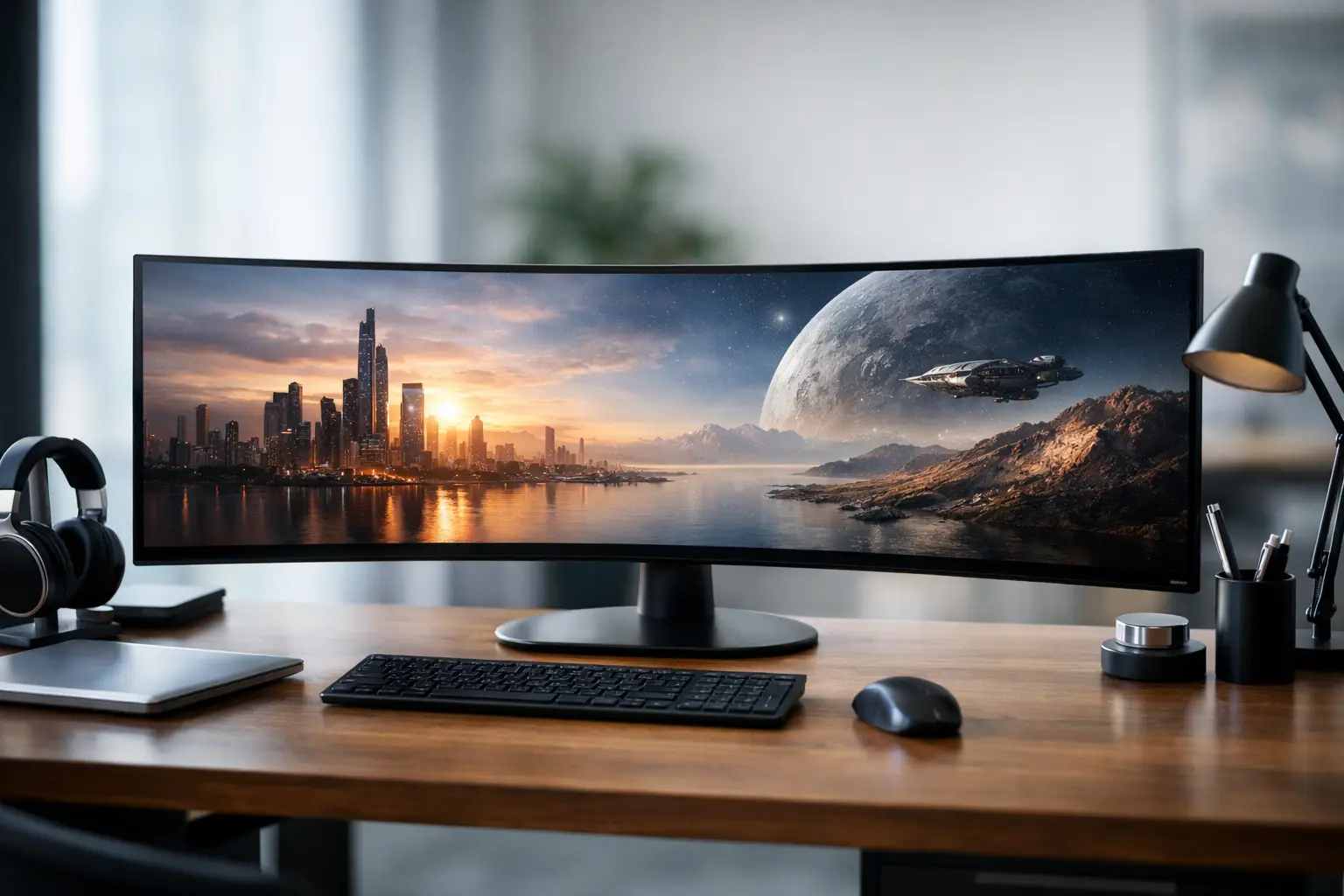
An ultra-wide monitor can upgrade a workspace or gaming setup more than almost any other component—but it’s also one of the easiest products to buy incorrectly. A guide to purchasing an ultra-wide monitor should start not with specifications, but with actual use: how many windows you open, what graphics card you have, how much space there is on your desk, and whether you’re working, gaming, or doing both.
Those who buy solely based on size quickly discover the problem. 34 inches sounds impressive, but without understanding resolution, aspect ratio, panel type, refresh rate, and connectivity options, you could end up paying a lot for an experience that doesn't meet your needs. On the other hand, when chosen correctly, an ultra-wide monitor easily replaces two monitors, clears your workspace of unnecessary cables, and provides a much smoother workflow.
Buying Guide for Ultra-Wide Monitors Based on Use
The first question isn’t which monitor is the best, but which one is right for you. For office work, trading, programming, and data analysis, the main advantage is workspace width. Usually, focusing on a 34-inch monitor with UWQHD resolution—3440x1440—is preferable. This strikes a good balance between workspace, sharpness, and cost.
For gaming, the picture changes. If you play competitively, a refresh rate of 144Hz or higher becomes more important than an extra 2-3 inches in size. If you play single-player games, racing games, or simulators, an ultra-wide adds significantly to immersion, making a curved screen more relevant.
For video editing, graphics work, or professional color tasks, it’s not enough to check size and resolution. You need to consider color accuracy, uniformity, and coverage. Some ultra-wide monitors look excellent for gaming but are less suitable for precise creative work.
If you’re looking for a monitor for a business or home office, consider cable management, USB-C connection, laptop charging, and dual display capability. These details might seem small at the time of purchase, but they save a lot of hassle in daily use.
Size, Aspect Ratio, and Resolution
Most ultra-wide monitors are available in a 21:9 aspect ratio, and sometimes even 32:9. The difference between them is substantial. A 21:9 monitor is generally the balanced choice for most users. It is significantly wider than a standard monitor but still comfortable for work, viewing, and gaming without feeling extreme.
A 32:9 monitor is more suited for those who know exactly what they need it for—traders, heavy Excel users, video editors, or anyone wanting a complete replacement for two screens. It is quite impressive, but it’s not suitable for every desk, software, or user.
Resolution is also critical. At 34 inches, a resolution of 3440x1440 is considered the optimal balance. 2560x1080 monitors are cheaper, but at certain sizes, they feel less sharp, especially when working with text. On the other hand, 5K2K monitors provide very high clarity, but they require a higher budget and sometimes more powerful hardware.
In simple terms: if most of your use is general work and gaming, a 34-inch monitor with 3440x1440 is the natural starting point. If you want maximum workspace and have a deep desk and corresponding budget, you might consider 38 or 49 inches.
Which Panel is Best - IPS, VA, or OLED
The type of panel directly affects picture quality and use case. IPS is considered a safe choice for those wanting good colors, wide viewing angles, and a balanced image. It is well-suited for work, general use, and gaming, especially in fast models.
VA typically offers higher contrast and deeper blacks, which can look especially good in dark films and games. However, some models may have noticeable motion blur, so it’s essential to check not just the panel type but also the manufacturer’s implementation quality.
OLED belongs to a different category regarding picture quality. The blacks are extraordinarily deep, response times are quick, and the picture looks especially impressive. The downside is clear—the price is higher, and there are also concerns about burn-in with certain uses, especially if displaying static interfaces for hours. For those working all day with grids, fixed windows, and Excel, this is a real consideration and not a minor detail.
If you’re looking for a monitor that does almost everything, a quality IPS monitor is usually the most practical choice. If gaming and films are more important than extended office work, VA or OLED may be preferable, depending on your budget.
Refresh Rate and Response Time - Not Just for Gamers
It’s easy to think that refresh rate is solely a gaming concern, but even for scrolling, window movements, and regular work, a 100Hz or 144Hz monitor feels smoother and more enjoyable than a 60Hz monitor. The difference is noticeable, especially after a few days of use.
For office users, 100Hz is a worthwhile upgrade if the price is right. For gamers, 144Hz is already a good baseline, and in some models, you can even find rates of 165Hz, 175Hz, and beyond. Just remember that the monitor doesn’t work alone—the computer must also support the desired resolution and refresh rates.
A high-resolution ultra-wide monitor demands more from the graphics card than a regular 1080p monitor. Those purchasing a fast gaming monitor with weak hardware may find themselves paying for capabilities they won't utilize. Therefore, it’s crucial to match the monitor with the system, not just dream of high specifications.
Curvature - When It Really Helps
With ultra-wide monitors, curvature is more than just a design choice. In wide and large screens, it can help the eye follow the image and make the edges more comfortable to view. This is particularly noticeable at 34 inches and above, and certainly at 49 inches.
However, curvature is a matter of use and preference. For office work, many users feel comfortable with it. For precise photo or graphics editing, some users still prefer a flat panel. It’s not a strict rule, but if geometric accuracy is crucial to you, it’s worth considering.
In summary, the wider the screen, the more logical curvature becomes. It’s less critical in a relatively small monitor. In a very large monitor, it's almost a necessity.
Connections, USB-C, and Organized Workstation
One aspect that’s easy to overlook in specifications is the connections. In practice, this is a central part of the user experience. If you’re connecting a desktop computer only, DisplayPort and HDMI are usually sufficient. If you’re also working with a laptop, especially in a hybrid office, USB-C that supports video and power delivery can save you from carrying a charger, adapter, and creating clutter on your desk.
Some models even include USB hubs, network connections, KVM switches, or Picture-by-Picture modes. For home users, these aren’t always essential, but for businesses, developers, IT professionals, or anyone working with two computers, these features provide real advantages. Sometimes, a slightly more expensive monitor saves the purchase of additional accessories.
The stand is also more important than it seems. Height adjustment, tilt, and swivel are limited on many monitors, and on a large screen, this directly impacts comfort during use. If the monitor is positioned too low or too close, its size stops being an advantage.
HDR, Brightness, and Color - Where Not to Fall for Marketing
HDR sounds great on the product page, but not every monitor with HDR support delivers a noticeably different experience. For a good result, you need not just compatibility but also high brightness, good contrast, and sometimes quality local dimming. In basic monitors, HDR labeling can often be more of a marketing phrase than a practical benefit.
If visual content is important to you, look for actual brightness, color depth, and coverage of sRGB or DCI-P3, depending on your use. For an Excel document, this matters less. For video editing, design, and quality viewing—it makes a real difference.
Also, pay attention to screen coating, light uniformity, and text readability. An impressive monitor on paper doesn’t always feel comfortable after eight hours of work.
How to Align Your Budget Without Paying Twice
When purchasing an ultra-wide monitor, being too cheap can be costly. This doesn’t mean you have to buy a premium model, but it’s essential to understand what you shouldn’t compromise on. Sufficient sharpness, proper connections, reliable manufacturer, and clear warranty are the foundation.
If your budget is limited, it’s sometimes better to choose a quality 34-inch monitor with 3440x1440 and 100Hz than a basic 49-inch option that compromises on image quality, stand, or connectivity. If your budget allows, you can check models with high refresh rates, advanced USB-C, OLED panels, or advanced office functions.
This is also why it’s essential to compare not just prices but a complete package—specifications, warranty, brand, usability, and availability. Many buyers focus solely on one number on the product page and then discover they lack a connection, the stand is limited, or the monitor simply isn’t suitable for their primary use.
What to Check Just Before Ordering
Before you buy, ensure you have physical space for the monitor, especially regarding the width and depth of the desk. Check that the computer supports the desired resolution and refresh rate through the correct connection. If it's a work laptop, it’s also important to verify USB-C charging compatibility if that is part of the plan.
Also, be sure to check the type of warranty, warranty period, dead pixel policy, and delivery times. On a site like TopMarket, where there is a wide selection of monitors for various categories, the advantage is the ability to compare models, brands, and price levels without embarking on a search among several stores.
A good monitor should serve you for years. Therefore, the right purchase is not the monitor with the most technical terms but the one that perfectly matches how you work, game, and manage your workstation. If you choose based on actual use rather than marketing noise, the chance of making a mistake decreases significantly.
- How to Choose a Wireless Network for a Retail Store?
- Smart Homes That Truly Fit Your Home and Budge
- <h1>Case Study: An Office Computer Upgrade That Saved Time and Money</h1>
- Recommended Gaming Mice for Large Hands: How to Choose the Right One
- When to Repair or Replace Your Computer Monitor: A Repair Shop’s Guide