

 Install the app
Why Does the Computer Overheat During Gaming and How to Address I
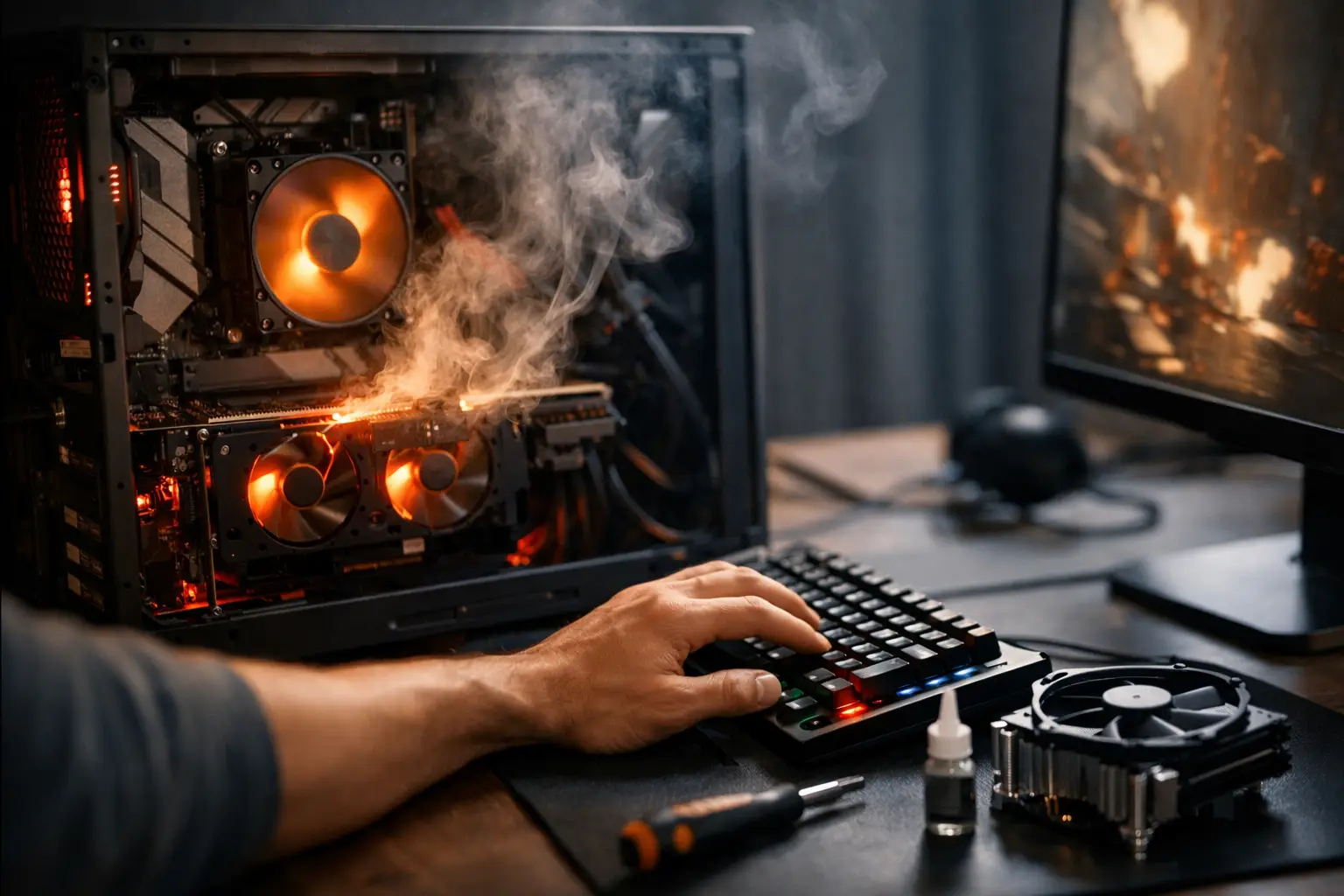
Just before the game crashes, the fans ramp up, and the top of the case or keyboard feels very warm. The question of why the computer overheats during gaming doesn’t necessarily indicate a malfunction: modern games put the CPU and graphics card under high load for extended periods. However, when temperatures reach extreme levels, leading to reduced performance or the computer shutting down, it’s essential to check the cooling system rather than just lowering the settings.
Why Does the Computer Overheat More During Gaming Than During Regular Use?
Browsing, office work, and videos usually don’t require the computer to process dozens or hundreds of frames per second. In games, the CPU manages physics, artificial intelligence, and background tasks, while the graphics card renders a complex image for each frame. The higher the resolution, texture quality, ray tracing, and refresh rate, the greater the power consumption—and, consequently, the heat generated.
Heat is a natural byproduct of power consumption. A functioning gaming computer may feel hot during play, especially in the Israeli summer or in an unairconditioned room. The concern isn’t just the number displayed in monitoring software but the combination of temperature, load duration, fan noise, and system stability. If performance remains stable and the computer does not show errors, not all heat requires part replacement.
This phenomenon is more pronounced in laptops. The CPU, graphics card, battery, and cooling system are all housed in a narrow, compact body with small ventilation openings. Therefore, even a quality gaming laptop will often be hotter and noisier than a well-ventilated desktop computer.
What Is Considered a Normal Temperature During Gaming?
There isn’t a single value that suits all models, but practical ranges can be referenced. Many modern CPUs operate under load in the range of 80 to 90 degrees Celsius and sometimes approach the manufacturer’s limit before they automatically throttle the frequency. For graphics cards, a core temperature of around 65 to 85 degrees is generally acceptable, depending on the model, cooling, and fan profile.
It’s important to distinguish between core temperature and hot spots on the graphics card, memory temperature, and GPU temperature in some laptops. A temporarily high number on the loading screen is not necessarily a problem. In contrast, a consistently high temperature throughout an entire game, accompanied by severe frame rate drops, may indicate thermal throttling—an intentional frequency reduction to prevent damage.
If the computer suddenly shuts down, displays a blue screen, loses signal to the monitor, or runs the fans at full power even at rest, it’s advisable to halt the home diagnostics and consider professional diagnosis. Continuing to load an unstable system is not recommended.
Common Causes of Overheating
Dust, Blocked Filters, and Closed Vents
Dust on the cooling fins and fans restricts airflow. In a desktop case, a dirty front filter can choke air intake even when all fans are running. In a laptop, placing it on a blanket, couch, or lap can block the bottom intake vents within minutes.
Periodic cleaning of dust filters and the internal case is a basic yet effective action. The computer should be turned off and unplugged before cleaning. Compressed air is suitable for dust removal, but care should be taken to hold the fan blades gently so they don’t spin quickly during spraying. In laptops, deep disassembly without experience can damage connectors or void the warranty, so it’s better to seek professional cleaning when necessary.
Incorrect Airflow in the Case
Even a large case doesn’t guarantee good cooling. A front fan should typically bring in cool air, while rear or top fans should exhaust hot air. Cables obstructing the airflow path, improperly mounted radiators, or a case close to a wall can increase temperatures.
There’s no need to fill every available space with fans. The goal is balanced airflow, not maximum noise. For a computer with a powerful graphics card, two quality intake fans in the front and an exhaust fan at the back provide a good starting point in most cases. The outcome also depends on the front mesh, fan sizes, and the computer's position under or above the desk.
Thermal Paste and Cooling Not Suitable for Load
Thermal paste transfers heat between the CPU and the cooling body. Over the years, it can dry out or lose effectiveness, particularly in systems running for extended hours under load. Replacing the paste can help, but it’s not a cure-all for every hot computer. If the cooling body is too small for the CPU, or if the water cooling pump isn’t operating correctly, new paste alone won’t change the situation.
When upgrading a CPU, cooling must also be suitable. Quality air cooling can effectively meet the needs of most gaming systems, while water cooling may suit specific cases, high-power CPUs, or those who prefer a clean aesthetic. The choice should be based on compatibility with the case, RAM height, noise level, warranty, and budget—not just an impressive specification.
Game Settings That Load Without Necessity
Sometimes the system runs hot because it tries to output as many frames as possible, even when there’s no visible advantage. In lightweight games or menu screens, a graphics card can reach 100% utilization if there’s no FPS cap. Setting a frame limit that matches the monitor's refresh rate reduces load, noise, and power consumption.
You can also examine heavy settings like ray tracing, internal resolution, shadow quality, and object density. Dialing down one or two settings sensibly may restore stability without significantly affecting image quality. Upscaling technologies, when available in the game and graphics card, can improve performance—but they’re not a replacement for proper cooling.
How to Check the Source of Heat Without Guessing?
Start by monitoring during a real gaming session, not just checking temperatures on the desktop. Run a game for 15 to 20 minutes and check CPU temperature, GPU temperature, fan speeds, component utilization, and clock speeds. Note the results, then make just one change—such as cleaning a filter, opening a case door for a brief check, or limiting FPS—and check again.
Opening the case side can serve as a diagnostic tool, not a permanent solution. If temperatures drop significantly when the side is open, airflow in the case likely isn’t sufficient. If there’s little change, the cause may be the cooling system on the CPU, internal dust, fan profile, or unusual load on the graphics card.
Also, check the condition of the fans. A fan that isn’t spinning, one that makes noise due to a worn bearing, or a fan curve that’s set too low can explain a rise in heat. In laptops, ensure that the performance settings in the manufacturer's software aren’t set to quiet mode during gaming, as such a setting may limit cooling for the sake of reduced noise.
Upgrades to Consider Based on Computer Type
In a desktop computer, the order of priorities is usually clear: first, clean; next, manage airflow; and only then consider replacing fans or CPU cooling. A case with a mesh front and proper vents can have more impact than an expensive fan installed in a closed case. If the graphics card is the main source of heat, make sure it has breathing room and isn’t pressed against a glass wall or additional expansion cards.
In a laptop, a cooling pad can improve air intake in certain cases, but it won’t resolve clogged cooling bodies or outdated thermal paste. It’s important to choose a pad that accommodates the vent locations of the model and not to assume that external fans alone will drop temperatures by several degrees. Using the original charger is also essential for performance and power management.
When purchasing a new system, it’s advisable to consider cooling as part of the specifications rather than a secondary addition. Proper alignment between the CPU, graphics card, power supply, case, and cooling will save noise, lag, and future upgrade costs. In the gaming computers and components categories of TopMarket, you can compare cases, fans, CPU coolers, and specs according to budget and required performance levels.
When Does Heating Require Immediate Attention?
There are signs that shouldn’t be ignored: sudden shutdowns under load, burning smells, stuck fans, abnormal temperatures right upon starting a game, or consistent performance drops after a few minutes. In such cases, turn off the computer, check for external obstructions at the vents, and don’t disassemble components if you’re unsure of the process.
Ultimately, a gaming computer isn’t supposed to be cool while working hard, but rather stable, well-ventilated, and manageable. Start with cleaning and monitoring, adjust game settings to match your screen and hardware, and only then decide if cooling or case upgrades are necessary. This way, you can maintain high performance even in demanding games without paying for a solution that doesn’t address the issue.
- Smart Homes That Truly Fit Your Home and Budge
- <h1>Case Study: An Office Computer Upgrade That Saved Time and Money</h1>
- Recommended Gaming Mice for Large Hands: How to Choose the Right One
- When to Repair or Replace Your Computer Monitor: A Repair Shop’s Guide
- Video Editing Computer Buying Guide by Budge

