

 Install the app
Recommended Computer Monitor for Working from Home - How to Choose
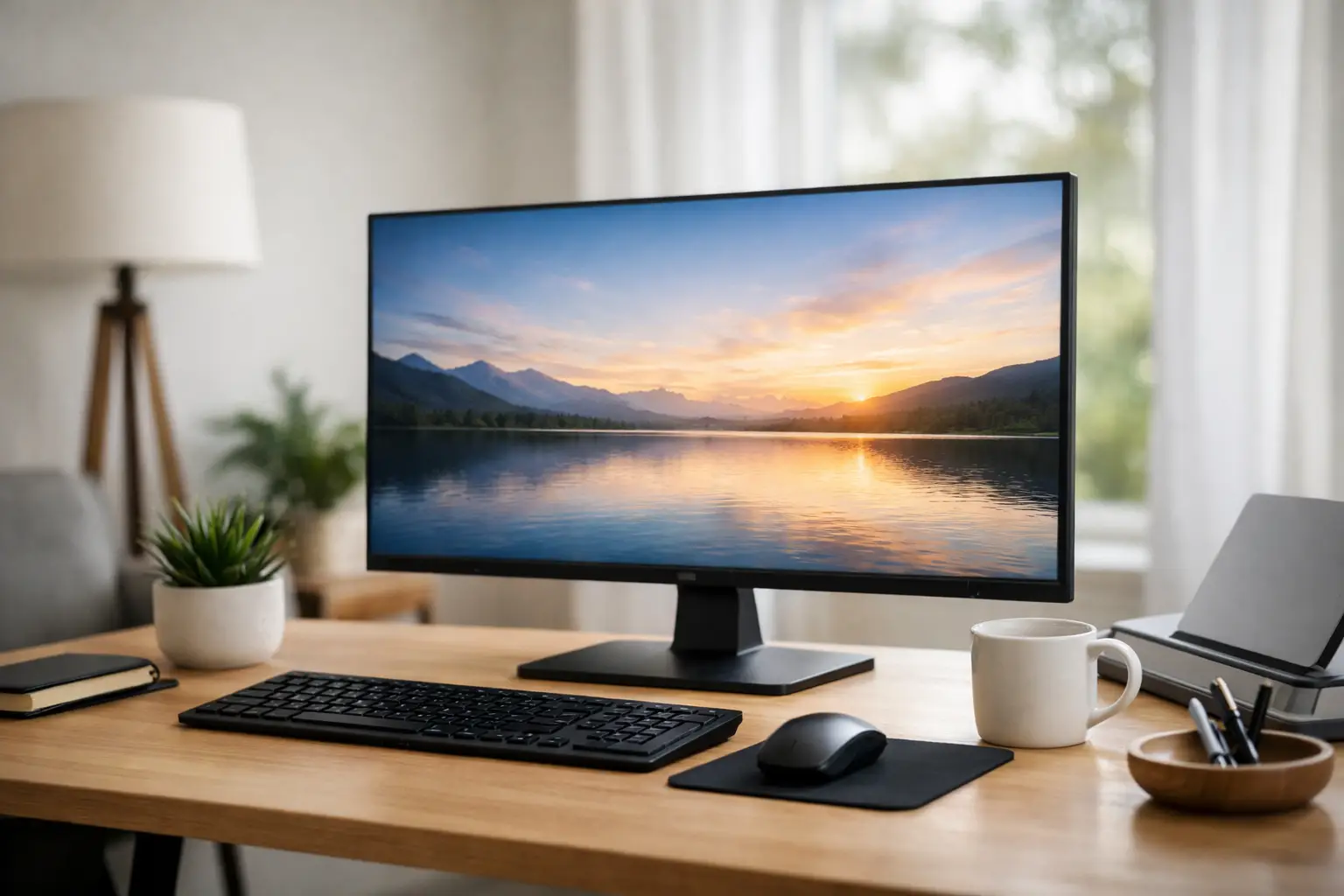
When you spend eight hours in front of a screen, the difference between a wise purchase and a compromise is felt every day. A recommended computer monitor for working from home is not measured solely by size or price, but by a precise combination of viewing comfort, sharpness, connectivity, and flexibility that fits your workflow—emails, Excel, video meetings, programming, design, or managing multiple windows simultaneously.
What Truly Makes a Recommended Computer Monitor for Working from Home the Right Choice
Most buyers start with a simple question—24, 27, or 32 inches? In reality, this is just the starting point. The right choice depends on your seating distance, the number of hours spent in front of the screen, and the nature of your work. Those who primarily work with documents, browsers, and office systems will often find great value in a 24 or 27-inch monitor with Full HD or QHD resolution. Conversely, anyone managing wide spreadsheets, multiple applications simultaneously, or working in a graphical environment will quickly feel the advantage of a 27-inch QHD monitor or even an ultra-wide screen.
The common mistake is to choose a monitor based solely on promotion. A good price is an important consideration, but with a work monitor, ergonomics, pixel density, panel type, and connection comfort also have direct significance. A monitor that’s too cheap may save money upfront, but could lead to eye strain, neck pain, and a less efficient work experience.
Screen Size and Resolution - The Combination That Determines Work Experience
If you're sitting at a standard distance from a desk, 24 inches is still considered a good solution for users looking for a compact setup and balanced budget. In Full HD, it provides reasonable sharpness for emails, web browsing, and documents. This is a very practical solution for a small home office or a desk setup that also includes general use.
At 27 inches, the picture changes. Here, it’s generally better to opt for QHD. A 27-inch monitor with Full HD resolution may appear less sharp, especially for those who read a lot, work on spreadsheets, or sit close to the screen. On the other hand, a 27-inch QHD monitor offers an excellent balance between workspace, sharpness, and comfort. For many users, this is the sweet spot in the home work monitor market.
A 32-inch monitor is suitable for those wanting more screen space without switching to two monitors, but you must carefully check the resolution and desk depth. On a small desk, a large monitor may feel cramped and cumbersome. If choosing 32 inches, it’s usually preferable not to settle for Full HD.
There’s also a growing category of ultra-wide monitors. For working with several open windows, task management, dashboards, trading, video editing, or intensive office work, a wide screen can replace a dual monitor setup. However, not every user needs this, and not every desk can accommodate it. If your workspace is relatively simple, a good 27-inch screen may be a more efficient and economical choice.
Which Panel is Better - IPS, VA, or Something Else
For most home work environments, an IPS panel is the safe choice. It offers more stable colors and better viewing angles, which is important for both documents and video meetings, screen sharing, and extended work sessions. Text generally appears cleaner and more readable, resulting in a balanced overall experience.
A VA panel can provide better contrast, which is why some users prefer it for both work and content viewing. However, when choosing a dedicated work monitor, IPS typically maintains a consistent advantage. If you’re not working with color professionally, there’s no need to delve into overly expensive advanced color accuracy specifications. Conversely, if you're editing images, videos, or marketing materials, it’s worthwhile to check for good color coverage and display uniformity.
High Refresh Rate for Work - Necessary or Not
Not every work monitor needs to have a 144Hz refresh rate. For most users, 60Hz to 75Hz is more than sufficient for office work, remote learning, Zoom calls, web browsing, and documents. If you have combined use, meaning work during the day and gaming in the evening, consider a monitor with a higher refresh rate. It’s not necessary for productivity but can enhance the feeling of smoothness while scrolling and switching between windows.
Here, it’s essential to stay focused. A 27-inch QHD monitor with a quality panel, ergonomic stand, and good connections at 75Hz is preferable to a 144Hz monitor with compromises in sharpness or work comfort.
Connections You Shouldn’t Compromise On
One of the details that significantly impacts daily convenience is the set of connections. If you’re connecting a laptop to a work station, USB-C can be a significant advantage. In certain monitors, this connection can transmit both video and power, and sometimes even data, reducing cable clutter and simplifying the desk layout.
Those working with a classic desktop may do well with HDMI and DisplayPort, but it’s advisable to verify what your graphics card or docking station supports beforehand. If you need to connect a keyboard, mouse, camera, or external drive through the monitor, a built-in USB hub is a very useful addition.
Built-in speakers are not always just a gimmick. They won’t replace a dedicated audio system, but for video calls and ongoing work, they can save space and reduce clutter on the desk.
Ergonomics - Where a Good Monitor Justifies the Price
Many monitors might look similar in basic specifications, but you feel the difference in the stand quickly. Options for height adjustment, tilt, swivel, and sometimes even a pivot for vertical orientation are not luxuries. For anyone working for hours, this is an essential aspect of a proper setup.
If a monitor is too low or fixed at an uncomfortable angle, you’ll find yourself improvising with books, stands, or incorrect seating posture. It’s better to invest in a monitor with a proper ergonomic base, especially if working from home isn’t a temporary arrangement but a regular routine.
An anti-glare coating is also more crucial than you might think. In a room with a window, natural light, or bright lamps, an overly glossy screen can become a constant annoyance. A matte screen is generally more comfortable for work in most home environments.
Recommended Computer Monitor for Working from Home Based on Usage
For general office use, a 24-inch or 27-inch IPS panel monitor with Full HD or QHD resolution, along with basic eye protection support, will usually suffice. If most of your day consists of documents, browsers, CRM, accounting, and video meetings, there’s no need to chase overly expensive specifications.
For users managing many windows simultaneously, heavy-duty Excel, BI systems, programming, or data analysis, it’s usually better to opt for at least a 27-inch QHD monitor. The extra workspace reduces scrolling, decreases window-switching, and feels more efficient over time.
For designers, content editors, and media creators, it’s worth checking for a monitor with higher resolution, improved color coverage, and good factory calibration. It’s not enough to just ask about the monitor size—you must also examine the actual display quality.
For those primarily connecting to a laptop, a monitor with USB-C and a slim bezel is a smart solution. It’s suitable for modern workstations that aim for quick connections without the hassle of adapters and cables.
How to Buy Right Within a Set Budget
If your budget is limited, it’s better to invest first in display quality and comfort, and only then in secondary features. In simple terms, a good IPS monitor in the right size with a decent stand is preferable to a larger screen with flashy marketing specs but less comfortable daily use.
It’s also advisable to look at the warranty, the manufacturer, and the model's availability. A monitor is a product that remains in use for a relatively long time, so choosing a well-known brand with a clear warranty is essential. In a store with a wide selection, like TopMarket, it’s easier to compare between series, brands, and price ranges without compromising technical compatibility.
Don’t focus solely on the specification line. Sometimes two monitors look similar on paper, but one may offer a better quality stand, more useful connections, or far better comfort with text. These are precisely the differences that lead to a successful purchase.
What to Check Before Ordering
Check the size of your desk, the distance from the screen, and which computer will connect to it. Ensure there’s an appropriate output, that the resolution is supported, and if it’s a laptop—you have a convenient way to transfer both image and power if needed. If you’re using a desk mount, make sure it’s also VESA compatible.
Think ahead. If today you only work with documents, but plan to move towards full hybrid work, expand your operational scope, or use the monitor for studies, viewing, and content, it might be worth upgrading one level above the minimum.
A good monitor for working from home doesn’t need to be the most expensive in its category. It must, however, fit precisely how you work, the hours you spend in front of it, and the equipment around it. With the right choice, you gain not only better visuals but also a more comfortable, organized, and efficient workday.
- Smart Homes That Truly Fit Your Home and Budge
- <h1>Case Study: An Office Computer Upgrade That Saved Time and Money</h1>
- Recommended Gaming Mice for Large Hands: How to Choose the Right One
- When to Repair or Replace Your Computer Monitor: A Repair Shop’s Guide
- Video Editing Computer Buying Guide by Budge