
USB C Docking Station - How to Choose the Right One
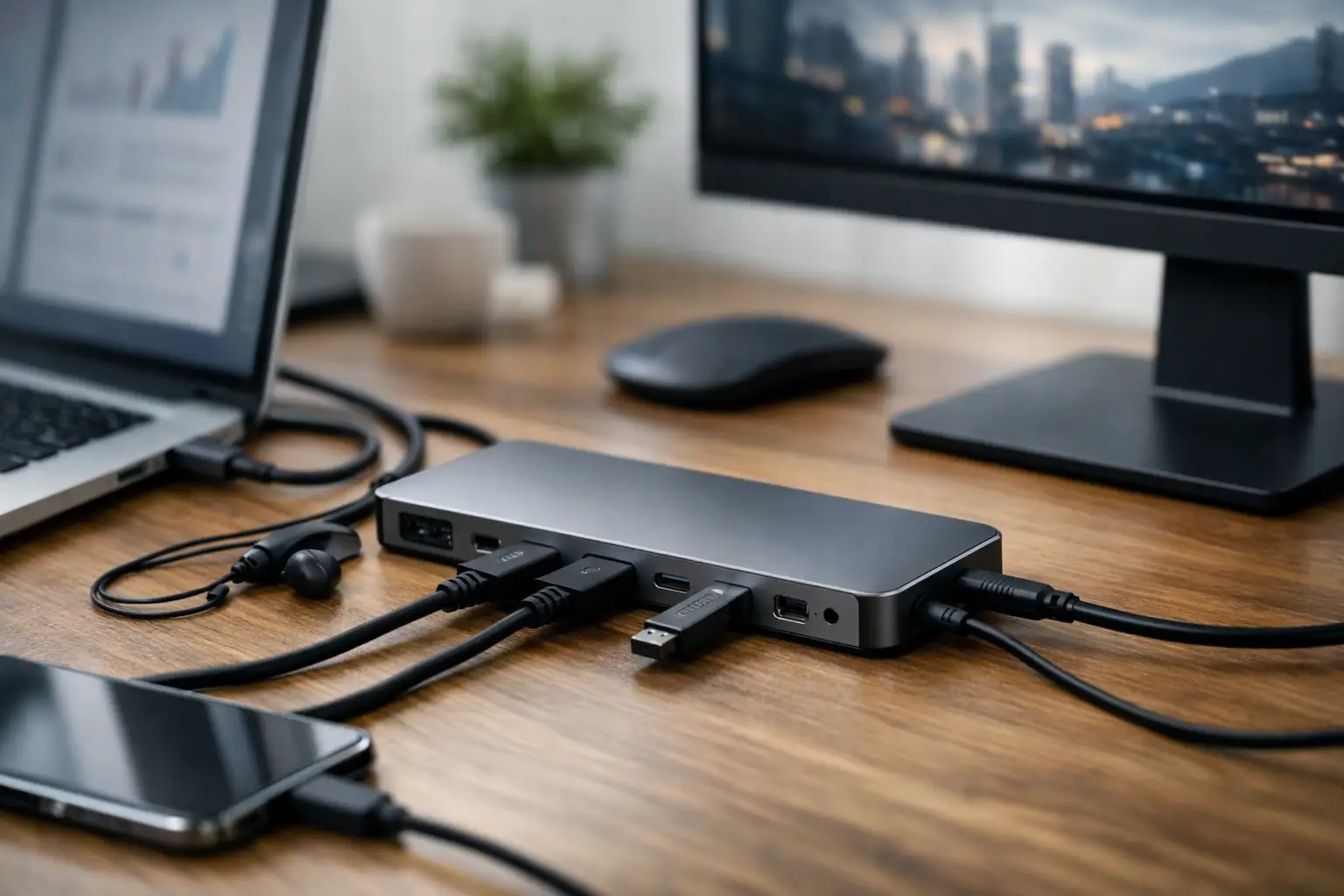
If you've connected a charger, monitor, mouse, keyboard, wired network, and external drive to your laptop, you already understand why a USB-C docking station has become an almost essential product. Instead of connecting and disconnecting multiple cables every time, a single station centralizes all the connections, saving time and keeping your workspace more organized. However, not every model is suitable for every computer, and not every impressive specification will truly provide what you need.
What Does a USB-C Docking Station Actually Do?
The principle is simple: connect one USB-C cable to your computer and gain access to various additional ports. This can include HDMI or DisplayPort for monitors, USB ports for peripherals, RJ45 network connections, card readers, headphone jacks, and sometimes even charging for the laptop itself.
In practice, the difference between models is not just in the number of ports but also in the quality of support. Some docking stations are suitable for basic use with one monitor and office equipment, while others are designed for working with two monitors, heavy files, stable networking, and high-power charging. Those who work from home, in an office, at school, or in a shared workspace will notice the difference quickly.
Before Buying - Compatibility with Your Laptop Matters
The most common mistake is assuming that all USB-C ports support everything. This is not true. Some laptops have USB-C that is intended only for data transfer and charging, while others also support video output and advanced standards like Thunderbolt. If your laptop doesn't support video output via USB-C, a docking station won't solve that issue.
Therefore, before considering the number of ports, check three things: does the laptop support DisplayPort Alt Mode, is there support for charging via USB-C, and is it regular USB-C or Thunderbolt? These details affect the types of screens you can connect, the speed of working with external devices, and whether one cable will truly suffice for your entire setup.
New business laptops generally offer better support, but it’s still advisable to review the exact specifications of the model. In older computers or entry-level models, there may be limitations that are not immediately visible.
Which Connections Are Really Important?
At this point, it’s wise to tailor your purchase to actual use rather than chase a long list of ports that won't be utilized. If you're working with one external monitor, you mainly need a good video output, a few USB-A ports, and stable charging. If you're connecting two monitors, a wired network, headphones, a camera, and an external drive, you’ll need a higher-end docking station.
Monitor Connections
If you work with Excel, documents, browsers, and office software, a Full HD or QHD monitor will usually suffice. However, if you're into video editing, graphics, designing, or need a particularly wide workspace, it's crucial to check for 4K support, an appropriate refresh rate, and correct versions of DisplayPort or HDMI connections.
Not every dock that supports 4K can handle two 4K monitors, and not every model will allow for high refresh rates. This is especially critical for those working with smooth motion, precise displays, or light gaming on a laptop connected to an external monitor.
USB for Data and Peripherals
Keyboards and mice don’t require much, but external drives, advanced webcams, and memory cards do. If you're transferring large files, USB speed truly matters. A cheap dock may suffice for standard office connections, but when working with video files, RAW images, or backups, the bottleneck will become noticeable.
Wired Networking
Wi-Fi is convenient, but it’s not always stable enough. For office work, video calls, server connections, or business positions, an RJ45 connection is a clear advantage. In most cases, Gigabit Ethernet will be sufficient, but those working in particularly fast environments may want to explore more advanced options if their computer and network support it.
Charging for the Laptop
This is a point many buyers overlook. Even if the dock offers Power Delivery, it’s important to check how many watts it actually provides. An office ultrabook may be fine with moderate power, but a more powerful computer, especially with a performance CPU or large display, will require more. If the power isn’t sufficient, the laptop may run but will charge slowly or lose battery under load.
USB-C Docking Station or Simple Adapter?
Not every user needs a full docking station. If you only need to add HDMI and a couple of USB ports, a compact adapter can be a cost-effective and convenient solution. It’s also better suited for travel, fitting easily into a laptop bag and for casual use.
A USB-C docking station becomes the right purchase when you have a fixed workspace, more than one monitor, equipment connected regularly, or a need for quick connect and disconnect every day. Here, it's not just about convenience but also about better stability, less wear and tear on the laptop's ports, and sometimes better performance over time.
The economic difference is clear: a simple adapter is cheaper, but if it doesn’t provide stable charging, overheats under load, or limits your screens and speed, the initial savings may not be worth it.
When Should You Choose a Thunderbolt Model?
If your laptop supports Thunderbolt, consider a more advanced docking station. This is ideal for professional users needing high bandwidth, more flexibility in monitor connections, and better speed for external storage and advanced equipment.
On the other hand, not every user will notice a difference that justifies the price. For regular office work, emails, browsing, Zoom, and one or two standard resolution monitors, a quality USB-C dock will suffice. Thunderbolt is worth it when you're really working under high loads or building an advanced workspace around a compatible laptop.
Common Mistakes in Selection
The first mistake is choosing based solely on price. A very cheap model may look tempting, but if it lacks sufficient charging power, supports only one monitor, or limits connection speeds, it can lead to daily frustration.
The second mistake is buying based on the number of ports without checking what can work simultaneously. Some docks restrict certain connections when another is in use or reduce resolution and refresh rate on displays. This is especially common with more basic models.
The third mistake is ignoring build quality. A docking station often operates for many hours a day. Heat dissipation, cable quality, connection stability, and overall reliability are just as important as the specifications on the box.
Who Each Type of Dock Is Suitable For
Students and home users will generally benefit from a compact model with HDMI, a few USB ports, and basic charging. This is a good choice for a lightweight laptop, a changing workspace, and a balanced budget.
Office workers, accountants, customer service representatives, and business users will typically prefer a dock with wired networking, convenient support for one or two monitors, and reliable charging throughout a full workday. Here, the consideration is less about portability and more about daily efficiency.
Professional users, such as graphic designers, video editors, engineers, and IT professionals need to thoroughly assess resolutions, the number of monitors, data speeds, and precise compatibility with their computer. In such cases, a quality docking station is part of the infrastructure of the work environment, not just an accessory.
How to Buy Smart Without Paying for What You Don't Need
The right way to choose is to start with your setup, not the product. How many monitors will you connect, what computer do you have, do you need charging through the dock, will you use fast external drives, and is this a fixed setup or equipment for travel?
Once you define your needs, it becomes easier to filter models by budget, brand, warranty, and specifications. Generally, it's better to purchase a dock that allows some room for future needs without going overboard. There’s no reason to pay for capabilities that won’t be used, just as it’s important not to compromise on a critical connection that you’ll rely on every day.
On a site like TopMarket, where you can compare models, specifications, and price ranges, it's worth spending a few extra minutes for a detailed check. This is the type of product where making the right choice saves much more than the cost - it saves time, mess, and issues.
What to Check on the Product Page Before Ordering
Look for the type of monitor support, the number of active connections simultaneously, charging power, USB or Thunderbolt standard, network speed, and the cable length if it's fixed. If you have a specific computer, it's essential to ensure compatibility and not just settle for a general description.
Also, check the warranty, brand, and build quality based on expected usage levels. For a setup that operates every day for many hours, it’s better to invest in a product designed for continuous use rather than just a basic and cheap solution.
A good docking station should be unobtrusive - it should simply make your entire workstation function correctly from the very first moment.
- Setting Up a Dual Workstation for Efficient and Comfortable Work
- How to Choose a Mechanical Keyboard for Work, Gaming, and Typing
- What Charger is Right for Your Phone? Here's How to Choose Wisely
- Guide to Buying a Security Camera for Home, Business, and Outdoor Use
- Tablet Repair Lab - When to Repair and When to Replace?
- 5 Akhad Ha'am St., Netanya, Israel

- Phone: +97298821001
- Sunday - Thursday: 11:00 - 24:00
Friday: 11:00 - 16:00
Saturday and holiday: 20:00 - 24:00 - Contact us form

© 2002 - 2026 TopMarket.co.il - Powered by AnyWeb.co.il