

Choosing the Right Monitor Cables Based on Connection and Resolutio
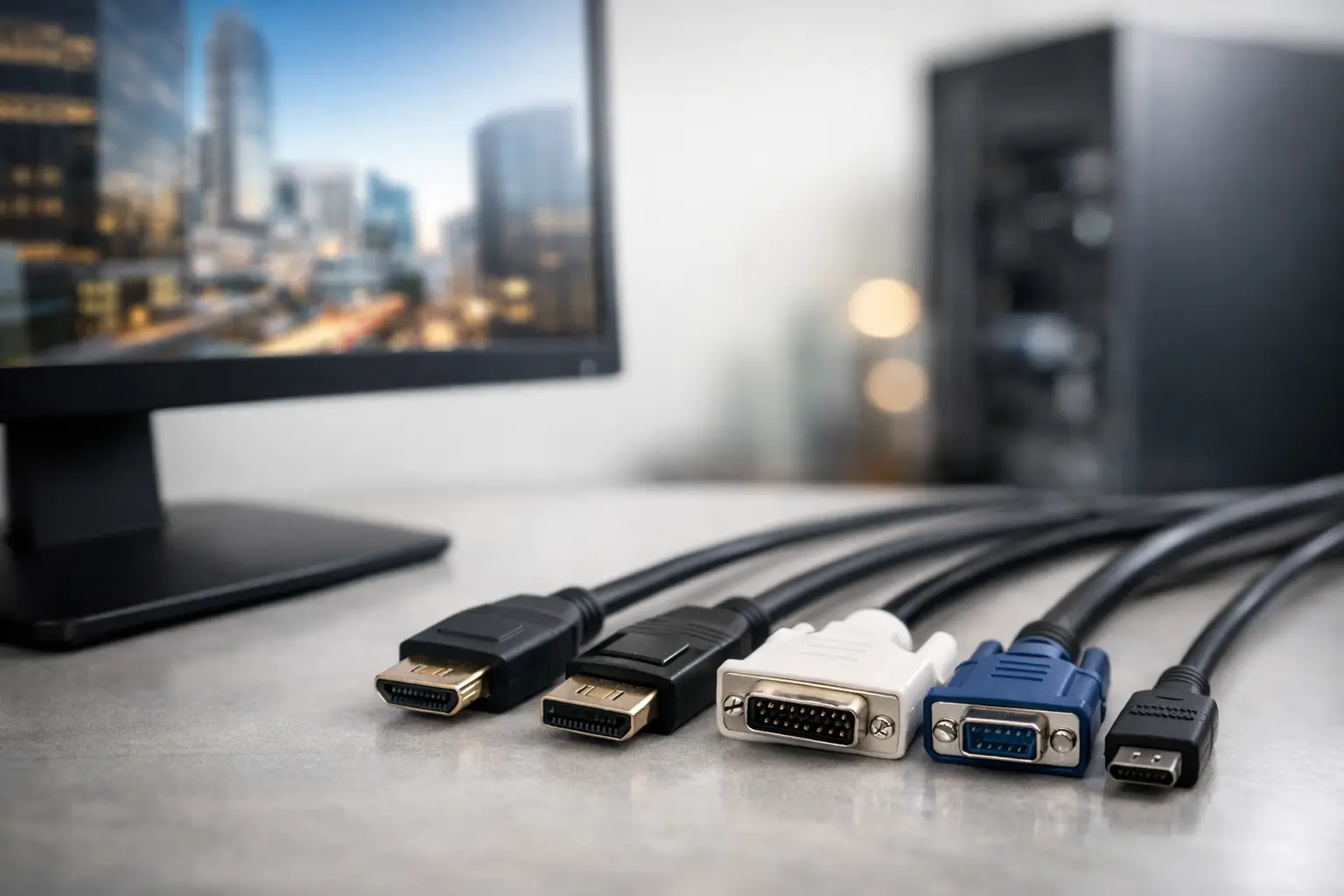
A new monitor can display 4K, operate at 165Hz, and support HDR, but an incompatible cable can limit it to a lower resolution, a basic refresh rate, or even prevent an image from appearing altogether. Therefore, cables for computer monitors are not a peripheral accessory at the end of the purchase process, but rather an essential part of the specification for your workstation, home computer, or gaming setup.
The right choice begins not with the name of the cable, but with the connections available on both the monitor and the computer, the desired resolution and refresh rate, and the distance between the two devices. A more expensive cable is not necessarily better. On the other hand, saving on a cable that does not meet requirements can effectively nullify the advantages of a high-quality monitor.
Before Choosing Monitor Cables: Check Both Ends
Open the specifications for your monitor and your computer, docking station, or graphics card. It's essential to check which ports are actually available, rather than relying solely on product images. For desktop computers, the connection to the monitor should typically come from the dedicated graphics card rather than the ports on the motherboard. Connecting to the motherboard may result in no image being received or losing the performance of the graphics card.
The next step is to identify your display requirements. A Full HD monitor at 60Hz is suitable for nearly all modern standards. In contrast, a QHD monitor at 144Hz, a 4K display at 120Hz or 144Hz, and widescreen setups for gaming or professional use require a compatible connection and cable with adequate bandwidth. If the monitor supports a high refresh rate, it’s advisable to check which connection the manufacturer allows for achieving the full rate. Sometimes HDMI supports a certain rate, while DisplayPort allows for a higher rate on the same monitor.
Cable length is equally important. For a standard computer setup, a cable length of 1.5 to 2 meters is usually sufficient and helps maintain a tidy connection. The longer the cable, the greater the risk of signal issues at high bandwidth connections, especially at 4K and advanced refresh rates. When greater distances are required, it's best to choose a quality cable specifically rated for the desired resolution and refresh rate, rather than assuming that any long cable will perform at the same level.
HDMI: The Common Solution for Home, Office, and Consoles
HDMI is the most common connection found on monitors, laptops, TVs, and gaming consoles. It transmits both video and audio through a single cable, making it a particularly convenient choice when the monitor includes speakers or when connecting a computer to a TV. For office use, studying, browsing, watching content, and standard Full HD or 4K displays, HDMI is generally a straightforward and effective solution.
The key point is the actual support version of the monitor and the source device. HDMI 2.0 is suitable for a wide range of 4K scenarios at 60Hz. For advanced gaming monitors, next-gen consoles, or 4K with high refresh rates, it's essential to check support for HDMI 2.1 throughout the entire chain: the output from the computer or console, the monitor input, and the cable itself. A cable marked Ultra High Speed is typically designed to meet HDMI 2.1 requirements, but it’s still crucial to verify the product specifications and not settle for a generic title.
There’s no need to purchase an advanced HDMI cable if the monitor and computer are limited to Full HD at 60Hz. In this case, a quality cable of the appropriate length will yield the same result. Investing in a more advanced version is sensible when planning an upgrade near the monitor or graphics card, or when wanting to avoid changing the cable later.
DisplayPort: The Natural Choice for Gaming PCs and Graphic Work
DisplayPort is very common on graphics cards and computer monitors, often preferred by gamers and professional users. It was designed for the computer world and offers excellent support for high resolutions, fast refresh rates, and synchronization technologies like Adaptive-Sync. On many monitors, the DisplayPort connection is the way to achieve the full declared refresh rate of the product.
A DisplayPort cable is particularly suitable for a desktop computer with a dedicated graphics card and for high-frequency QHD or 4K monitors. It's vital to check if it is DisplayPort 1.2, 1.4, or 2.1, and what the monitor and graphics card require. For instance, a cable supporting DisplayPort 1.4 may be suitable for many advanced 4K and QHD monitors, but there's no point in paying for a 2.1 specification if neither device supports it.
It's also important to distinguish between regular DisplayPort and Mini DisplayPort, as the connectors are not physically identical. If the computer has a Mini DisplayPort and the monitor has a full-size DisplayPort, a suitable cable or quality adapter is required. It’s best to choose a direct connection whenever possible, as each additional adapter introduces another potential point of failure and may sometimes limit resolution or refresh rate.
USB-C and Thunderbolt: One Cable for Laptop and Workstation
USB-C looks like a simple connector, but not every USB-C port can transmit video. On a laptop, check for support of DisplayPort Alt Mode or Thunderbolt. Without this support, a USB-C to USB-C or USB-C to HDMI cable will not necessarily deliver an image to the monitor, even if it connects physically without problems.
When support is available, USB-C is an exceptionally efficient solution for workstations. One cable can transmit video, data, audio, and sometimes even charge the laptop. This is an excellent choice for users working with a laptop, USB-C monitor, and peripherals like keyboards, mice, and networks through the monitor or a docking station.
It's essential to pay attention to the charging power. A monitor providing 65W is suitable for many laptops for office work, but may not be sufficient for a high-performance gaming laptop, video editing, or a workstation. In such cases, the laptop may charge slowly, display a warning message, or require the original charger in addition to the monitor cable. Both the power output of the monitor and the laptop’s charging requirements should be checked.
DVI and VGA: When Do You Still Need Them?
DVI still exists in older computers and monitors; it can provide a decent result for Full HD and, in some cases, even more depending on the type of connection. It does not transmit audio, so it's not suitable for anyone relying on the monitor's speakers through that cable. If both ends are DVI and modern features are not necessary, a direct connection could be a reliable and cost-effective solution.
VGA is an outdated analog connection. It may be relevant for older office equipment, projectors, or legacy monitors, but it is not recommended for a new system. Image quality can be less sharp, especially at higher resolutions, and it is unsuitable for modern gaming or precise graphic work. If an adapter to VGA is inevitable, ensure that it is an active one when a digital conversion is required.
Adapters, Splitters, and Docking Stations: Not Every Expander Can Enhance Capabilities
An HDMI to DisplayPort adapter isn't necessarily the same as a DisplayPort to HDMI adapter. The signal direction matters. Some adapters work only in one direction, while others require an active component to perform the conversion. Before purchasing, verify what the image source is and what the monitor input is, rather than choosing based solely on connector types.
A display splitter is primarily suitable for mirroring the same image on two monitors. If the goal is to create an extended desktop with two different screens, typically two separate video outputs, a docking station that supports multiple displays, or a dedicated solution suitable for the computer is required. Again, the resolution and refresh rate of each monitor will affect the outcome.
A docking station can reduce cable clutter and turn a laptop into a full workstation, but it’s advisable to check how many monitors it supports, at what resolution, and at what refresh rate. The specifications for two 4K monitors at 60Hz differ greatly from those for two Full HD monitors. For businesses and offices with identical workstations, accurately matching the docking station and cables saves future troubles and replacements.
Common Mistakes to Avoid
The most common mistake is purchasing a cable solely based on the shape of the connector. Two HDMI cables may look identical, but one may not support the bandwidth requirements of a high-refresh-rate 4K monitor. Another mistake is assuming that a USB-C cable transmits video in every scenario or connecting a monitor to a graphics card and forgetting to configure the operating system for the correct resolution, refresh rate, and display input.
Quality of construction is important, but there's no need to be swayed by unmeasurable promises. It’s better to choose a brand-name cable with clear specifications, a realistic length, and a warranty than to opt for an expensive cable that claims to provide better picture quality regardless of connection capabilities. In a digital display, when the signal is properly transmitted, the image won't become sharper due to a fancy coating. The difference lies in compliance with the standard, reliability, and the ability to maintain a stable signal under the required conditions.
When selecting a cable, note the monitor model, computer model or graphics card, the resolution, refresh rate, and the required cable length. With these five details, you can choose a more precise product, stay within budget, and ensure that the monitor you purchased really delivers the performance you paid for.

