

Upgrading Old Storage to a Fast SSD for a Faster Compute
Is your computer running slowly, programs opening after a long wait, and large files making every action feel sluggish? In many cases, upgrading from old storage to a fast SSD can enhance daily usage more than simply adding memory or replacing the CPU. Even a few-year-old computer can feel like a new system, provided that the right drive is chosen and the transition is done properly.
An SSD is not just a faster component; it transforms the main friction point in the computer: access to files, the operating system, applications, and games. Instead of waiting for a spinning mechanical disk to search for information, the system reads data from flash memory at high speed and without any moving parts.
Why an Old HDD Limits Your Computer
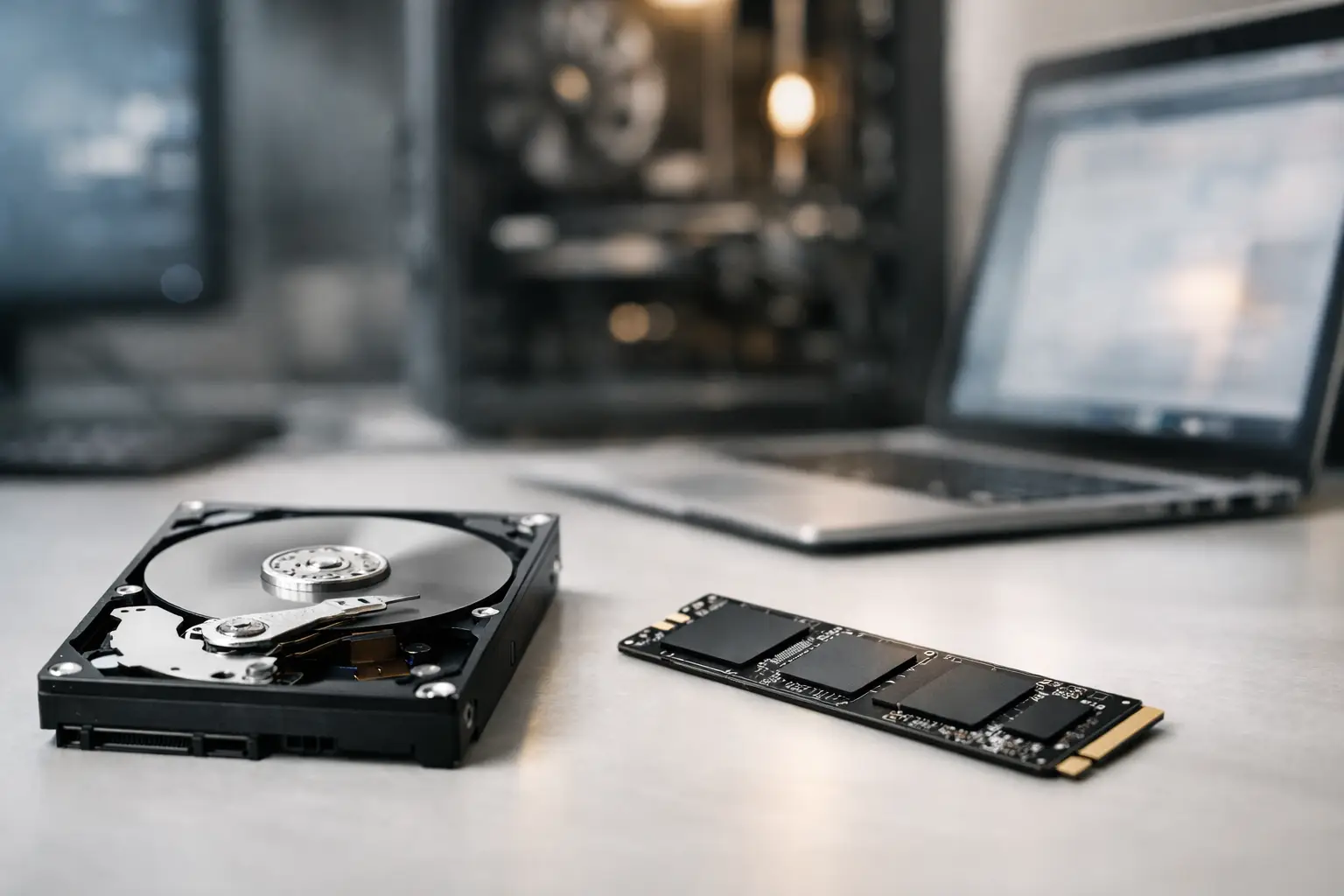
A mechanical hard drive (HDD) relies on spinning platters and a read/write head. This technology is still suitable for storing large volumes at a low cost, especially for backups, media archives, or files that are accessed infrequently. However, as a system drive, it clearly creates a bottleneck.
The difference is mostly felt in numerous small tasks: booting Windows, opening a browser with multiple tabs, loading Office files, searching for files, performing system updates, and launching games. Even if the CPU and RAM are functioning well, a slow mechanical drive will force other components to wait.
SSD drives have no mechanical parts, making them quieter, more shock-resistant, and generally requiring less power. In a laptop, this is a double advantage: quicker response times and often a modest improvement in battery life. However, not all SSDs are the same, and the right choice depends on the existing connection, required capacity, and nature of use.
Upgrading Old Storage to a Fast SSD: What Interface is Suitable?
Before selecting a model, it's essential to identify what your computer supports. The choice typically falls between SATA SSDs and M.2 SSDs with NVMe protocol.
2.5-inch SATA SSD
This is the simplest and most common solution for desktops and relatively older laptops. The drive connects via a SATA cable in a desktop or to an internal slot in a laptop. It offers significantly higher speeds compared to HDDs, usually up to about 550MB/s for sequential read speeds.
For users looking to upgrade an office computer, a study laptop, or a home computer with a mechanical disk, a SATA SSD is often the most cost-effective choice. There's no need to chase the highest speed if the computer itself doesn’t support a more advanced interface.
M.2 NVMe SSD
M.2 drives are small cards that connect directly to the motherboard. It’s important to understand that M.2 refers to a physical size rather than a speed standard: there are M.2 drives based on SATA, and there are NVMe drives that use PCIe lanes to provide much higher performance.
NVMe is especially suitable for modern computers, workstations, video editing, working with large files, and gaming PCs. PCIe Gen4 drives can achieve very high speeds, but actual performance depends on the motherboard, CPU, cooling, and type of tasks. For running Windows and browsing, the gap between a good SATA SSD and an advanced NVMe SSD will be felt less than the drastic gap between an HDD and any SSD.
The newest computers may also feature PCIe Gen5. This is a fast and professional solution, but it’s not necessary for every buyer. It may require full supporting motherboard capabilities, can run hotter, and generally costs more. It’s advisable to tailor the specifications to your needs rather than choosing solely based on the maximum speed listed on the packaging.
How Much Capacity is Really Needed?
Opting for too little capacity is one of the most common mistakes when upgrading. The operating system, updates, applications, user files, and games quickly fill up the drive faster than expected. Additionally, an SSD requires free space to maintain optimal performance over time.
A 500GB drive is usually suitable for an office computer, for educational purposes, for browsing, for office software, and for a limited number of games. 1TB is an excellent balance for most users: it allows for the installation of an operating system, applications, and work files without constantly monitoring available space. For gamers, photo and video editors, or anyone working with large media libraries, 2TB and above may make more sense right from the start.
If the computer has space for two drives, it’s possible to combine an SSD as the primary drive with an existing HDD for archiving. This way, you get speed where it matters while also enjoying larger capacity at an efficient price point. Just be sure not to leave daily-use applications or games on the HDD, or part of the slowdown will remain.
Transferring the Operating System or Clean Installation?
Once a drive is chose, the question arises whether to clone the old drive or install a new operating system. There’s no one-size-fits-all answer.
Cloning is suitable when the computer is in good shape, the operating system is organized, and there’s a need to preserve all programs, settings, and files as they are. This process usually requires a suitable adapter or external enclosure, reliable cloning software, and sufficient space on the new drive. Before starting, it’s wise to delete unnecessary files, empty the recycle bin, and ensure that the used space is less than the available space on the new drive.
A clean installation is suitable for a computer that has accumulated unwanted software, errors, excessive load, or security issues. While this requires more time for software setup and file transfer, it allows you to start with a neat and efficient system. In any case, backing up important files is a necessary step. Upgrading storage does not replace the need for backups, and even a simple process can get complicated due to failure, faulty cables, or startup setting mistakes.
Specs to Check Before Purchase
Price is important, but an SSD should also be chosen based on reliability and technical compatibility. Check the supported connection type in your computer, the length of the appropriate M.2 drive—usually 2280—and the number of available storage slots. For laptops, it’s recommended to consult the manufacturer’s manual or the specific model’s specifications before opening it up.
Pay attention to the manufacturer’s warranty and the TBW figure, which indicates the total write capacity guaranteed for the drive over its lifespan. For typical home and office use, a quality drive from a reputable brand with a proper warranty is generally a safe choice. For intensive professional work, such as video editing, small servers, or CAD stations, it’s advisable to opt for a model with a higher durability rating and consistent performance under load.
In fast NVMe drives, it’s crucial to consider cooling. Some motherboards come with a built-in heatsink for the M.2 slot, while in other cases, the drive comes with its own heatsink. In tight enclosures or during extended work on large files, adequate cooling helps prevent performance dips due to heat.
Common Mistakes to Avoid When Upgrading
The first mistake is ordering an M.2 NVMe drive for a computer that only supports M.2 SATA or vice versa. Even though the drives may look similar, compatibility is not guaranteed. The second mistake is overlooking the number of SATA connections or M.2 slots on the motherboard, especially in desktops where using a specific slot can sometimes affect other connections.
Another error is transferring the system to a nearly full drive. Even if cloning is successful, a computer with a fully loaded SSD will not provide the desired experience. Leave free space for system files, updates, and ongoing work. Lastly, don’t rush to throw away the old drive: after the transition is complete and the system is tested, you can turn it into an external backup drive using a suitable enclosure or keep it as secondary storage.
When is the Upgrade Most Cost-Effective?
If your computer meets the requirements for Windows and your applications but feels slow during basic operations, an SSD is generally the upgrade with the best value for money. It won’t resolve severe RAM shortages, a weak graphics card in newer games, or an outdated CPU under heavy editing loads. However, it will eliminate unnecessary wait times and greatly improve regular usage.
At TopMarket, you can compare SATA drives, M.2 NVMe drives, various capacities, and well-known brands according to your computer specifications and budget. The right choice isn’t necessarily the most expensive model but rather the drive that fits the existing connection, the amount of data, and your intended usage for the next few years.
Before ordering, double-check your computer or motherboard model, back up important files, and choose a capacity that allows space for growth. A few minutes of prior checking can turn a simple upgrade into an improvement felt with every computer boot.

